Account
Keeping your account secure
Change your password, turn on two-factor sign-in codes, add passkeys and sign out devices you don't recognise.
The Security and Sessions sections of Settings protect your account and your page.
Password#
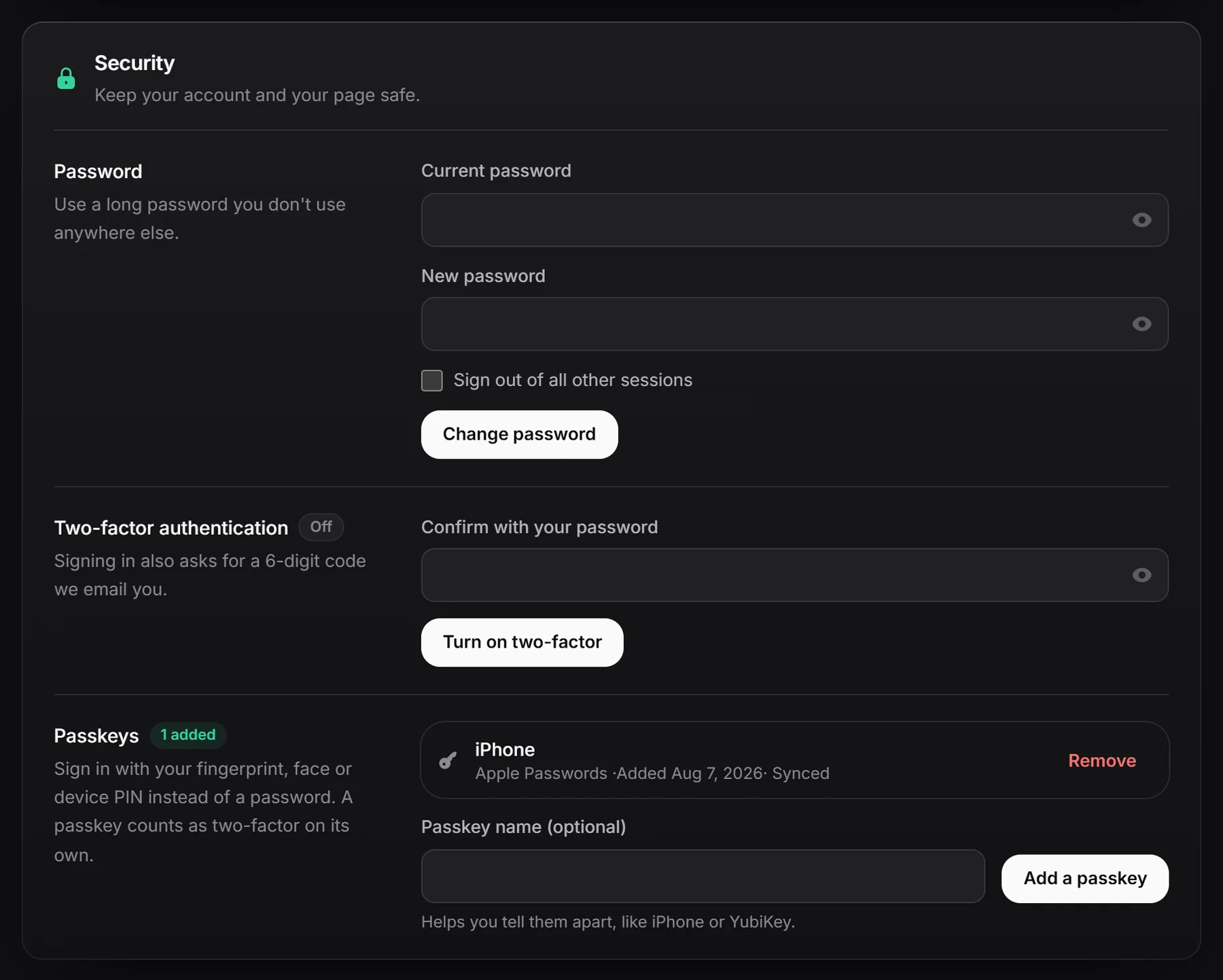
Change your password#
- Open Settings, Security.
- Enter your Current password and a New password (at least 8 characters).
- Optional: tick Sign out of all other sessions to sign out every other device.
- Click Change password.
Use a long password you don’t use anywhere else. The strength meter is only a guide.
Add a password to a Discord-only account#
If you only sign in with Discord, this section says “You sign in with Discord.” Enter a New password and click Set password. You can then also sign in with your email.
Forgot your password? See password reset.
Two-factor authentication#
With two-factor on, signing in with your email and password or with Discord also asks for a 6-digit code that we email you. Someone who knows your password still can’t get in without access to your email.
Turn it on#
- Open Settings, Security, Two-factor authentication.
- Enter your password in Confirm with your password.
- Click Turn on two-factor. The badge changes to On.
- Save the 10 Backup codes that appear (click Copy all). They’re shown only this once.
There’s no app to install and no QR code to scan. The code arrives by email each time you sign in.
Signing in with two-factor#
- The code expires after 3 minutes. You can ask for a new one after 30 seconds.
- Tick Trust this device for 30 days to skip the code on that browser for 30 days.
- Signing in with a passkey doesn’t ask for a code.
Backup codes#
Backup codes let you sign in when the email code can’t reach you. On the code screen, click Use a backup code and type one of them, with or without the dash.
- Each code works once.
- Lost them or used them up? Enter your password under Two-factor authentication and click New backup codes. You get 10 new codes and the old ones stop working.
Keep them somewhere safe, like a password manager. If you have no email access and no backup codes left, contact [email protected].
Turn it off#
Enter your password and click Turn off two-factor.
Passkeys#
A passkey signs you in with your fingerprint, face, device PIN or a security key, instead of a password. It counts as two-factor on its own.
Add a passkey#
- Open Settings, Security, Passkeys.
- Optional: give it a Passkey name, like “iPhone” or “YubiKey”.
- Click Add a passkey and confirm on your device.
You can also press Ctrl K and choose Add a passkey.
Each passkey in the list shows its name, where it’s stored (like iCloud Keychain), when you added it, and Synced if it’s shared across your devices.
Remove a passkey#
Click Remove, then Remove passkey. It can no longer sign in to your account.
Sessions#
Settings, Sessions lists every device signed in to your account:
- The browser and system, like “Chrome on Windows”.
- This device for the one you’re using.
- Part of the network address (like
81.196.12.*) and when it was last active.
- Click Sign out next to a device to end that session.
- Click Sign out of all other sessions to end all of them except this one.
To end the session you’re using, sign out from the account menu.