Links, badges and integrations
Game integrations
Set up VALORANT, League of Legends, FACEIT, Steam, Roblox, osu!, Overwatch, Genshin Impact, Clash of Clans, Clash Royale, Brawl Stars, Chess.com, Minecraft and FiveM, Minecraft and Counter-Strike servers.
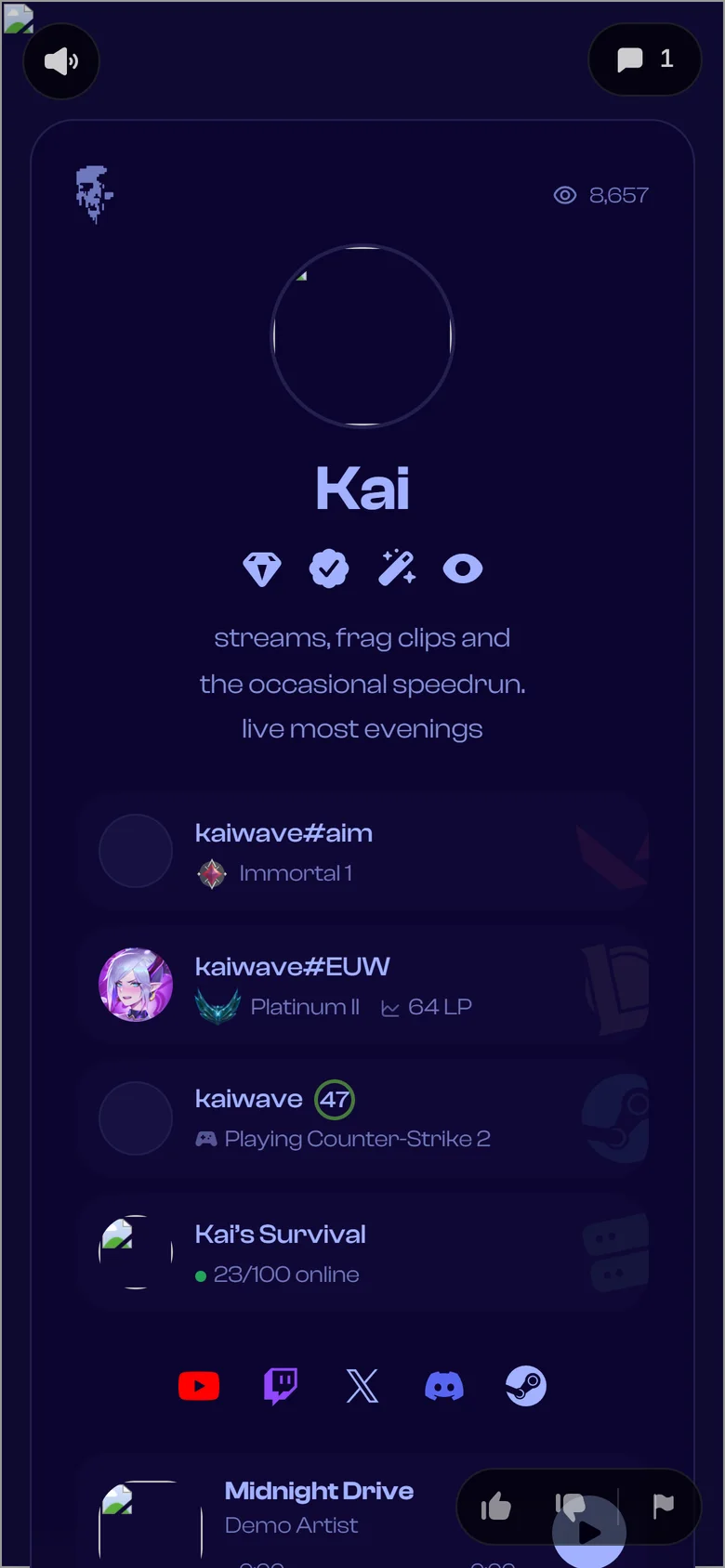
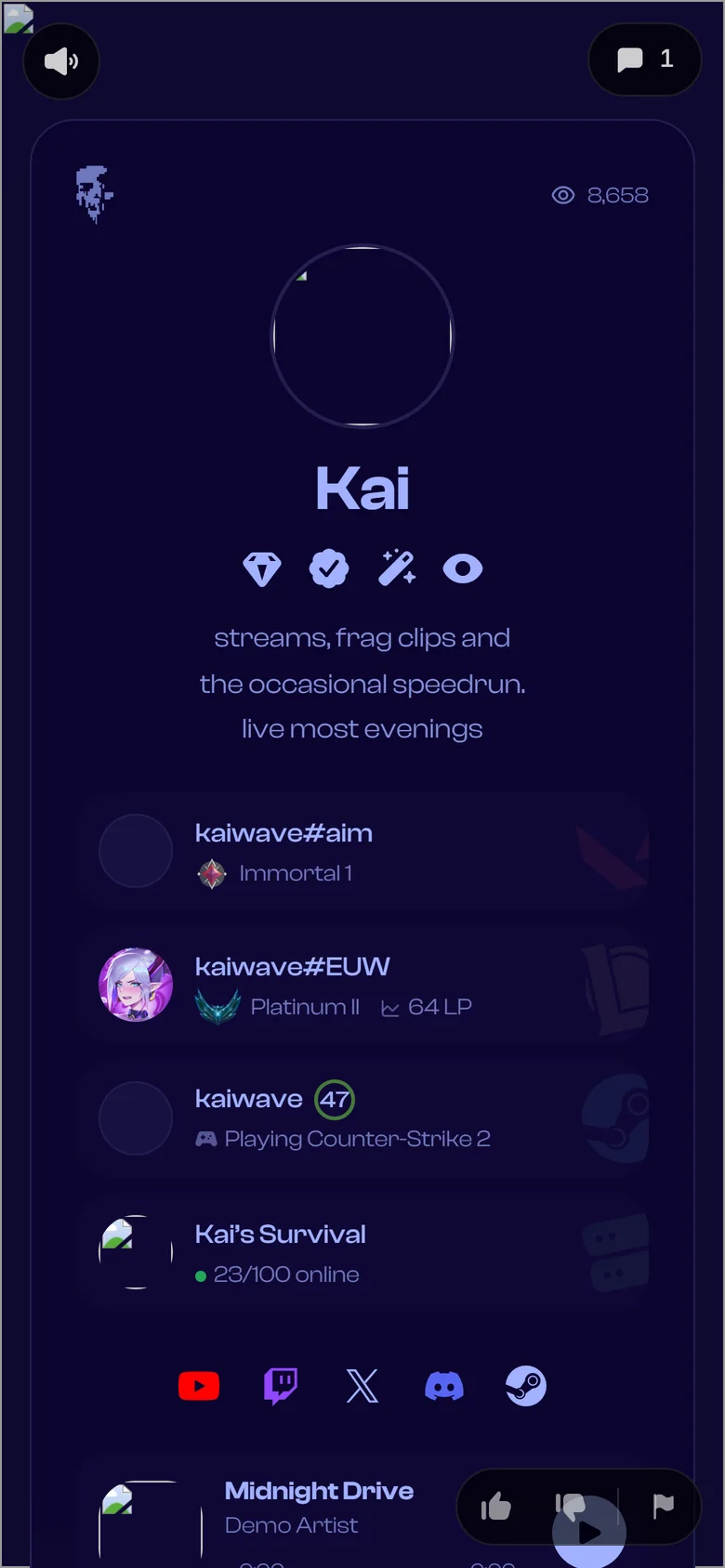
Show your ranks, stats and game servers with live cards. Add them from Integrations. For limits and how updates work, see Integrations.
VALORANT#
Your rank, peak rank and recent competitive games.
- Open Integrations, click Add integration and pick VALORANT.
- Enter your Riot ID as name,
#and tag, likesolitude#zzzz. Your region is found for you. - Click Add integration.
What the card shows: your player card, Riot ID and current rank (or Unranked), with the rank icon. If your peak rank is higher, its icon is shown.
Clicking it opens: your region and level, Ranks (current and peak with season), your last competitive games (record, K/D/A, ACS, headshot rate), Top agents and Accuracy.
If you change your Riot ID later, the card keeps working and shows your new name. It updates about every 3 hours.
League of Legends#
Your ranks, champion mastery and recent ranked games.
- Add the League of Legends integration.
- Enter your Riot ID, like
yourname#tag. - Pick your Region: EUNE, EUW, NA, KR, BR, JP, LAN, LAS, OCE, TR, RU, ME, SEA, TW or VN.
- Click Add integration.
What the card shows: your profile icon, Riot ID and solo queue rank with LP (or Unranked) and its emblem.
Clicking it opens: Ranked (solo and flex), Champion mastery, your last ranked games (record, K/D/A, CS per minute) and Top champions. Only ranked games count, and remakes are skipped.
A renamed Riot ID keeps working. It updates about every 3 hours.
FACEIT#
Your FACEIT level and CS2 ELO.
- Add the FACEIT integration.
- Enter your FACEIT nickname: 2 to 16 letters, numbers,
-or_. Capital letters matter. Your faceit.com profile link works too. - Click Add integration.
What the card shows: your avatar, nickname, country flag, CS2 ELO and level icon, over your FACEIT cover image. Clicking it opens your FACEIT profile. It updates about every 3 hours.
Steam#
Your Steam profile, level and games.
- Find your 17-digit Steam ID. It is in your profile address if it looks like
steamcommunity.com/profiles/76561198000000000. If your address uses a custom name (steamcommunity.com/id/...), look your ID up on steamid.io. - Add the Steam integration.
- Enter the ID or the
/profiles/link in Steam ID or profile link and click Add integration.
What the card shows: your avatar, name and Steam level, plus “Playing” and the game, or your status and how many games you own. If your game library is private, the game count is left out. Clicking it opens your Steam profile.
Your status updates about every 3 minutes, your level and game count about every 6 hours.
Roblox#
Your Roblox avatar, friends and followers.
- Add the Roblox integration.
- Enter your user ID (numbers only) or paste your profile link, like
roblox.com/users/123456789/profile. - Click Add integration.
What the card shows: your avatar, display name, friends and followers.
Clicking it opens: a verified check if you have one, friends, following and followers, About, Badges, a render of your avatar under Player, and Currently wearing with links to each item.
It updates about every 3 hours.
osu!#
Your osu! rank, pp and accuracy.
- Add the osu! integration.
- Enter your osu! username or user ID. Your osu.ppy.sh profile link works too.
- Click Add integration.
What the card shows: your avatar, name, country flag, global rank, pp and country rank.
Clicking it opens: Global rank and Country rank, Stats (accuracy, pp, play count, ranked score, total score) and Grades (SSH, SS, SH, S and A counts).
It updates about every 3 hours.
Overwatch#
Your competitive rank for each role.
- In Overwatch’s options, under Social, set your career profile visibility to Public. Without it, only your name and title show.
- Add the Overwatch integration.
- Enter your BattleTag, like
Name#12345. Capital letters matter. - Click Add integration.
What the card shows: your player icon and name over your name card, and your ranks for up to two roles (like “Tank Diamond 3 · Support Platinum 1”) with the icon of your best rank. Unranked players show Unranked, private profiles show their title or Private career profile. Clicking it opens your Overwatch career profile.
It updates about every 3 hours.
Genshin Impact#
Your adventure rank, world level and Spiral Abyss.
- Find your UID: the number in the bottom right corner of your game screen.
- Add the Genshin Impact integration, enter the UID and click Add integration.
What the card shows: your profile picture and nickname over your name card, with your adventure rank, world level and Spiral Abyss progress (like “AR 60 · WL 9 · Abyss 12-3”). Clicking it opens your profile on Enka.Network. It updates about every 3 hours.
Clash of Clans#
Your town hall, trophies and clan.
- In Clash of Clans, open your profile. Your player tag is under your name and starts with
#. - Add the Clash of Clans integration and enter the tag, like
#2PP. Lower case letters and a missing#are fixed for you. - Click Add integration.
What the card shows: your name, trophy league, trophies and town hall level, with your league badge (or your clan’s badge). Clicking it opens your stats on Clash of Stats. It updates about every 3 hours.
Clash Royale#
Your trophies, arena and Path of Legend rank.
- In Clash Royale, open your profile and copy your player tag (it starts with
#). - Add the Clash Royale integration, enter the tag and click Add integration.
What the card shows: your name, your Path of Legend rank when you have one, trophies and arena, with your arena or league badge (or your favourite card). Clicking it opens your stats on RoyaleAPI. It updates about every 3 hours.
Brawl Stars#
Your trophies and club.
- In Brawl Stars, open your profile and copy your player tag (it starts with
#). - Add the Brawl Stars integration, enter the tag and click Add integration.
What the card shows: your player icon, your name in its in-game colour, trophies and club. Clicking it opens your stats on Brawlify. It updates about every 3 hours.
Chess.com#
Your ratings for rapid, blitz and bullet.
- Add the Chess.com integration.
- Enter your Chess.com username (your profile link works too) and click Add integration.
What the card shows: your avatar, name, country flag and title (GM, IM, FM…) if you have one, and your rapid, blitz and bullet ratings. Clicking it opens your Chess.com profile. It updates about every 3 hours.
Lichess#
Your Lichess ratings for bullet, blitz, rapid and classical.
- Add the Lichess integration.
- Enter your Lichess username (your profile link, like
lichess.org/@/yourname, works too) and click Add integration.
What the card shows: your RAGE avatar (Lichess has no profile pictures), your name, country flag and title (GM, IM, FM…) if you have one, and your rating in each time control you have played. Time controls you never played are left out. Clicking it opens your Lichess profile. It updates about every 3 hours.
Dota 2#
Your Dota 2 rank medal, wins and losses, from OpenDota.
- In Dota 2, turn on Expose Public Match Data (Settings, Options, Social), so OpenDota can see your matches.
- Add the Dota 2 integration.
- Enter your Dota 2 friend ID, your 17-digit Steam ID, or a link to your OpenDota, Dotabuff or Steam profile (a
steamcommunity.com/profiles/link; custom/id/links can’t be used). - Click Add integration.
What the card shows: your Steam avatar, name and country flag, your rank medal with its stars (like Legend 4), your leaderboard place if you’re Immortal, and your wins, losses and win rate. Clicking it opens your OpenDota profile. Your rank updates about every 3 hours, wins and losses twice a day.
Speedrun.com#
Your best runs on Speedrun.com.
- Add the Speedrun.com integration.
- Enter your Speedrun.com username or profile link, like
speedrun.com/users/yourname. - Click Add integration.
What the card shows: your Speedrun.com picture (or your RAGE avatar if you never set one), name and country flag, and your best placed run: its place on the leaderboard, the game and category, and your time, with the game’s cover. Clicking it opens your Speedrun.com profile. It updates about every 3 hours.
Fortnite#
Your Fortnite wins, kills and K/D over all time.
- In Fortnite, make your stats public: Settings, Account and Privacy, turn on Show on Career Leaderboard.
- Add the Fortnite integration.
- Enter your Epic display name and pick how to look it up: Epic, or PlayStation or Xbox if your Epic account uses that name.
- Click Add integration.
What the card shows: a classic Fortnite outfit, always the same one for your account (Fortnite doesn’t share which outfits you wear), your name, total wins, K/D and win rate across every mode. Clicking it opens your stats on Fortnite Tracker. It updates about every 3 hours.
Apex Legends#
Your Apex Legends rank, level and the legend you play.
- Add the Apex Legends integration.
- Enter your Player name and pick your Platform. On PC, use your EA account name, not your Steam name.
- Click Add integration.
What the card shows: the face of the legend you picked last, your rank badge and rank (like Diamond 2), your level and that legend’s name. Clicking it opens your profile on Apex Legends Status. It updates about every 3 hours.
PUBG#
Your PUBG rank this season, or your wins and kills over all time.
- Add the PUBG integration.
- Enter your PUBG name exactly as in the game, capitals included, and pick your Platform: Steam, Kakao, PlayStation or Xbox.
- Click Add integration.
What the card shows: PUBG has no profile pictures, so while you play ranked the card shows your rank insignia, with the weapon you’ve mastered most on the right. Unranked, it shows that weapon in a yellow circle instead. While you play ranked this season, your tier (like Gold 3), rank points and KDA from the mode you play most. Otherwise your total wins, kills and games over all time. Clicking it opens your stats on OP.GG. Your rank updates about every 3 hours, the totals twice a day.
Minecraft#
Your Minecraft player with its skin.
- Add the Minecraft integration.
- Enter your Minecraft username (your Java Edition name) and click Add integration.
What the card shows: your skin’s face and your name. Clicking it opens your profile on NameMC. If you change your name, update it here too. It updates about every 3 hours.
FiveM server#
Your FiveM server with players online.
- Find your server’s join link, like
cfx.re/join/abc123. - Add the FiveM server integration.
- Enter the 6-character code or the whole link in Join code or link and click Add integration.
What the card shows: the server icon and name, and players online out of the maximum (or Offline). Clicking it connects to the server. It updates about every 3 minutes.
Minecraft server#
Your Minecraft server with players online.
- Add the Minecraft server integration.
- Enter the Server address, like
play.example.com. Add:portif it isn’t the usual 25565. - Click Add integration.
What the card shows: the server icon and name, and players online out of the maximum (or Offline). Clicking the card copies the server address for visitors. It updates about every 3 minutes.
Counter-Strike server#
Your Counter-Strike 2 server with players and map.
- Add the Counter-Strike server integration.
- Enter the Server address, like
cs.example.com:27015. Add:portif it isn’t the usual 27015. - Click Add integration.
What the card shows: the server name, players online out of the maximum and the current map (or Offline). Clicking it opens Steam and connects to the server. It updates about every 3 minutes.