Account
Signing in
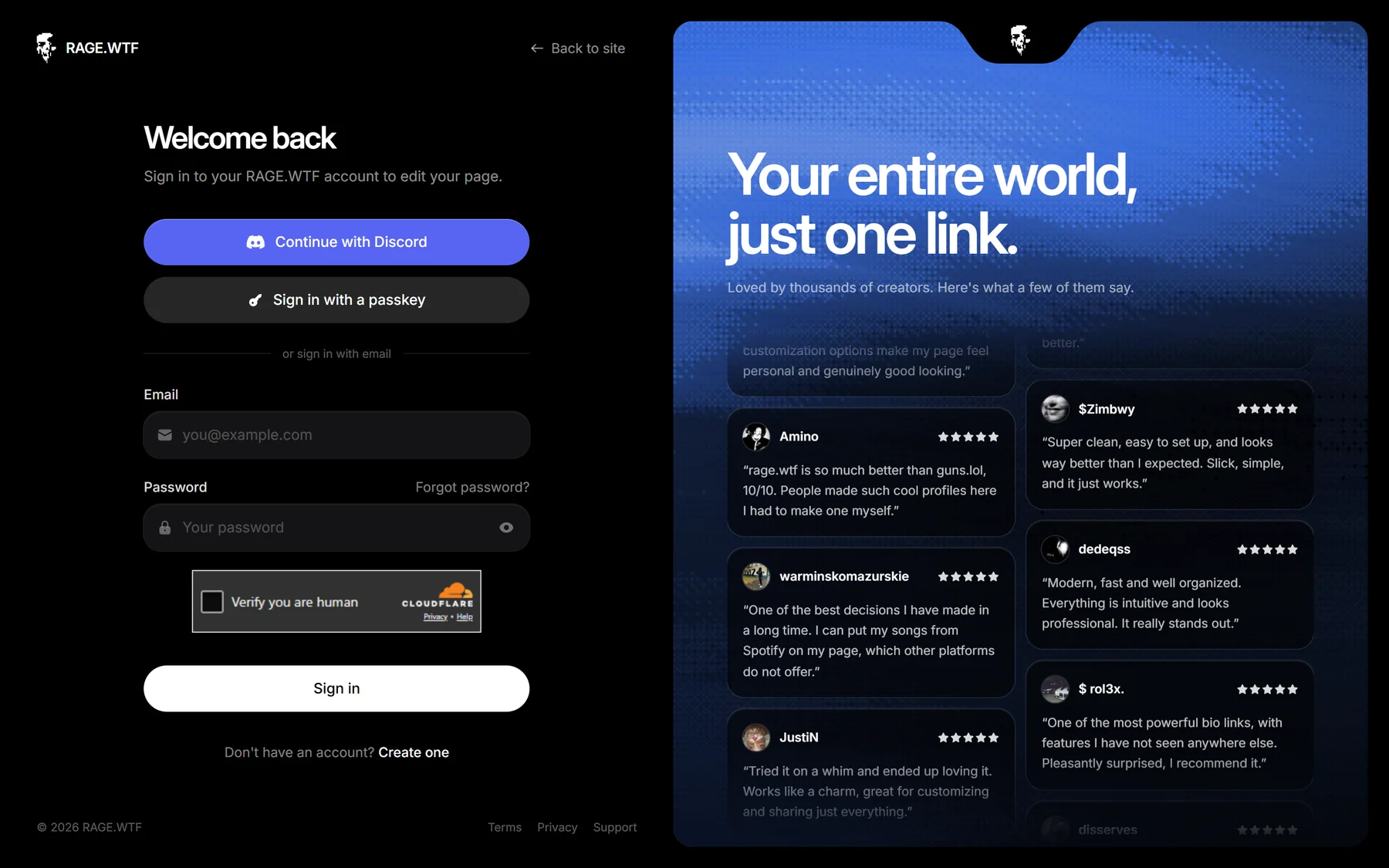
Sign in to RAGE.WTF with your email and password, Discord or a passkey, and enter your two-factor code.
You can sign in with your email and password, with Discord, or with a passkey. Sign-in always happens on rage.wtf/auth/login.
With email and password#
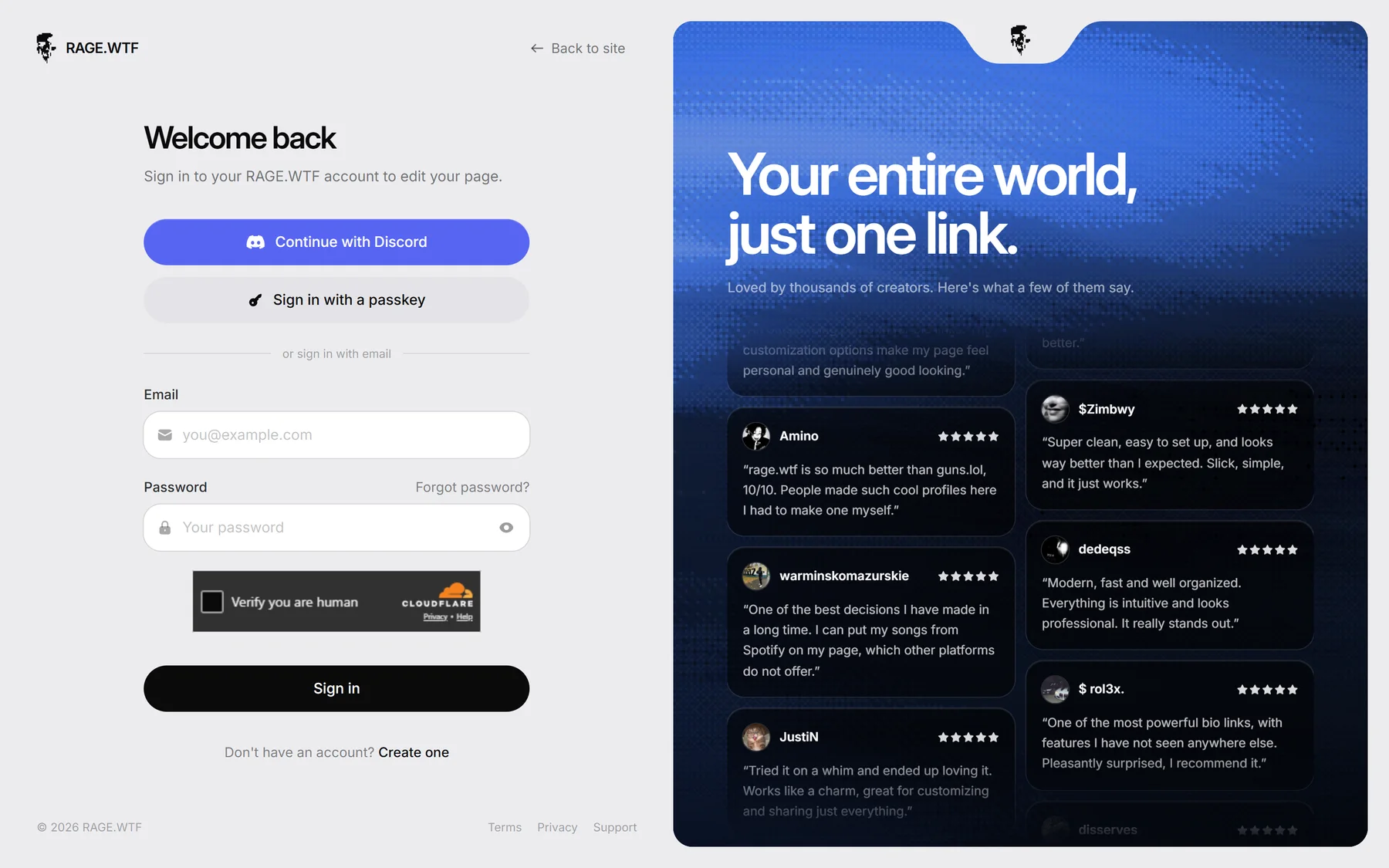
- Go to rage.wtf/auth/login, or click Log in in the top-right corner of the site.
- Enter your Email and Password.
- Click Sign in.
If two-factor is on, you’re asked for a code next (see below). The same goes for signing in with Discord.
- You stay signed in for 30 days, and every visit extends it.
- Forgot your password? Click Forgot password? next to the password label. See password reset.
- If you opened a dashboard link while signed out, you land on that page after signing in. With two-factor on, you land on the dashboard Home instead.
A security check runs in the background. Most people never see it; sometimes it asks you to tick a box first.
With Discord#
Click Continue with Discord and approve the request on Discord.
This works if you signed up with Discord or already linked Discord to your RAGE.WTF account. The sign-in page never makes a new account: if no account is linked, you see “No RAGE.WTF account is linked to that Discord yet.” Create one with Sign up with Discord on the sign-up page, or sign in with your email and connect Discord in Settings.
If your RAGE.WTF account has the same email as your Discord but Discord isn’t linked yet, you see “You already have a RAGE.WTF account with that Discord’s email.” Sign in with your email, then link Discord in Settings, Connections. For your safety, Discord is never linked just because the emails match.
With a passkey#
A passkey lets you sign in with your fingerprint, face, device PIN or a security key, with no password.
- Click Sign in with a passkey.
- Confirm on your device.
Some browsers also offer your saved passkey as soon as you click the Email field.
A passkey sign-in doesn’t ask for the emailed two-factor code, because the passkey already proves it’s you. To add a passkey, see security.
Enter your two-factor code#
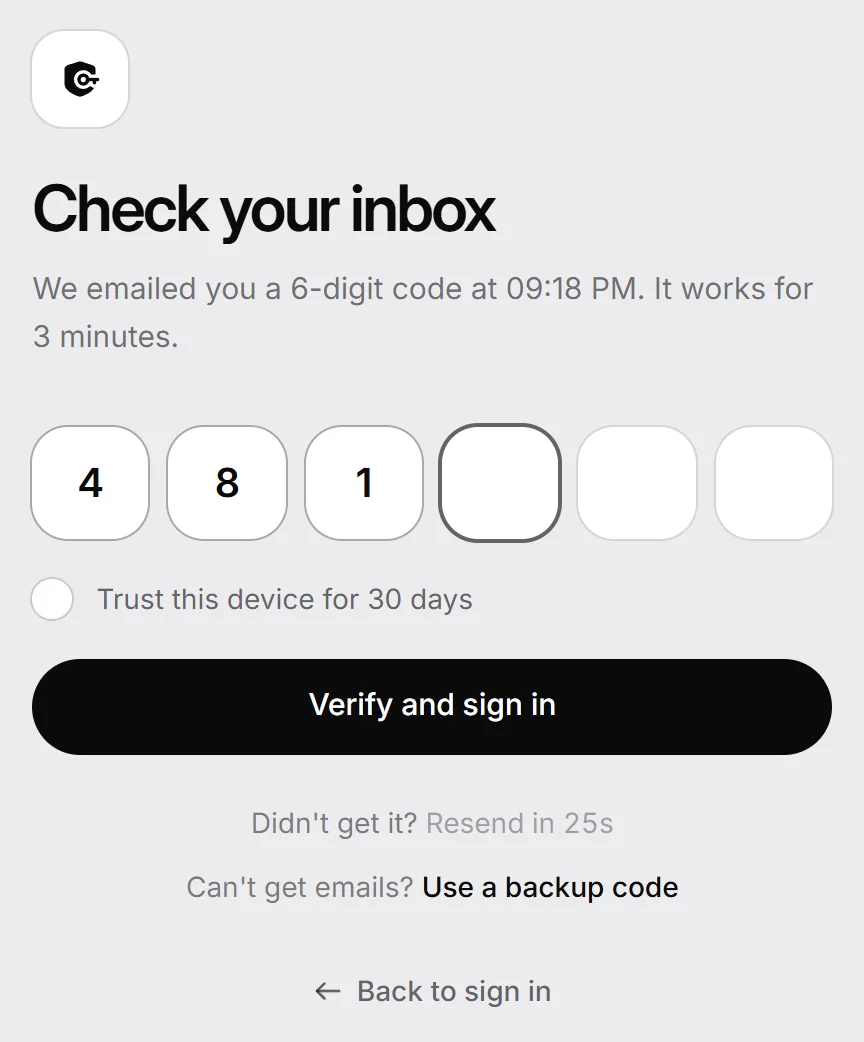
When two-factor is on, a correct password takes you to Check your inbox, and we email you a 6-digit code.
- Open the email “Your RAGE.WTF sign-in code is” followed by the code.
- Type the 6 digits. The form submits by itself when the last digit is in.
- Optional: tick Trust this device for 30 days so this browser doesn’t ask for a code for 30 days.
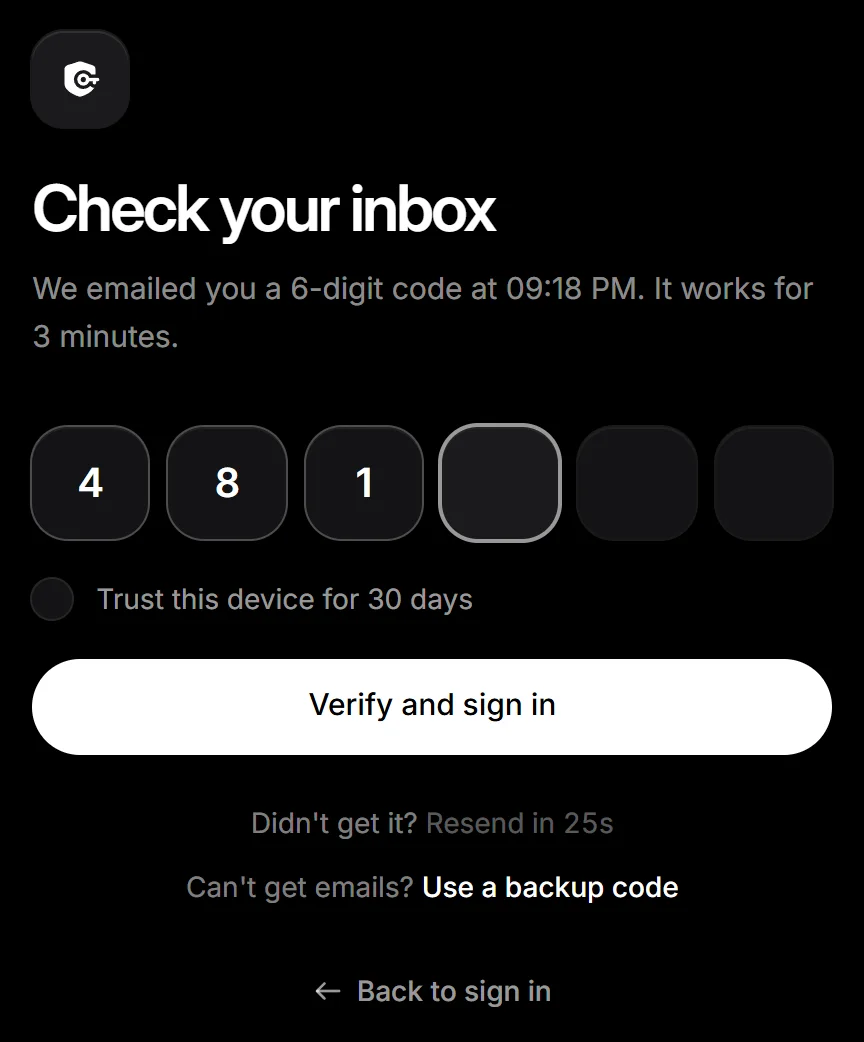
- The code expires after 3 minutes.
- The page shows when the code was sent. Refreshing it doesn’t send another one.
- Didn’t get it? Click Send a new code (available 30 seconds after the last one). A new code replaces the old one.
- After 5 wrong tries, send a new code.
- Can’t get the email? Click Use a backup code and enter one of the backup codes you saved.
If your account is suspended#
A suspended account can’t sign in or use the dashboard. After you enter your correct password, you see why and until when (or No end date). Once the suspension is over, the page says Your suspension is over and you can sign in again.
Think it’s a mistake? Email [email protected] from the address on your account, with your username, or ask on our Discord.
Sign out#
Open the account menu (your avatar) and choose Sign out of your account. If you use more than one account, Sign out of all accounts signs out every account on that browser.
To sign out other devices, use Sessions in security.