Your profile
Tab title animation
Animate your page's name in the browser tab with one of 11 free animations, like Typewriter, Glitch or Sparkle.
The tab title is the name of your page in the visitor’s browser tab. You can make it move.
Pick an animation#
- In the dashboard, open Profile, then Effects.
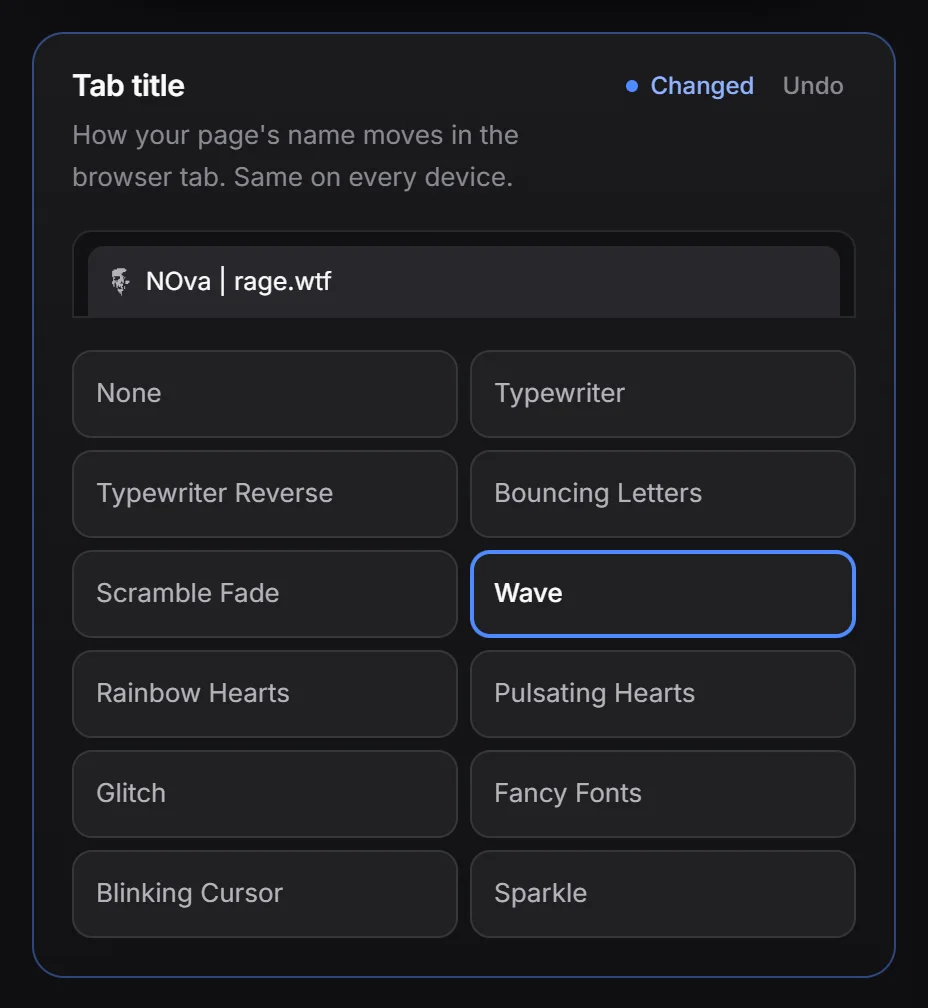
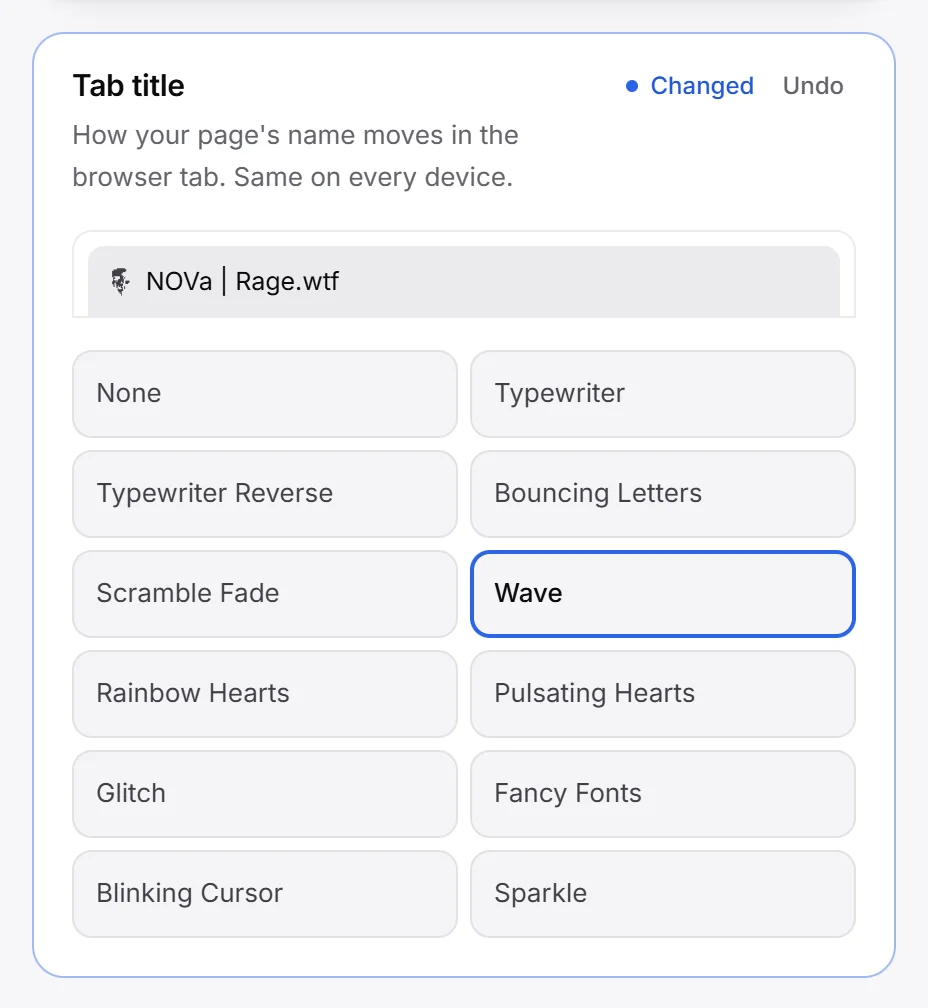
- Scroll to Tab title. A small browser tab at the top of the box shows the animation.
- Pick one of the 11 animations: Typewriter, Typewriter Reverse, Bouncing Letters, Scramble Fade, Wave, Rainbow Hearts, Pulsating Hearts, Glitch, Fancy Fonts, Blinking Cursor or Sparkle. None keeps the title still.
- Press Publish.
All animations are free, and the setting is the same on every device.
Visitors mostly see your tab title while they are on another tab, where browsers slow animations down to about one step a second. Glitch, Fancy Fonts, Blinking Cursor and Sparkle still look right at that speed; the typing animations turn jumpy.
Fancy Fonts uses special Unicode letters. They work for English letters and digits (small caps only for lowercase), and look slightly different on each system.
Which title is animated#
Your page’s title is your display name, your @username and RAGE.WTF, for example “David (@david) | RAGE.WTF”. Your username is left out if it is the same as your display name, or if you hid your name on your card.
With Premium, you can set your own title under Sharing, and that title is the one that moves. See link previews.
Visitors who turned off animations in their system settings see the plain title.