Links, badges and integrations
Discord, web and custom integrations
Set up the Discord, Discord server, Website, GitHub, Weather, Local time, Countdown, Calendar and Custom card integrations and see what each card shows.
These integrations show your Discord profile, your Discord server, any website, your GitHub account and contributions, the weather or the time in your city, a countdown to a date, your upcoming events from a public calendar, or a card you design yourself. Add them from Integrations. For limits and how updates work, see Integrations.
Discord#
Your Discord profile with badges, and your live status and activities.
Set it up#
- In Discord, open Settings, then Advanced, and turn on Developer Mode.
- Right-click your name (or tap and hold on a phone) and pick Copy User ID.
- On RAGE.WTF, open Integrations, click Add integration and pick Discord.
- Paste the number into Discord user ID (17 to 20 digits) and click Add integration.
Show your live status#
Your name, avatar, badges and profile details show without anything else. For your online status and what you’re doing right now:
- Link your Discord account in Settings. See Connections.
- Join the RAGE.WTF Discord server and stay in it.
What the card shows#
- Your display name (in your Discord name style),
@usernameand avatar with its decoration. - Your status icon, server tag, nameplate and up to 12 Discord badges.
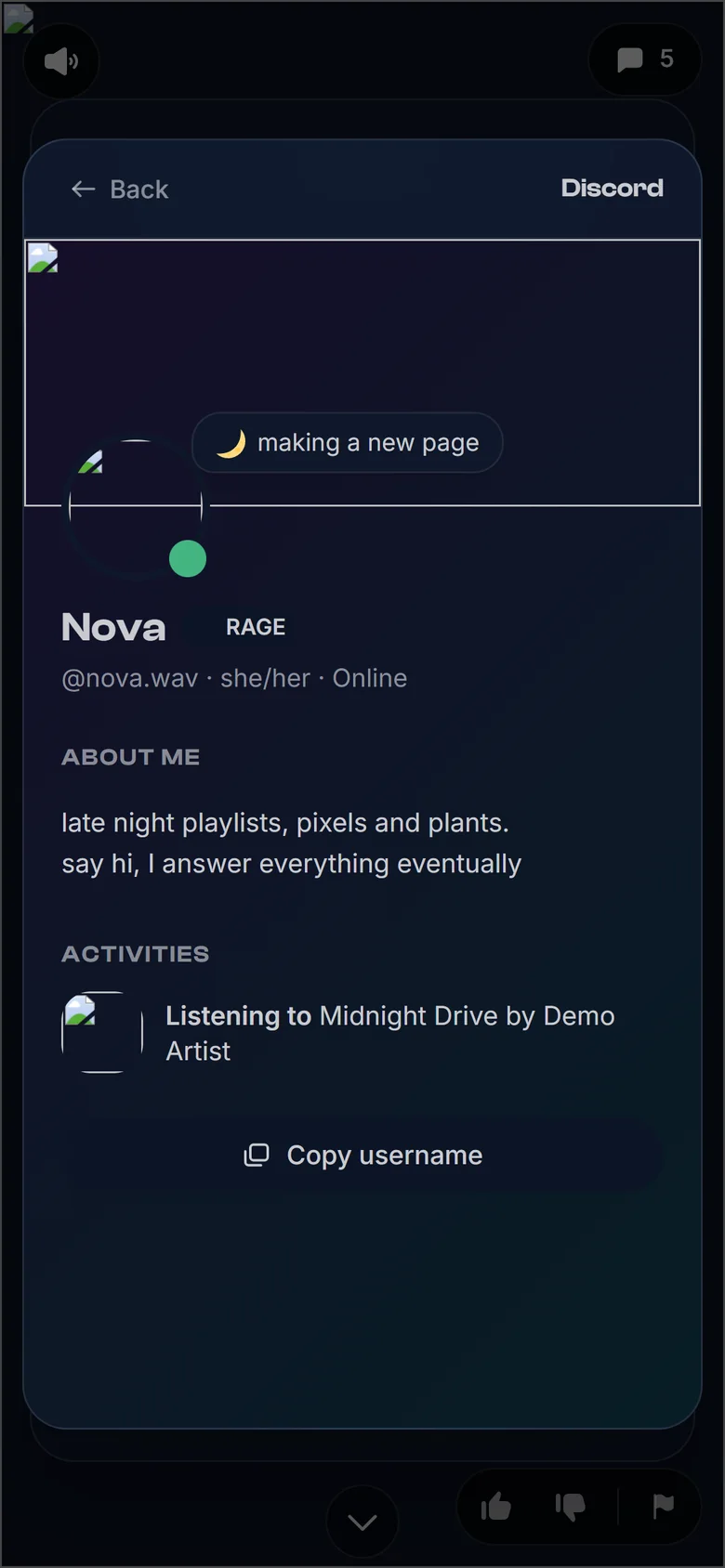
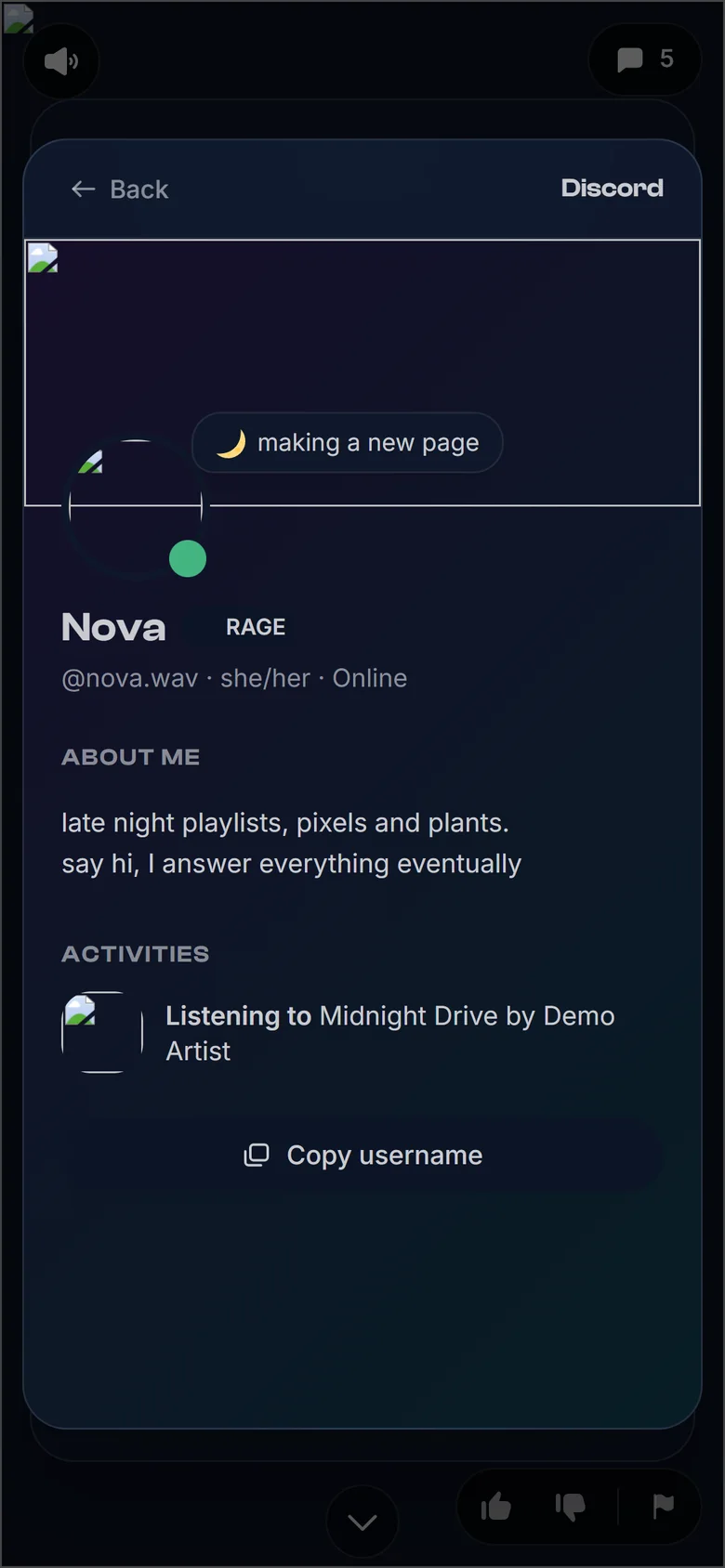
Clicking it opens a Discord-style view: banner and theme colours, profile effect, custom status, pronouns, all your badges, About me, Activities (playing, listening, watching) and a Copy username button.
Discord server#
Your server with its members online and a join button.
- In Discord, create an invite for your server and set it to never expire.
- On RAGE.WTF, add the Discord server integration.
- Paste the invite into Invite link or code, like
discord.gg/ABCD1234or justABCD1234, and click Add integration.
What the card shows: the server icon and name, and how many members are online and in total. Clicking it opens the invite. It updates about every 3 minutes.
Website#
A card for any website, with its icon, title and a short description.
- Add the Website integration.
- Enter the Website address, like
example.com.https://is added if you leave it out. - Optionally fill in:
- Title: up to 80 characters. Without it, the site’s address is shown.
- Description: one short line, up to 160 characters. Without it, the address is shown.
- Icon address: a link to a
.png,.jpgor.icoimage. Leave it empty to use the site’s own icon.
- Click Add integration.
What the card shows: the icon (a globe if it doesn’t load), the title and the description. Visitors confirm before leaving for a site outside rage.wtf.
GitHub#
Your GitHub profile with repos and followers, and your contribution graph if you want it.
- Add the GitHub integration.
- Enter your GitHub username (your profile link or
@nameworks too). - Optionally turn on Show contribution graph.
- Click Add integration.
What the card shows: your avatar, @username, public repo count and followers. Clicking it opens your GitHub profile. It updates about every 3 hours.
With Show contribution graph on, the card also shows your contributions over the last year, as on your GitHub profile: a square per day, greener the busier the day, and your total for the year. Hover a square to see that day’s count. The card then takes the full width of your page. Private contributions count only if you turned on Include private contributions on my profile on GitHub.
Weather#
The weather in your city right now, on a card whose colours and sky match it: sun, clouds, rain, snow, fog or storms, and a moon at night.
- Add the Weather integration.
- Enter your City, like
Bucharest. If the name is common, add the country or region after a comma, likeParis, US. - Pick the Units: °C and km/h, or °F and mph.
- Pick the Card size:
- Small: a row like your other integrations.
- Medium: one line across the full width of your card.
- Large (the default): a tall card across the full width.
- Click Add integration.
What the card shows: the temperature, the current condition (like “Partly cloudy” or “Clear night”) and your city, with the local time there. Medium and large cards also show the date. It updates about every 30 minutes and is free for everyone.
Local time#
What time it is where you are, so visitors know when you’re around.
- Add the Local time integration.
- Pick your Time zone. It starts as your device’s own. Pick the city that shares your time zone.
- Optionally enter a Place name, like
Bucharest. Leave it empty to use the time zone’s city. - Pick the Clock: 24-hour or 12-hour.
- Click Add integration.
What the card shows: your place name, the time there (updated every second), the day of the week with a sun or a moon for day or night, and the time zone’s offset from UTC, like UTC+3. Daylight saving time is taken care of.
Countdown#
Days, hours and minutes to a date: a birthday, an event or a release.
- Add the Countdown integration.
- Enter What it counts to, like
My birthday(up to 40 characters). - Pick the Date, and optionally a Time. Without a time it counts to the start of the day.
- Pick the Time zone the date and time are in. It starts as your device’s own. Visitors everywhere count to the same moment.
- Turn on Every year for a birthday or anniversary, so it counts to the next one each year.
- Click Add integration.
What the card shows: the title, the date, and the time left, like 85d 6h, then hours and minutes, then minutes and seconds in the last hour. On the day itself it says Today! all day. A one-off date that has passed shows how many days ago it was. A 29 February date counts to 28 February in other years.
Calendar#
Your upcoming events from a public calendar: Google, Apple, Outlook or any iCal link.
- Find your calendar’s public iCal link. In Google Calendar: open Settings, pick your calendar and copy Public address in iCal format. The calendar must be public.
- On RAGE.WTF, add the Calendar integration.
- Paste the link into Public calendar link. Links that start with
webcal://work too. Plainhttp://links don’t. - Optionally fill in a Name (up to 60 characters). Without it, the calendar’s own name is shown.
- Click Add integration.
What the card shows: a row with the calendar’s name (or the name you typed) and your next event: its title and when it starts, like “Today 20:00”, “Tomorrow” or “Fri 20 Sep 20:00”. While an event is happening, it says “Now” with a red NOW pill. With no events ahead, it says “Nothing coming up”. Times show in each visitor’s own time zone.
Clicking the card opens a panel with all your upcoming events, grouped by day with month headings. It updates about every 30 minutes.
What is read from your calendar:
- Events in the next 180 days, up to 40.
- Repeating events (daily, weekly, monthly or yearly, including ones like “every other week” or “last Friday of the month”, and ones that stop after a number of times or on a date).
- Cancelled events and removed dates are left out. When you change a single date of a repeating event, the changed one shows instead.
Custom card#
Your own card, just the way you want it. Every part is optional.
- Add the Custom card integration.
- Pick the Card size: Small (a row like your other integrations), Medium (one line across the full width, the default) or Large (a tall card with room for the cover).
- Fill in what you want:
- Cover art: a picture that fills the card behind the words.
- Icon: a small square picture next to the title.
- Title: up to 40 characters.
- Second line: up to 80 characters.
- Link: where the card goes when clicked, like
example.com. Leave it empty for a card that doesn’t open anything. - Colour: a hex colour like
#8b5cf6, for the card when it has no cover and for the icon’s tile. - Show the faint mark: the big faint icon at the right edge that other integration cards have. Off by default.
- Click Add integration.
Cover art and icons can be PNG, JPG, GIF or WebP, up to 3 MB (10 MB with Premium). See Upload limits.
What the card shows: exactly what you filled in. Visitors confirm before leaving for a link outside rage.wtf. The card has nothing to look up, so it shows on your page as soon as you save.