Your profile
Music on your page
Add up to 10 songs with lyrics to your page, choose where the player sits, how it looks, and turn on the audio visualizer.
Your page can play up to 10 songs. They start when a visitor clicks your enter screen and keep playing until they leave or pause.
Add a song#
- In the dashboard, open Profile, then Music.
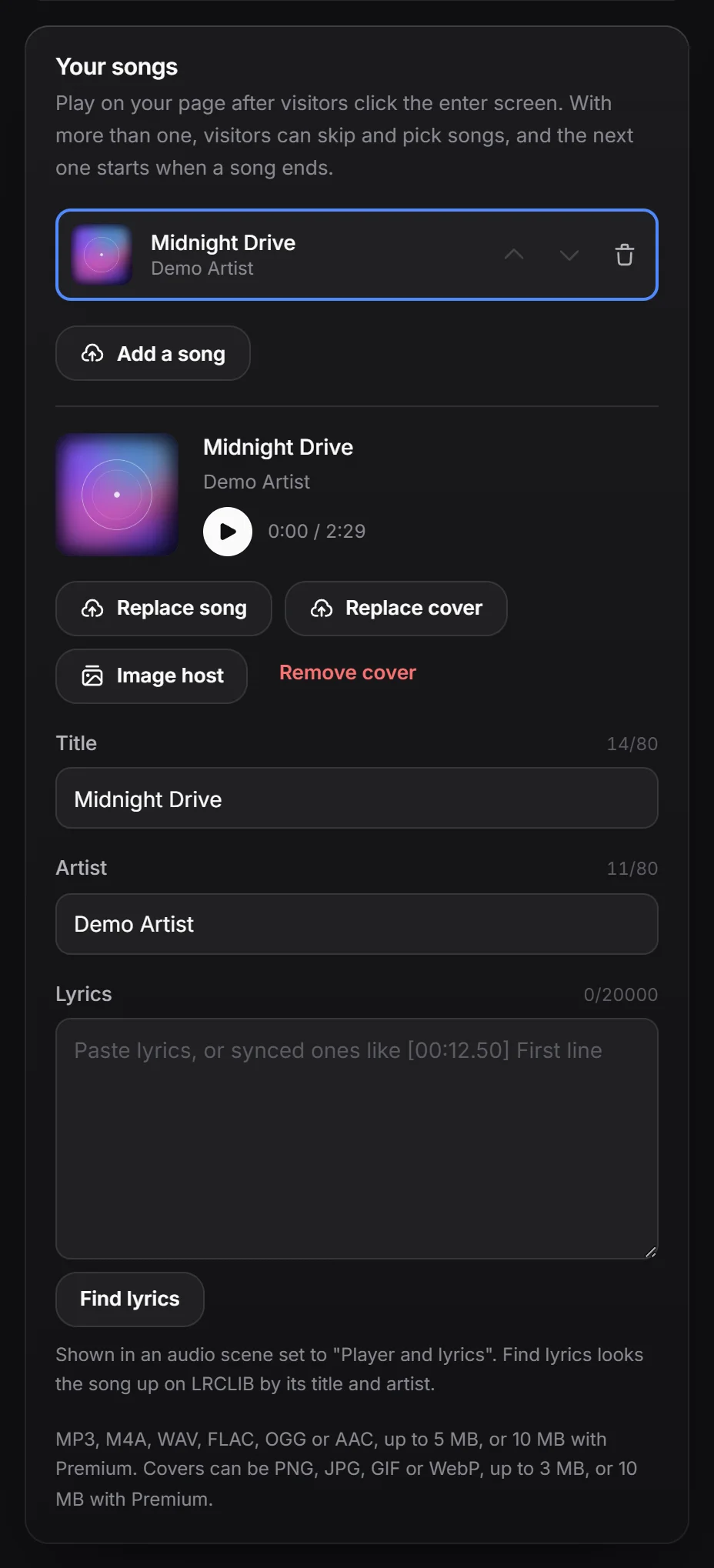
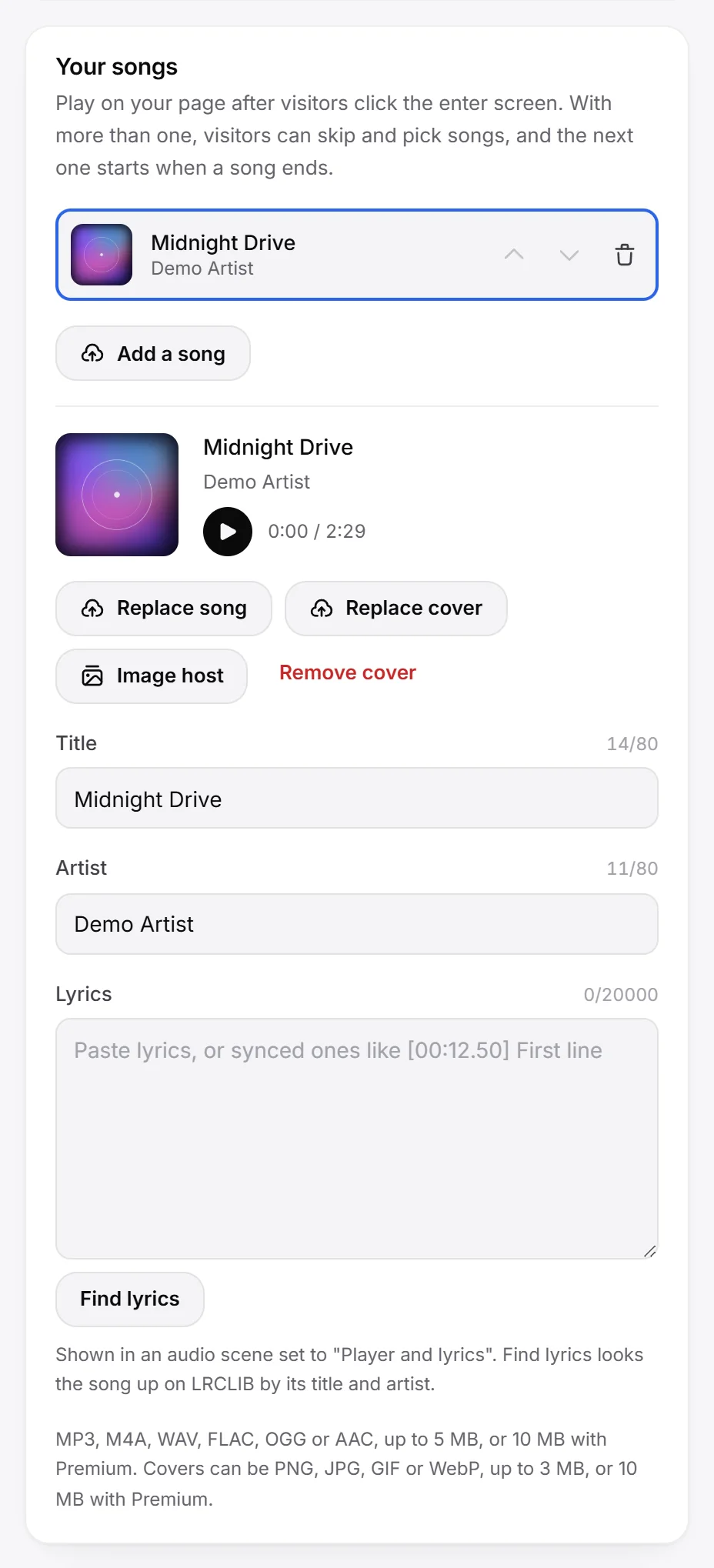
- Under Your songs, click Upload a song (or Add a song once you have one) and pick a file.
- The Title is filled in from the file name. Change it if you like and add an Artist.
- Click Add cover to give the song a picture.
- Press Publish in the bar at the bottom. Nothing goes live until you do (see the profile editor).
You can listen to a song right in the editor with the play button next to its title.
| Free | Premium | |
|---|---|---|
| Songs | Up to 10 | Same |
| Song formats | MP3, M4A, WAV, FLAC, OGG, AAC | Same |
| Song size | Up to 5 MB | Up to 10 MB |
| Cover formats | PNG, JPG, GIF, WebP | Same |
| Cover size | Up to 3 MB | Up to 10 MB |
| Title and artist | Up to 80 characters each | Same |
| Lyrics | Up to 20,000 characters per song | Same |
Uploading songs is free. See upload limits for every file limit on your page.
Your songs#
Your songs lists every song in the order they play.
- Use the up and down arrows to change the order.
- Click a song to edit it: Replace song swaps the file and keeps your title, artist and cover, Replace cover or Remove cover changes the picture, and you can change the Title and Artist.
- Click a song’s delete button and confirm to remove it.
How songs play#
- With one song, it loops.
- With more than one, the next song starts when one ends. The players in the card, under the card and in an Audio player scene get previous and next buttons and a song list button, so visitors can skip and pick songs.
- Every player on your page stays in sync: they all show the same song at the same spot.
Lyrics#
Each song has a Lyrics box. The lyrics show in an Audio player scene set to Player and lyrics.
- Plain lyrics: paste the words, one line per line. They just show.
- Synced lyrics: paste LRC lines with a time in front, like
[00:12.50] First line. The scene highlights the line being sung, fills it in word by word and scrolls with the song.
For exact word timing, put a time in front of each word too, like [00:12.50] <00:12.50> First <00:13.10> line. Without word times, the line’s time is spread over its words by their length.
To fill the box for you, click Find lyrics. It looks the song up on LRCLIB by its title, artist and length. Check the lyrics are right before you publish. Clear empties the box.
Choose where the player sits#
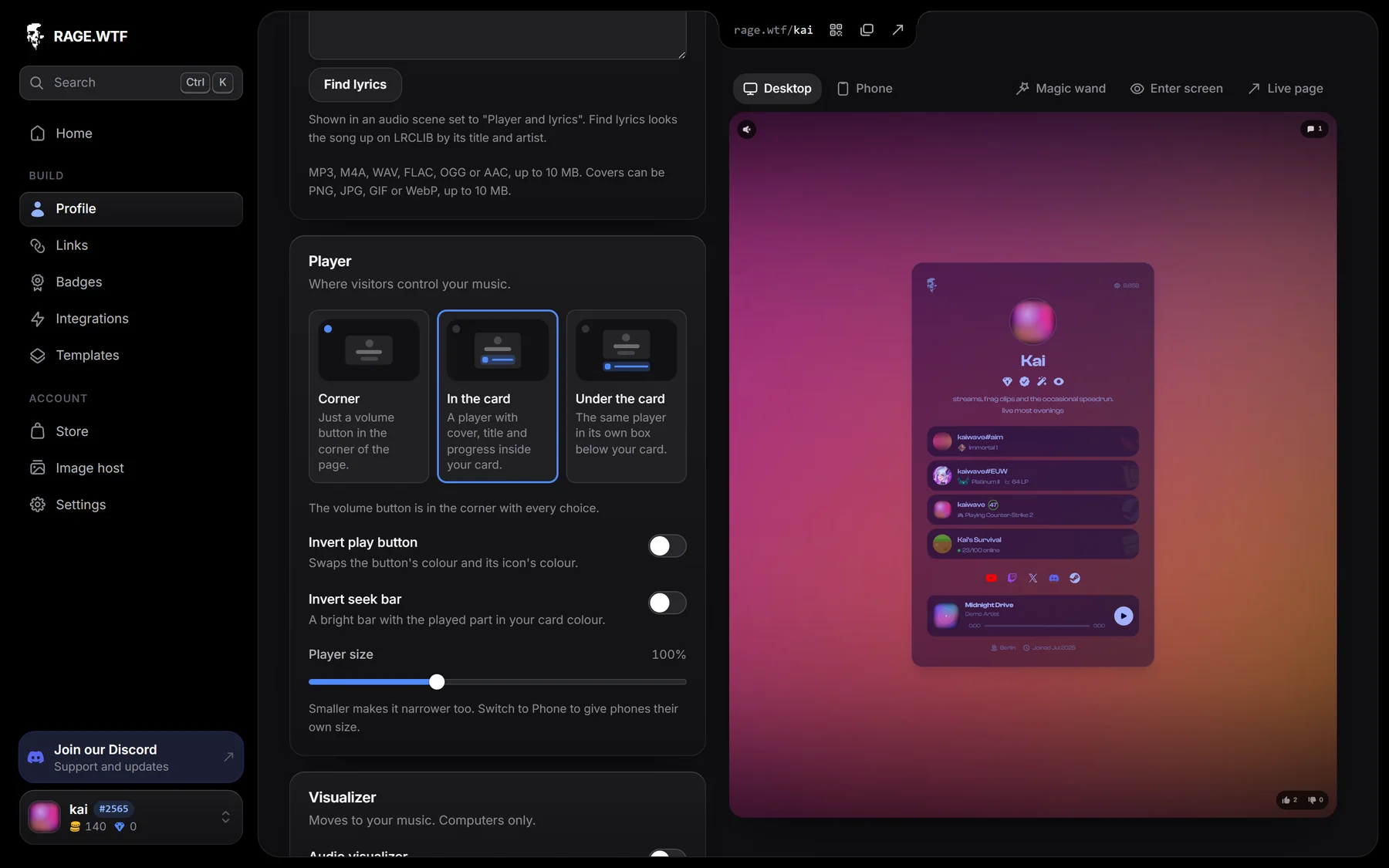
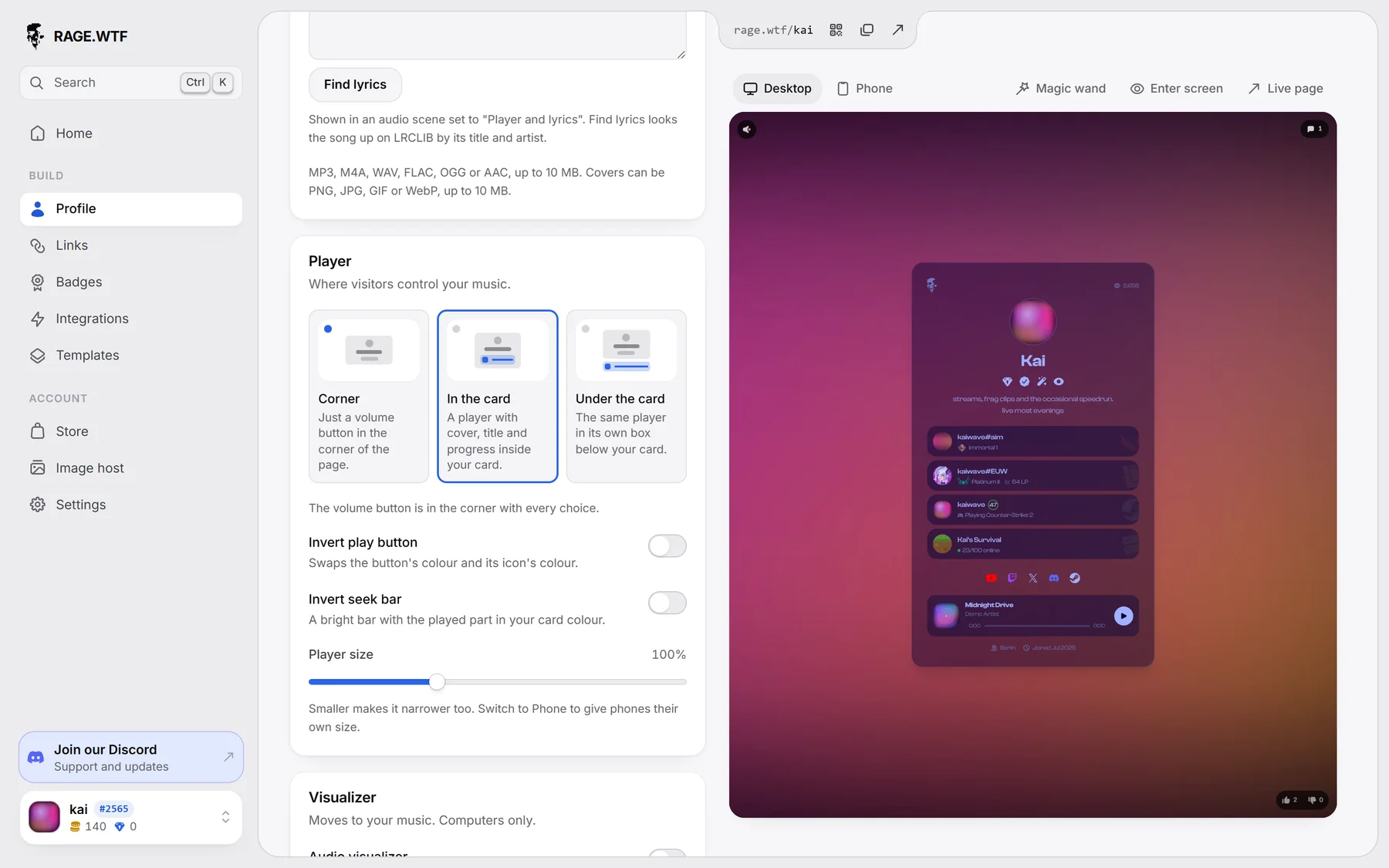
Under Player, pick one of three places:
| Option | What visitors see |
|---|---|
| Corner | Just a volume button in the corner of the page, with no skipping. This is the default. |
| In the card | A player with cover, title and progress inside your card. |
| Under the card | The same player in its own box below your card. |
With every choice, a volume button sits in the top left corner of your page. Visitors hover or tap it to open a volume slider, or click it to mute. The volume starts at 50%.
The player shows a cover (or a music icon), the title (“Untitled track” if you left it empty), the artist, the time, a seek bar visitors can click or drag, and a play and pause button.
Style the player#
These settings show when the player is In the card or Under the card:
- Invert play button swaps the button’s colour and its icon’s colour.
- Invert seek bar makes the bar bright, with the played part in your card colour.
The player takes its colours from your card style, so it always matches your card.
Change the player size#
Use the Player size slider (50% to 200%). A smaller player also gets narrower. The size is part of the magic wand, so you can also resize the player there, and move it when it is in the card. Under the card it can be resized but not moved.
Player size follows the device switch, so phones can have their own size. Switch the editor to Phone to set it (see desktop and phone).
Use your background video’s sound#
If you have no song and your background is a video (MP4 or WebM), the video’s own sound plays once a visitor clicks the enter screen. The corner volume button controls it.
If you do have a song, the background video keeps playing muted and your songs play instead.
On phones#
- Your songs, the player placement and the invert switches are the same on computers and phones.
- Only Player size can be set separately for phones.
- If phones have their own background video and you have no song, phone visitors hear that video.
- The audio visualizer does not show on phones.
Audio visualizer#
The visualizer draws bars along the bottom of the screen that move with your music. It shows on computers only.
- In Music, go to Visualizer.
- Turn on Audio visualizer.
- Pick a Bar colour (white by default) and set Bar opacity (0% to 100%).
- Press Publish.
It follows your songs, or your background video’s sound when you have no song. With neither, there is nothing for it to move to. Visitors who have reduced motion turned on in their system settings don’t see it move.
If your Premium ends, the setting stays saved but the visualizer is hidden until you have Premium again.
Related#
- Enter screen: the click that starts your music.
- Scenes: add an Audio player scene for a big player with lyrics on its own screen.
- Trying Premium: how Premium settings work in the editor.