Your profile
Custom cursor and trails
Upload your own mouse pointer image for your page and add a trail that follows it. Both are free.
Visitors on a computer can see your own pointer image and a trail that follows the mouse. Phones and tablets have no mouse pointer, so they show neither.
Upload a cursor#
- In the dashboard, open Profile, then Effects.
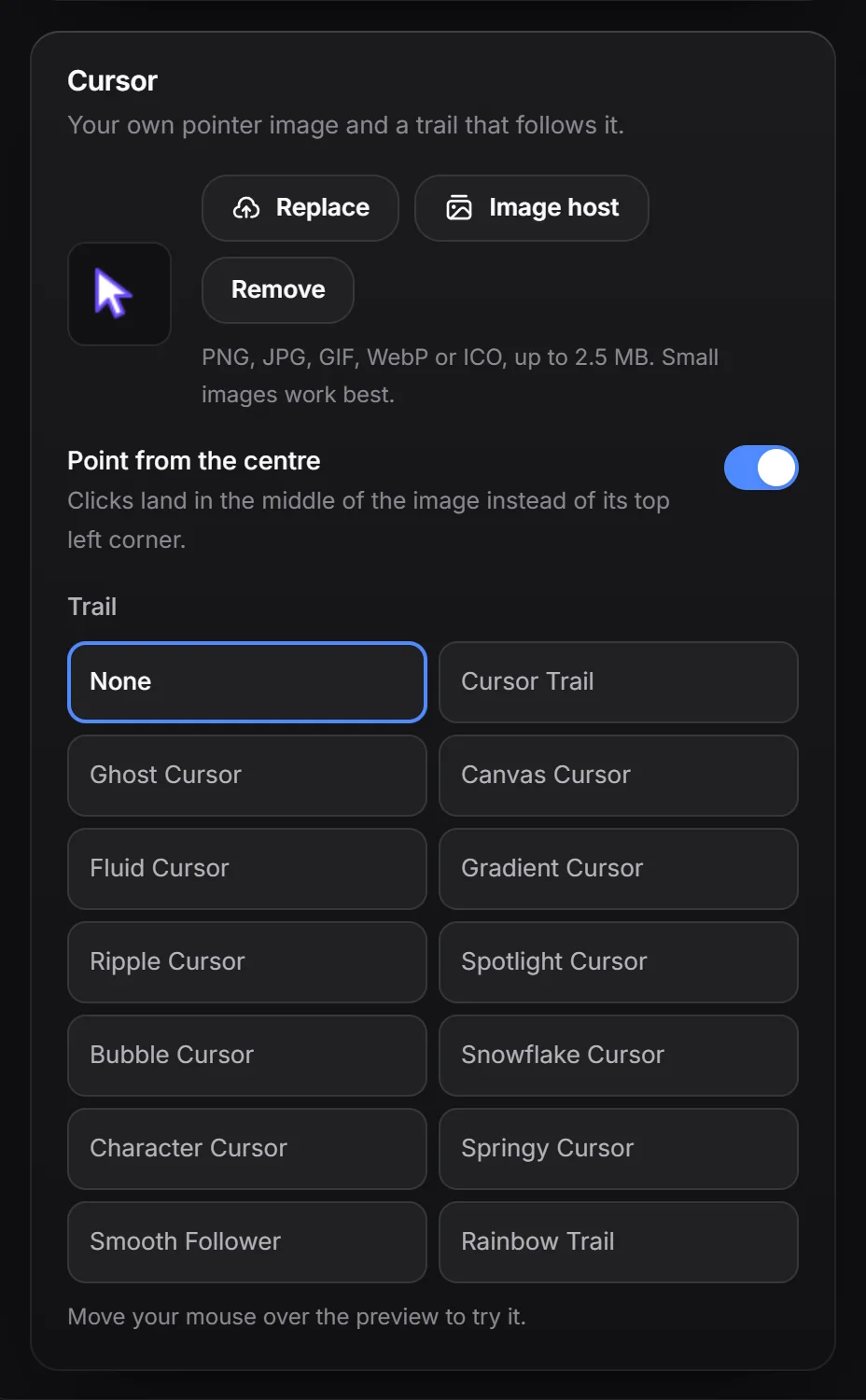
- Under Cursor, click Upload cursor and pick an image.
- Move your mouse over the preview to try it.
- Press Publish.
| Free | Premium | |
|---|---|---|
| Formats | PNG, JPG, GIF, WebP, ICO | Same |
| Size | Up to 2.5 MB | Up to 5 MB |
- Your image is drawn at 28 by 28 pixels, so small, square images work best.
- Animated GIFs play.
- Click Replace to change it, or Remove to go back to the normal pointer.
Point from the centre#
By default, clicks land on the top left corner of your image, like a normal arrow. For a round or centred image, turn on Point from the centre so clicks land in the middle.
Add a trail#
Under Trail, pick one of the 13 trails: Cursor Trail, Ghost Cursor, Canvas Cursor, Fluid Cursor, Gradient Cursor, Ripple Cursor, Spotlight Cursor, Bubble Cursor, Snowflake Cursor, Character Cursor, Springy Cursor, Smooth Follower or Rainbow Trail. None turns the trail off. All trails are free.
Cursor Trail and Ghost Cursor leave a trail of your own cursor image if you uploaded one.
Trail colours#
These trails can use your own colours: Canvas Cursor, Gradient Cursor, Fluid Cursor, Character Cursor and Rainbow Trail blend from one colour to a second one, Bubble Cursor takes an outline and a fill colour, and Ripple Cursor, Spotlight Cursor and Smooth Follower take one colour. Pick one of them, turn on Own colours and choose the colours. Turn it off to go back to the trail’s own colours. Trail colours are free.
Trails don’t show for visitors who turned off animations in their system settings. Your cursor image still does.