Your profile
The profile editor
How the profile editor works - sections, the live preview, drafts that save on their own, and publishing your changes.
The profile editor is where you change everything about how your page looks. Your changes save on their own as a private draft, and nothing goes live until you press Publish.
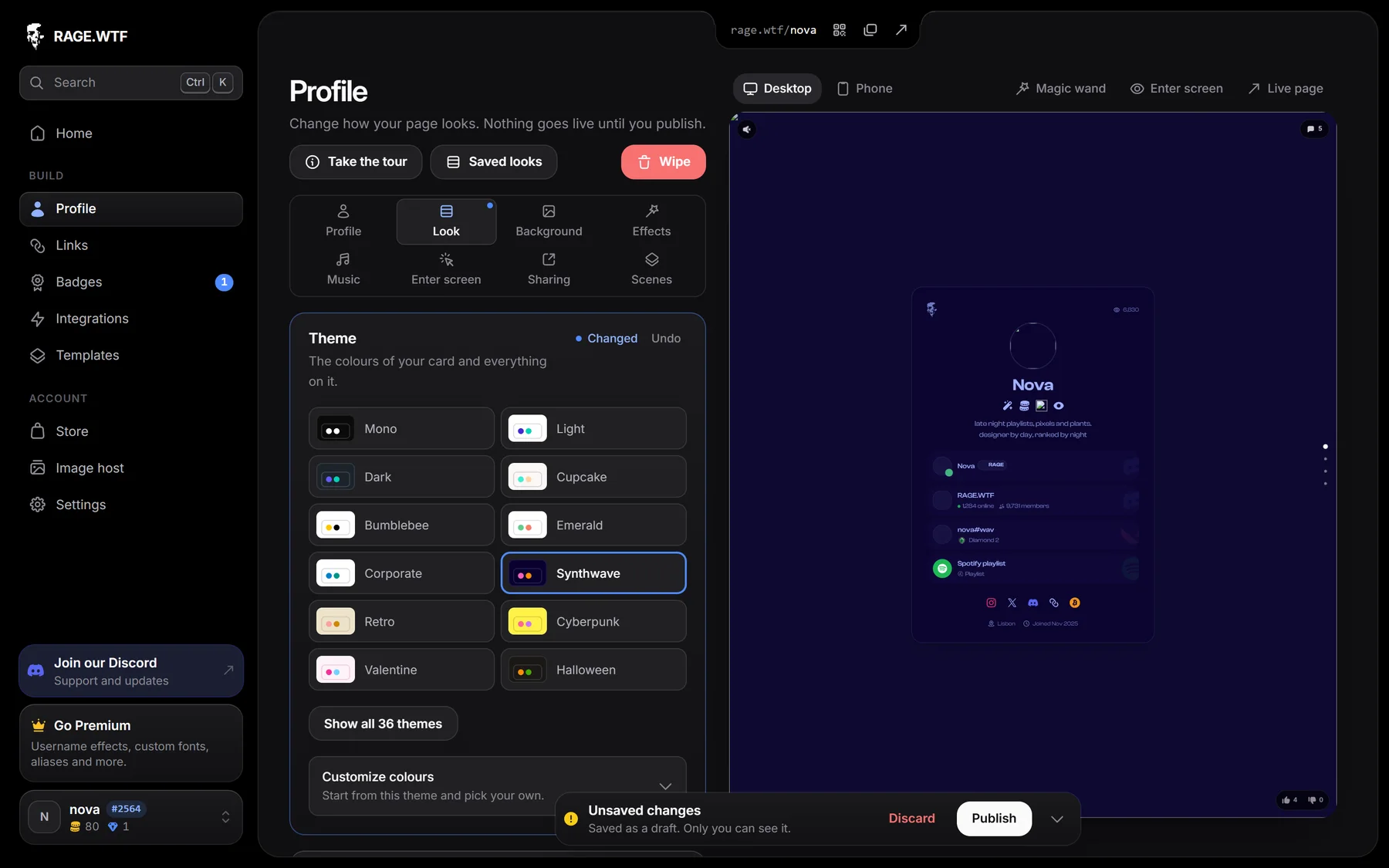
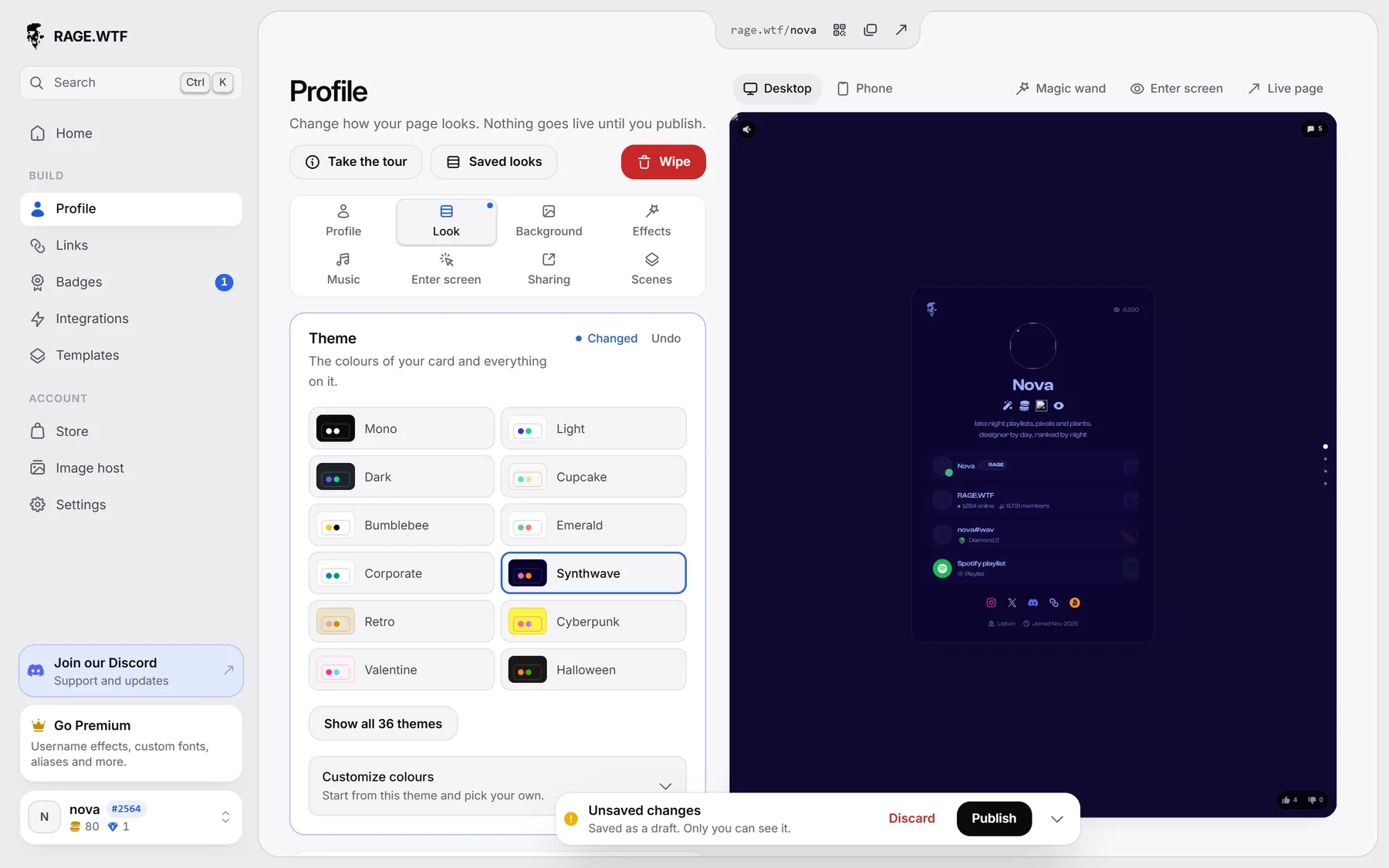
Find your way around#
The settings are split into eight sections. Click one and its settings open underneath.
| Section | What you change there |
|---|---|
| Profile | Avatar, display name, bio, location, card layout, what your card shows, privacy. See details and privacy. |
| Look | Theme, font and the card itself. |
| Background | Background image or video, and a background effect. |
| Effects | Name effect and avatar shape, badge and link style, cursor, tab title. |
| Music | A song for your page. |
| Enter screen | The screen visitors click first. |
| Sharing | How your page looks when shared. |
| Scenes | Extra screens below your card. |
A small dot on a section means it has changes you haven’t published yet.
Use the live preview#
On a computer, the preview sits to the right of your settings. It is your real page with your changes in it, and it updates while you edit.
On a phone, tap Preview at the top of the editor to open it full screen, and Close to go back.
Above the preview (inside the preview on phones) you find:
- Desktop and Phone: which device the preview shows, and which device your style changes apply to. See desktop and phone.
- Magic wand: move and resize things on your card. See magic wand.
- Enter screen: show or hide the enter screen in the preview.
- Live page: opens your published page in a new tab.
The preview starts muted. Use the volume control in its top left corner to hear your music.
Save, publish or discard#
Every change is saved as a draft a moment after you make it. Only you can see the draft, and it is still there if you close the tab and come back later.
When you have unpublished changes, a bar called Unsaved changes floats at the bottom of the screen.


- Publish makes all your changes live at once.
- Discard throws away every change since you last published. You are asked to confirm first.
- The arrow on the right folds the bar into a small pill. The editor remembers this in your browser.
The line under Unsaved changes tells you what is going on: Saving your draft, Saved as a draft. Only you can see it., or how many changes need Premium to publish.
If you change a setting back to what is already live, it no longer counts as a change. When nothing differs, the bar goes away.
Editing in two tabs#
If you edit your profile in two tabs or on two devices at once, the editor tells you “Your profile was changed in another tab. Reload to get the latest version.” Click Reload to continue with the newest version.
Undo one group of settings#
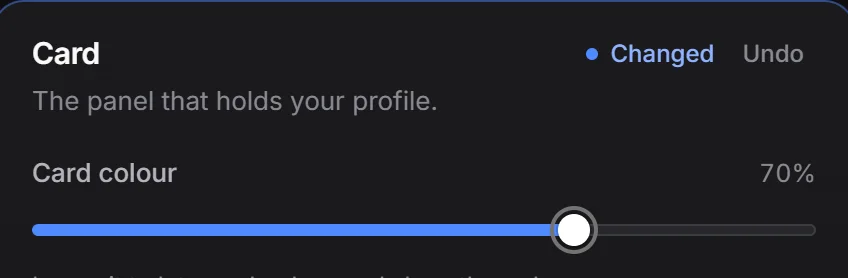
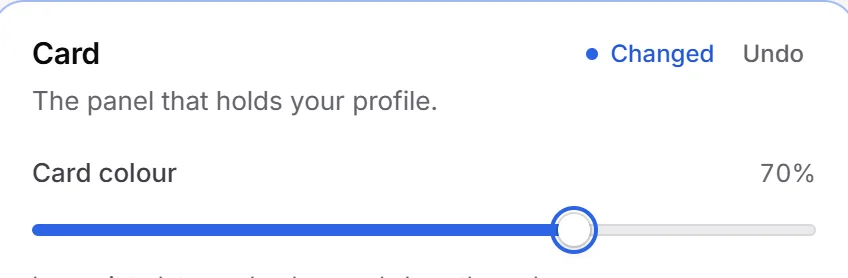
Each box of settings with unpublished changes gets a thin outline, a Changed label and an Undo button. Undo puts only that box back to what is live, and leaves your other changes alone.
Premium settings#
Settings marked with a Premium tag (or a small gem on compact tiles) need Premium to publish. You can still pick them and see them in your preview. See trying Premium settings.
Take the tour#
The first time you open the editor, a short tour walks you through it. It points at each part, opens the sections it talks about, and brings you back where you were when it ends.
- Replay it any time with Take the tour at the top of the editor.
- Use Next and Back, or the left and right arrow keys. Skip tour or Escape ends it.
Save your whole style#
Saved looks at the top of the editor lets you keep your style under a name and switch back to it later. See saved looks.
Pictures from your image host#
Wherever the editor asks for a picture (your avatar, background, cursor, a song cover, scene pictures), Image host next to the upload button lets you pick one of your image host pictures instead of uploading it again. The picker shows your newest pictures that fit the field; a picture over the field’s size limit shows its size and can’t be picked. Your profile gets its own copy, so deleting the picture from your image host later doesn’t change your profile.
Wipe your profile#
To start over from a blank page, click the red Wipe button at the top of the editor.
- Optionally click Back up my profile first. It saves everything the editor holds, uploads included: your draft, or your published profile if you have no draft. You keep one backup: once you have one, the button reads Back up again, and a new backup replaces the old one. Restore this backup puts it back into the editor.
- Type
WIPEin the box and click Wipe my profile.
The wipe puts everything in the editor back to the start: your display name, bio, avatar, theme, background, effects, music, scenes, enter screen, sharing and privacy settings. Your links, integrations and badges stay.
Like any other change, the wipe goes into your draft. Your page only changes when you press Publish, and Discard undoes the wipe until then.