Links, badges and integrations
Integrations
Show live cards for your Discord, socials, game accounts, servers, music, videos, the weather and your calendar, and keep them up to date automatically.
Integrations are live cards on your page: your Discord profile and status, your X or TikTok followers, your rank in a game, your server’s players, what you’re listening to or watching, the weather or time where you are, a countdown, your upcoming events, a Spotify or YouTube player, or a card you design yourself. Most of them update on their own.
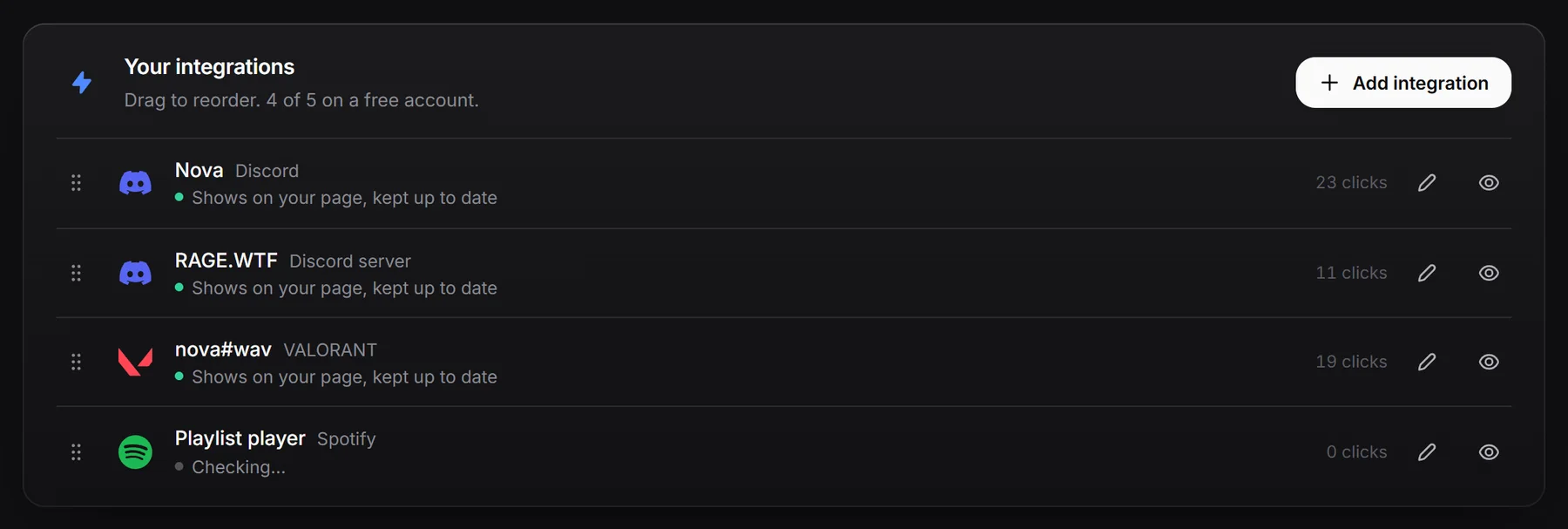
What you can add#
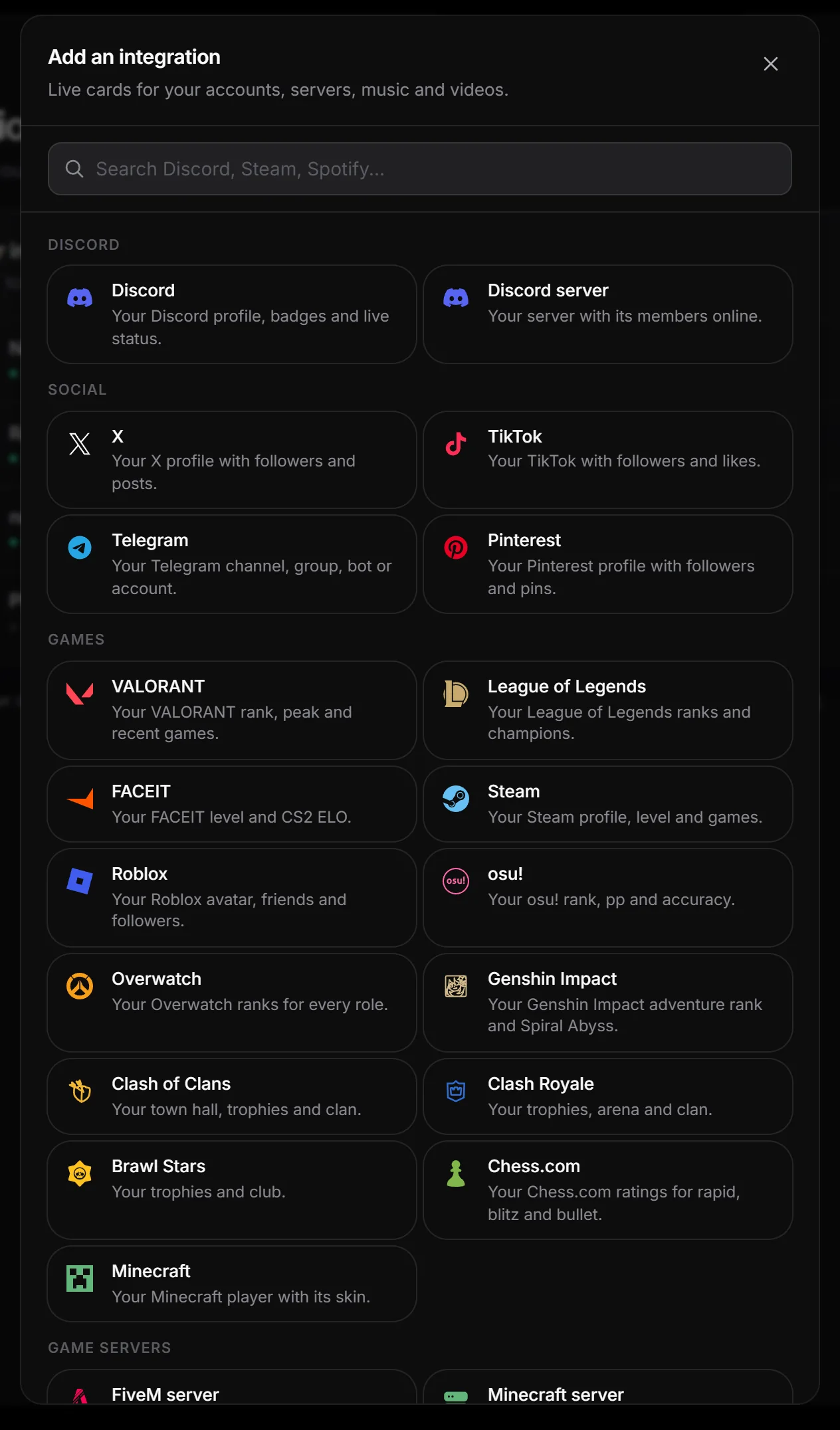
| Group | Integrations |
|---|---|
| Discord | Discord, Discord server |
| Social | X, TikTok, Telegram, Pinterest, Bluesky, Mastodon |
| Games | VALORANT, League of Legends, FACEIT, Steam, Roblox, osu!, Overwatch, Genshin Impact, Clash of Clans, Clash Royale, Brawl Stars, Chess.com, Lichess, Dota 2, Speedrun.com, Fortnite, Apex Legends, PUBG, Minecraft |
| Game servers | FiveM server, Minecraft server, Counter-Strike server |
| Music, video and watching | Spotify, SoundCloud, YouTube, Twitch, Kick, Last.fm, stats.fm, MyAnimeList, AniList, Letterboxd |
| Web | Website, GitHub, Weather, Local time, Countdown, Calendar, Custom card |
How many you can add#
| Free | Premium | |
|---|---|---|
| Integrations | 5 | No limit |
When a free account has 5, the Add integration picker says so and you need to remove one first, or get Premium.
If your Premium ends while you have more than 5, nothing is deleted. Your page shows the first 5 in your order until you remove some or get Premium again.
Add an integration#
- In the dashboard, open Integrations and click Add integration.
- Search or pick a service from the groups.
- Fill in the form. Each field explains what it needs, and mistakes show as you type.
- Click Add integration.
For services we look up, you see “After you save, we look it up” and the card fills in a few seconds later. The page checks back by itself while it waits.
Status of each integration#
Each row shows how its card is doing:
| Status | Meaning |
|---|---|
| Shows on your page | A Spotify, SoundCloud, Twitch, Website or Custom card. Nothing to look up. |
| Checking… | Saved and being looked up for the first time. |
| Shows on your page, kept up to date | Working and refreshing on its own. |
| Couldn’t load yet or Last update failed | The service didn’t answer. It is tried again later. |
| Hidden from your page | The service said the account, invite or server doesn’t exist, or a server address isn’t public. |
A card is only hidden after the service says “not found” several times in a row, so a short outage never hides it. To try again, open it, fix the details and click Save changes. Saving without changes also checks it again.
Edit, reorder or remove#
- Edit: click the pen button, change the details, click Save changes.
- Reorder: drag the dotted handle, or focus it and press the Up or Down arrow key. The order is saved right away and is the order on your card.
- Remove: open the integration, click Remove integration, then Remove for good.
There is no hide switch for integrations. To take one off your page, remove it.
How often cards update#
| Integration | Updates about every |
|---|---|
| Discord server, Steam status, FiveM, Minecraft and Counter-Strike servers, Kick, Last.fm, stats.fm | 3 minutes |
| Weather, Calendar | 30 minutes |
| stats.fm streams, listening time and artists | 30 minutes |
| Discord profile, Roblox, YouTube channel, GitHub, League, VALORANT, FACEIT, osu!, X, TikTok, Telegram, Pinterest, Overwatch, Genshin Impact, Clash of Clans, Clash Royale, Brawl Stars, Chess.com, Minecraft, MyAnimeList, Letterboxd | 3 hours |
| Steam level and game count | 6 hours |
| Spotify, SoundCloud, YouTube video, Twitch, Website, Custom card | Never needed, they show what you saved |
- Discord live status and activities are current each time a visitor loads your page.
- Pages nobody has viewed for a week pause their updates and catch up when someone opens them.
- A game server that can’t be reached shows Offline and keeps its last name.
On your card or in a scene#
Integrations show on your main card in your order. With the Default layout they stack in one column. With the Modern layout they sit in two columns. Spotify, SoundCloud, YouTube videos and Twitch take the full width by default; turn on Side by side in their settings to have them share a row with another integration instead (a player kept on your card always takes the full width). Medium and large Weather and Custom cards take the full width too. A card left alone in its row stretches across both columns.
To give integrations their own screen, add them to a scene in the profile editor. An integration placed in a scene moves off your main card. Each integration can be in one scene, with up to 12 per scene:
- About me takes any integration.
- Music takes Spotify, SoundCloud, YouTube, Last.fm and stats.fm.
- Games takes Steam, Roblox, League of Legends, VALORANT, FACEIT, osu!, Overwatch, Genshin Impact, Clash of Clans, Clash Royale, Brawl Stars, Chess.com, Minecraft, and FiveM, Minecraft and Counter-Strike servers.
- Streams takes Twitch, Kick and YouTube.
- Anime takes MyAnimeList.
- Movies & series takes Letterboxd.
- Calendar takes Calendar.
See Scenes.
Hide one from your card#
To keep an integration off your main card, click the eye next to it on the Integrations page. It shows as Hidden, stays saved and keeps updating, and you can still put it in a scene: a Calendar in its own Calendar scene, for example. Click the eye again to show it on your card.
Detail views#
Discord, League of Legends, VALORANT, Roblox and osu! cards open a bigger view when visitors click them, with stats, ranks and recent games. A Calendar card opens a panel with all your upcoming events. Other cards open the account, channel, server or site. A Weather card doesn’t open anything, and a Custom card opens its link if you gave it one.
Clicks#
Each row shows clicks on that card from the last 30 days (on wider screens). Your own clicks and bots don’t count. See Views and stats.
Limits#
- Adding: up to 100 integrations in 10 minutes.
- Editing, removing and reordering: up to 10 changes a minute.
Past that, you are asked to wait a moment.