Getting started
Search and keyboard shortcuts
Use Ctrl+K search to jump to any dashboard page, setting or action, plus the keyboard shortcuts you can use.
Search finds any page, setting or action in the dashboard, so you rarely need to click through menus.
Open search#
- Press
Ctrl K(Windows and Linux) or⌘ K(Mac) anywhere in the dashboard. - Or click Search at the top of the sidebar, or in the header on a phone.
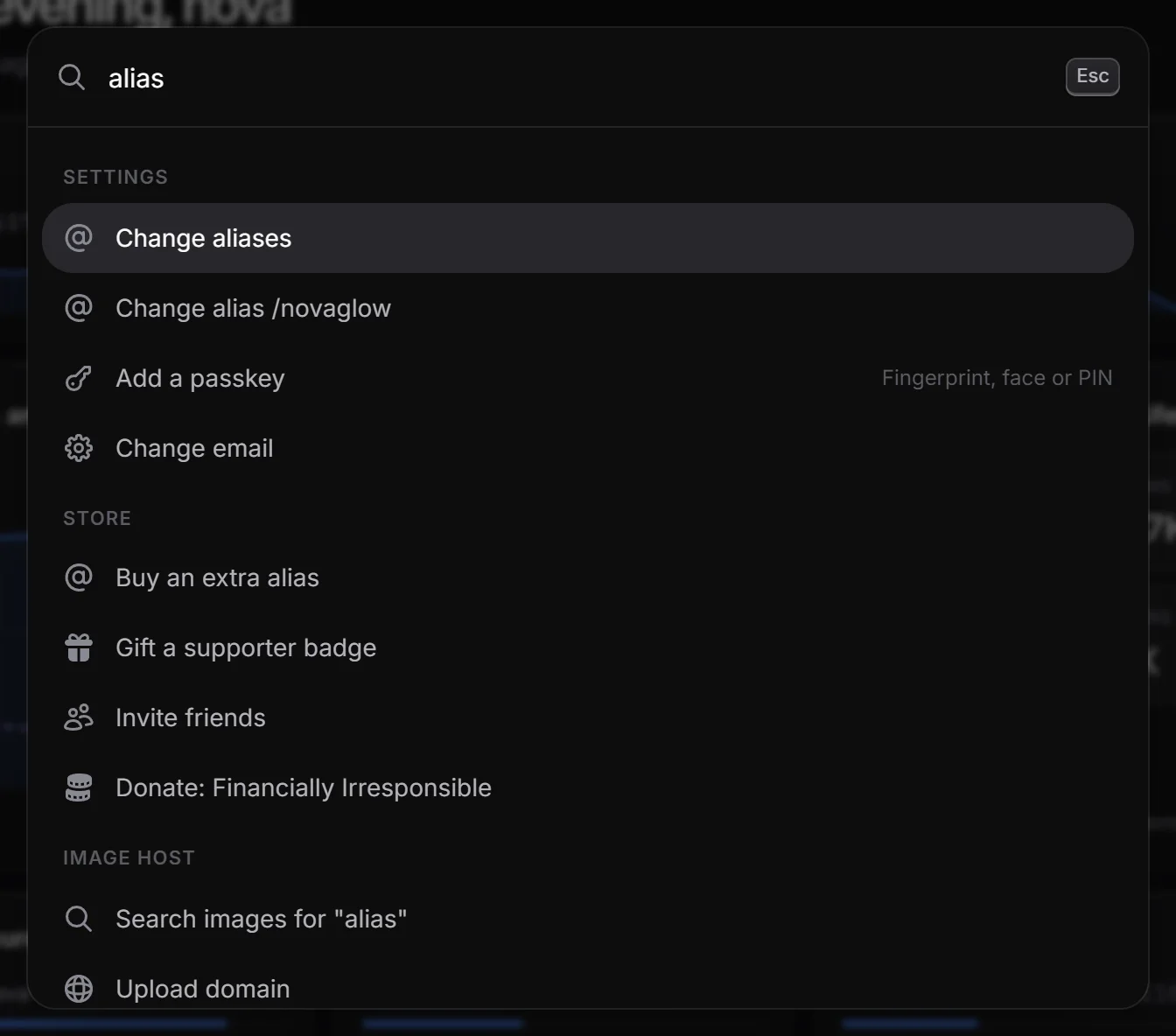
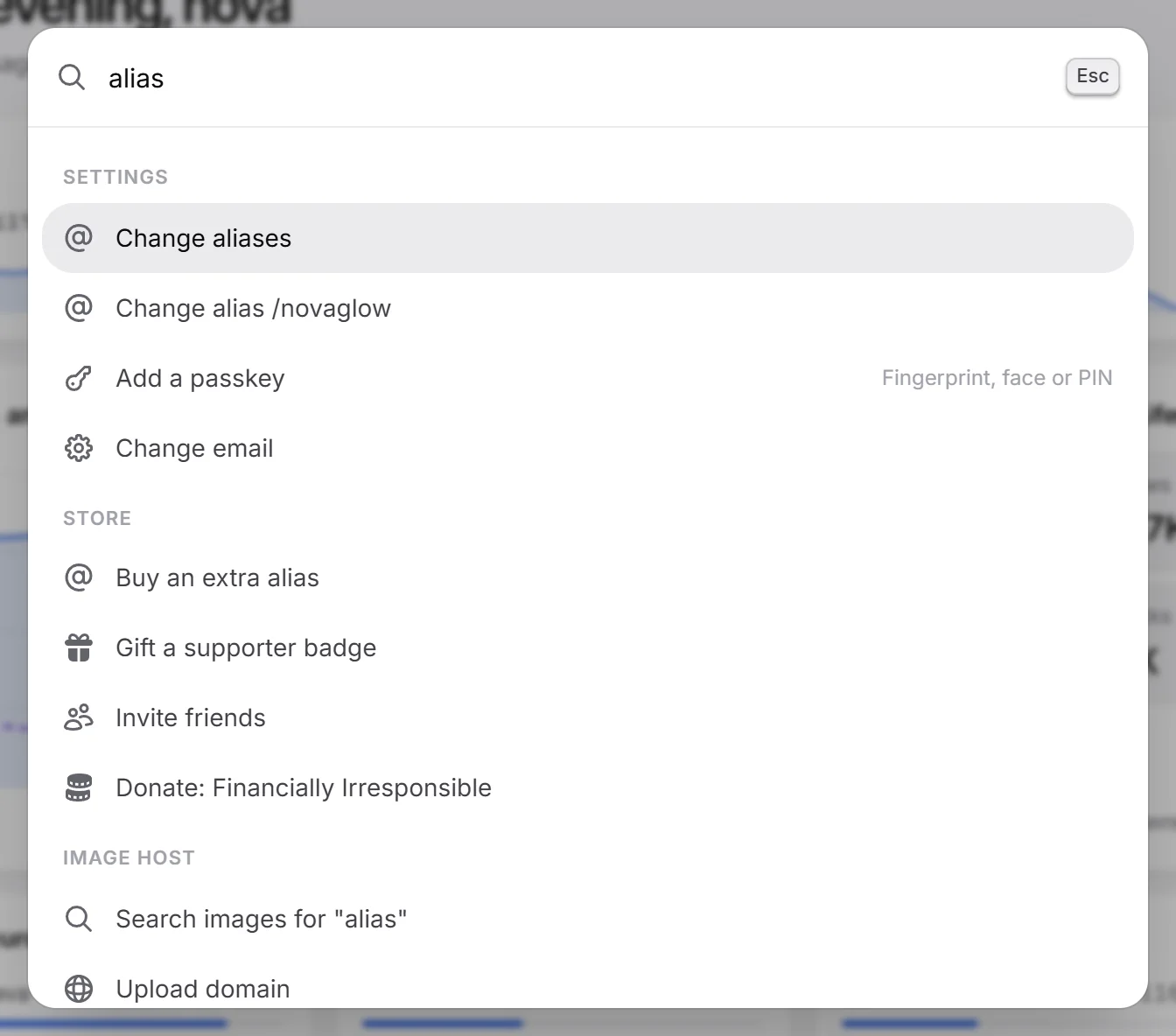
Type a few letters and press Enter on the result you want. Press Esc to close. Search also understands related words, so typing “2fa”, “handle” or “wallpaper” finds the right place.
What you can find#
Without typing, search lists the most common things:
| Group | Examples |
|---|---|
| Pages | Every dashboard page. |
| Settings | Change username, Change email, Change password, Two-factor authentication, Manage passkeys, Active sessions, Connect Discord, API keys, Delete account, Add a passkey, Add an alias (Change aliases once you have one). |
| Your page | Share my page, Copy link to my page, Gift something, Buy badge tokens, Add a link, Add an integration, Create a badge, Open my page. |
| Store | Get Premium, Get Verified, Buy badge tokens. |
| Image host | Upload images, New folder, New automation rule, Set up ShareX. |
| Accounts | Switch to another signed-in account, Add another account. |
| Docs | Open the docs. |
| Community | Join our Discord. |
| Theme | Dark theme, Light theme, System theme. |
| Session | Sign out of your account. |
Once you start typing, more results appear:
- Add a link: “Add Instagram link”, “Add Spotify link” and so on, for every link type.
- Add an integration: “Add Kick integration”, “Add Weather integration” and so on, for every integration. It opens that integration’s form straight away. Other names work too, like “twitter” for X, “coc” for Clash of Clans or “lastfm” for Last.fm.
- Profile: jumps straight to a spot in the profile editor, like “Change font”, “Name effect”, “Private mode” or “Enter screen”. Some show Some need Premium if you don’t have it.
- More Store items: extra aliases, gifts, donations, purchase history and inviting friends.
- More Image host items, and “Search images for” whatever you typed.
- Docs: matching pages and headings from these docs.
Keyboard shortcuts#
| Where | Keys | What it does |
|---|---|---|
| Anywhere in the dashboard | Ctrl K / ⌘ K | Open or close search |
| Search | Esc | Close |
| Profile editor, magic wand | Esc | Clear the selection, or close the magic wand when nothing is selected |
| Profile editor, magic wand | Ctrl Z / ⌘ Z | Undo |
| Profile editor, magic wand | Arrow keys | Nudge the selected items (hold Shift for bigger steps) |
| Profile editor, magic wand | + and - | Make the selected item bigger or smaller |
| Profile editor, magic wand | 0 | Reset the selected items |
| Profile editor, magic wand | Shift + click | Select more items |
| Image host gallery | Ctrl A / ⌘ A | Select all images |
| Image host gallery | Shift + click | Select a range |
| Image host gallery | Esc | Clear the selection |
| Image host upload | Ctrl V / ⌘ V | Paste an image to upload |
| A public page’s enter screen | Any key | Enter the page |
See the magic wand and gallery and folders for more.