Your profile
Magic wand: move and resize things on your card
Use the magic wand to drag, resize, line up and space out your avatar, name, badges, bio, links and more on your card.
The magic wand lets you pick anything on your card in the preview, then drag it somewhere else or make it bigger or smaller.
Turn on the magic wand#
- On a computer, click Magic wand above the preview.
- On a phone, tap Preview, then Magic wand.
A hint at the top says “Pick anything on your card”. Click Magic wand again, or press Escape with nothing picked, to turn it off. The wand turns off while the enter screen shows.
You can pick: Avatar, Name, Badges, Bio, Integrations, Links, Music player and Details (the row with your location, join date and views).
In scenes, you can also pick each scene’s title and its content, then resize them and move them inside that scene. They work like the items on your card, per device and with undo.
Some scenes also let you pick the pieces inside their content on their own:
| Scene | Pieces |
|---|---|
| Audio player | the player, the lyrics |
| About me | the text, the skills, the integrations |
| Anime | your profile, watching, favourites |
| Movies & series | your picks, Letterboxd |
Clicking picks the smallest piece under the pointer, so to move a whole scene’s content at once, click in a gap between its pieces or Shift+click each one.
Move something#
- Hover your card. Each item gets an outline with its name.
- Click the item to pick it.
- Drag it to its new spot.
While you drag, it snaps to the middle of your card and lines up with the edges and centres of the other items. A label like Centred in the card tells you when it is centred. Items always stay inside the card.
Resize something#
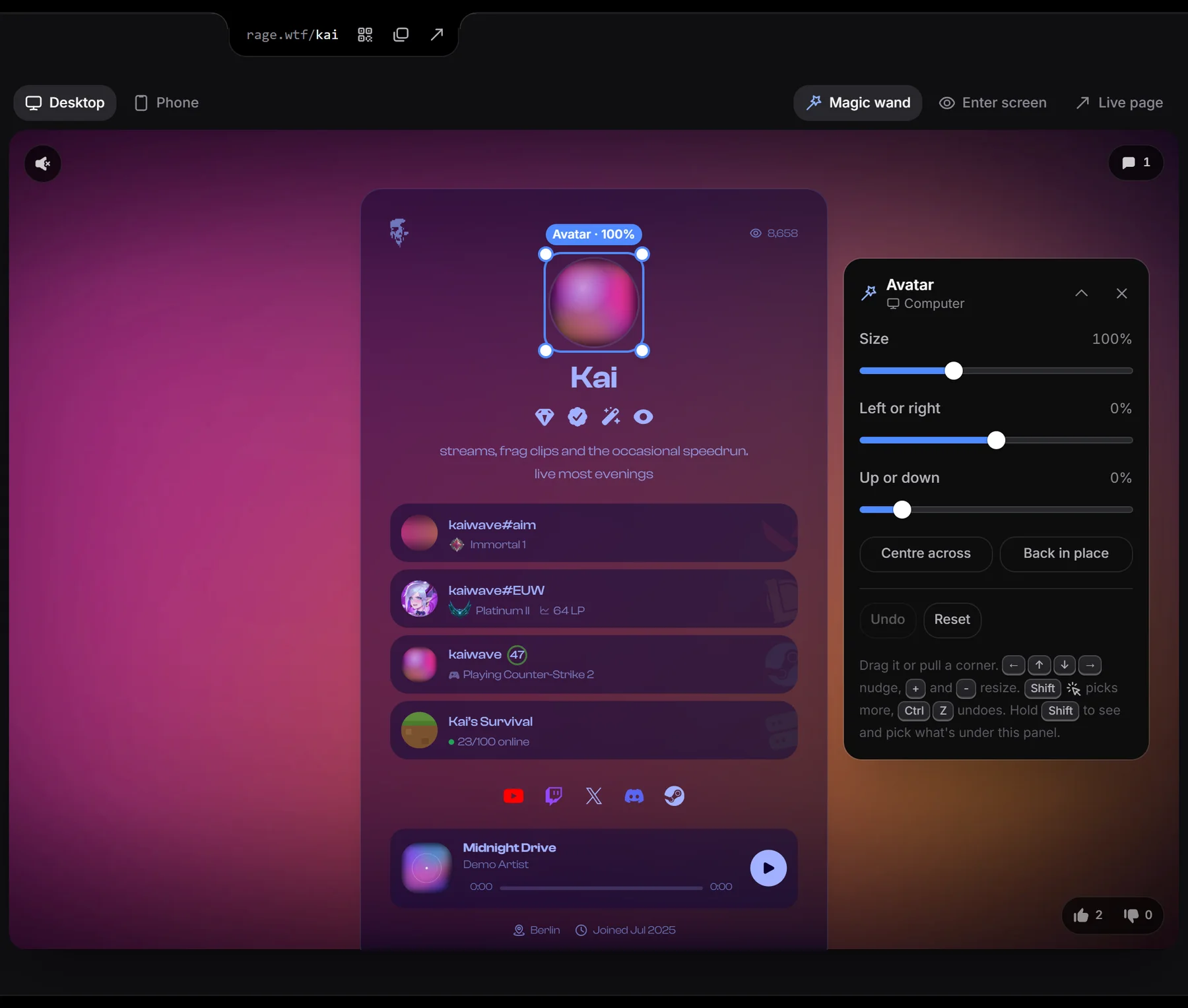
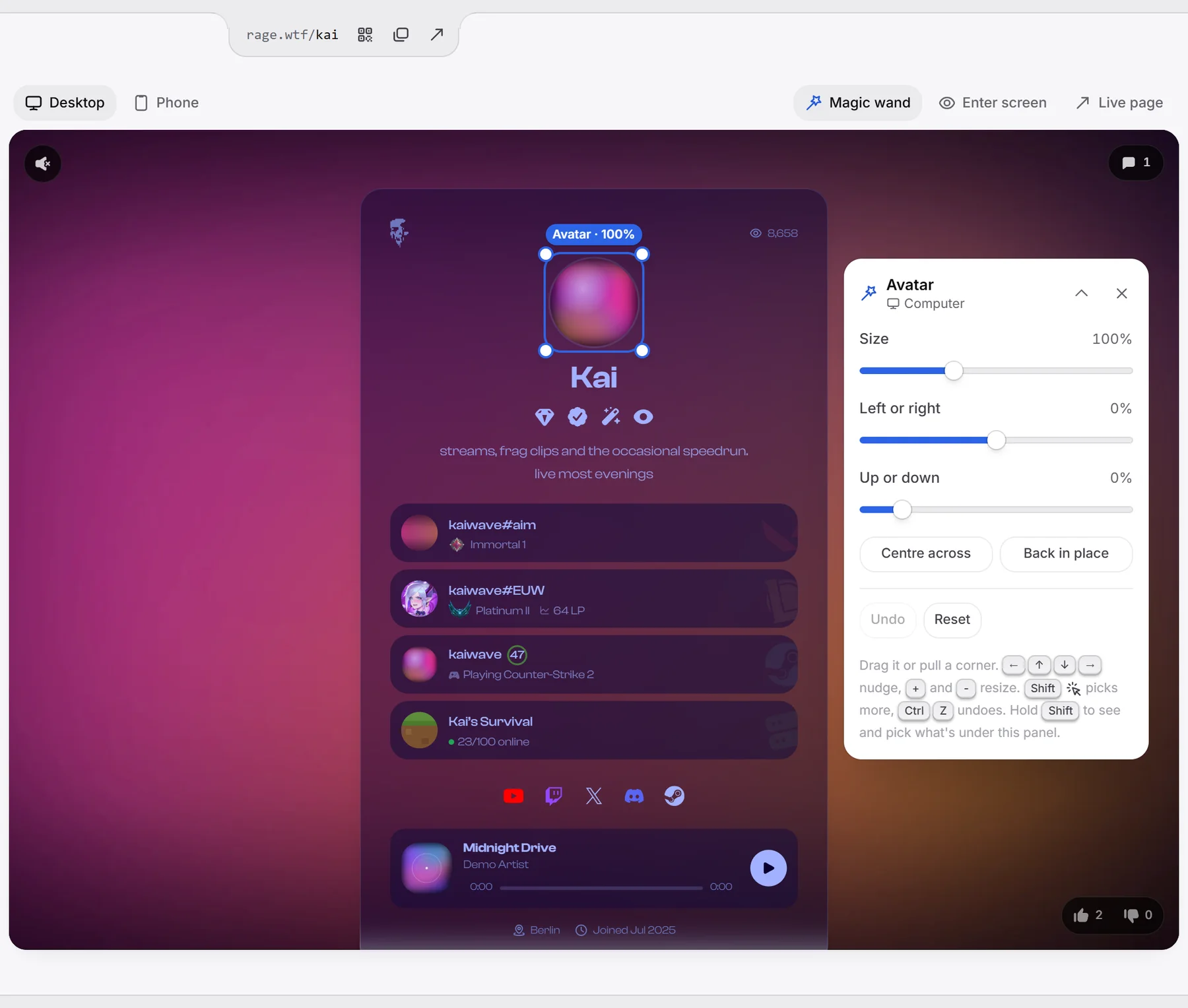
Pick one item, then drag one of the four round handles on its corners. The label shows the size, for example “Avatar · 120%“. Sizes go from 50 to 200 %, as far as the card’s width allows.
Use the panel#
When you pick an item, a panel opens beside your card.
For one item:
- Size, Left or right and Up or down sliders.
- Centre across: centres it from left to right.
- Back in place: removes the move but keeps the size.
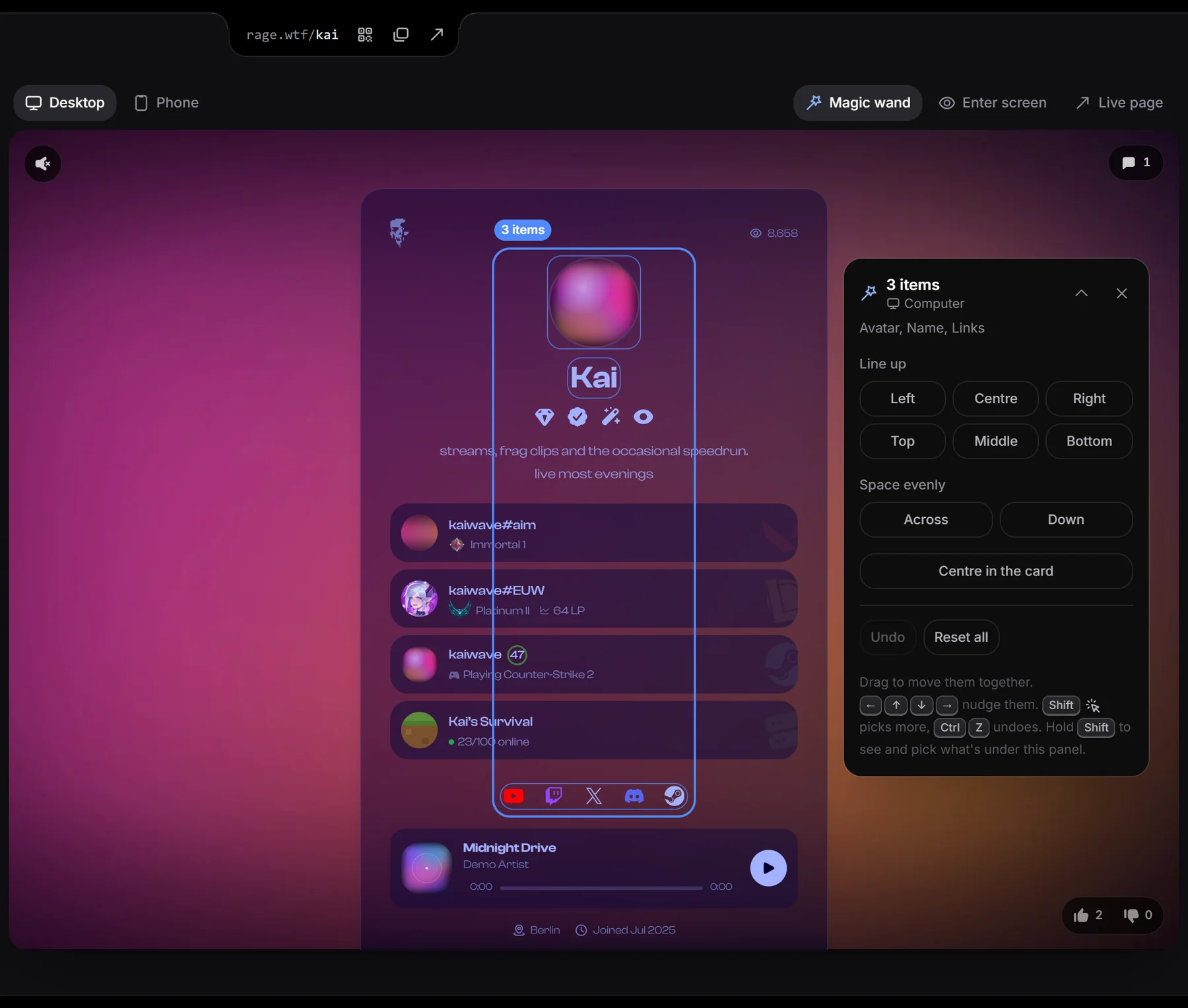
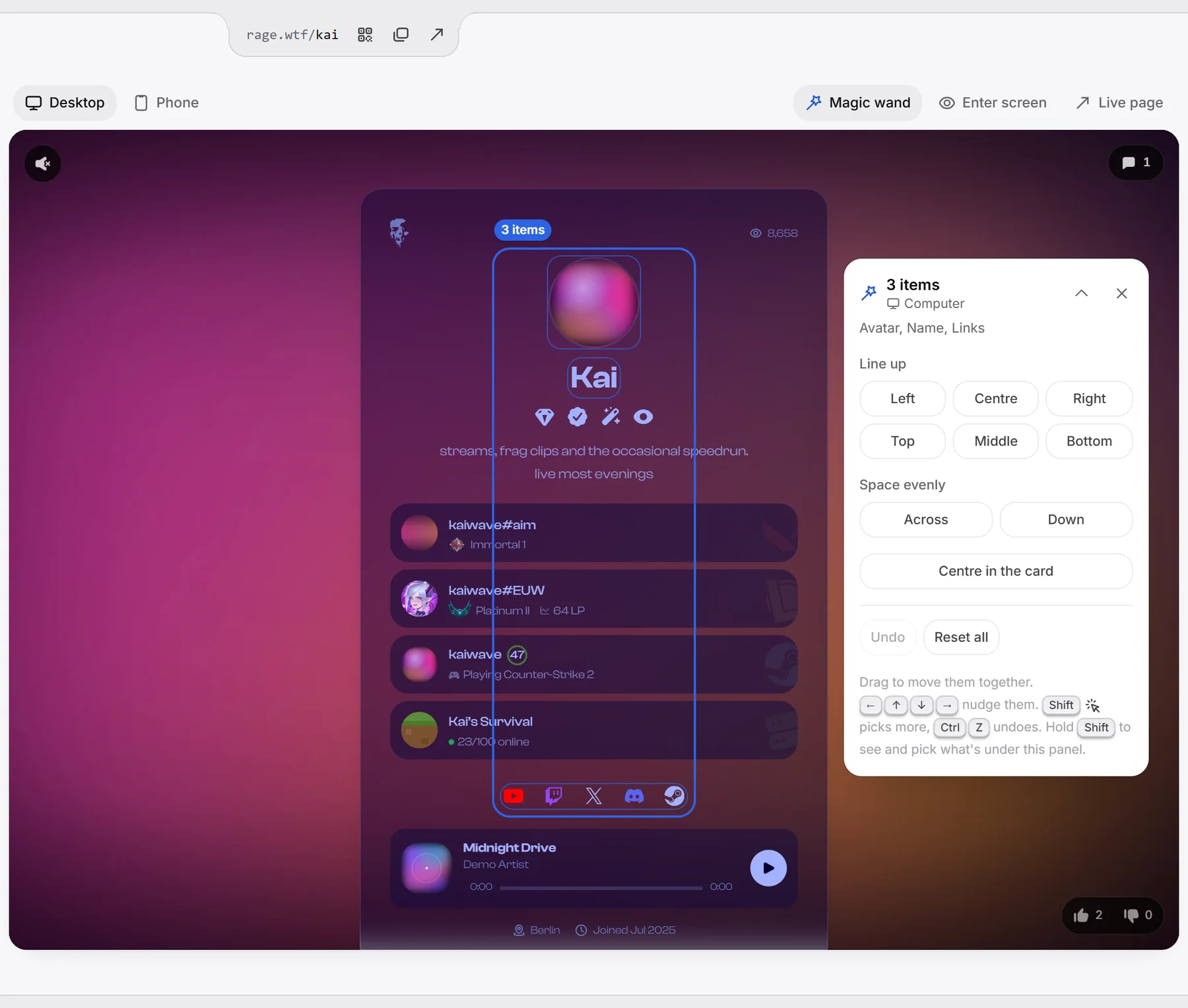
For several items:
- Line up: Left, Centre, Right, Top, Middle or Bottom.
- Space evenly: Across or Down (needs 3 or more items).
- Centre in the card: moves the group to the middle.
At the bottom: Undo, Reset (or Reset all), and on Phone also Use computer values.
If the panel covers something, drag its title to move it (double-click the title to put it back), fold it with the arrow, or hold Shift to see and pick through it.
Pick several items#
Hold Shift and click to add items to your selection, or to take one out again. Drag any picked item to move them all together.
Keyboard shortcuts#
| Key | What it does |
|---|---|
| Arrow keys | Nudge the picked items (hold Shift for bigger steps) |
+ and - | Make the picked item bigger or smaller |
0 | Reset the picked items |
| Ctrl+Z (Cmd+Z on a Mac) | Undo, up to 50 steps |
| Shift+click | Pick more items |
| Escape | Unpick, then turn the wand off |
Computers and phones#
The wand follows the Desktop and Phone switch like every style. With Phone selected, your moves and sizes only change phones. Use computer values makes the picked items follow your computer settings again.
With the Modern card layout, the card stacks on phones, so moves you made for computers don’t carry over to phones. Move items again on Phone if you want. Sizes do carry over.
Good to know#
- Positions are saved as a share of your card’s width, so they stay in place on every screen size.
- A typewriter bio shows in full while the wand is on, so you can pick it.
- The Size sliders for your avatar, badges and links under Effects change the same sizes.
- Without Premium, your live page shows every item at its normal size and place.