Your profile
Badge and link icon style
Choose where your badges sit and give your badges and link icons a colour, a glow, a size and an animation.
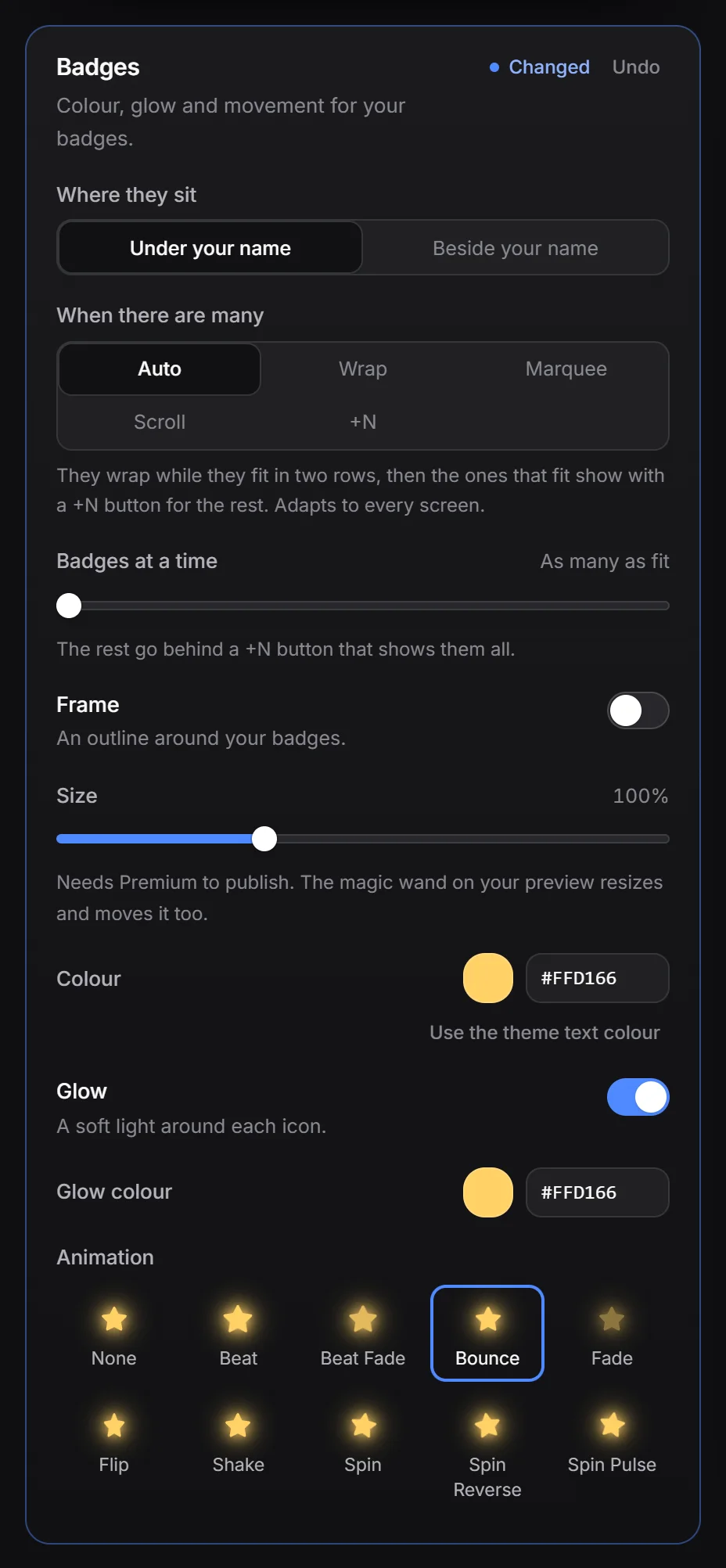
Your badges and link icons have their own style settings under Effects. Badges and links have the same controls, in two separate boxes: Badges and Links.
Move your badges#
Under Badges, Where they sit has two options:
- Under your name (the default)
- Beside your name
Lots of badges#
When there are many decides what your badges do when they don’t all fit:
| Option | What visitors see |
|---|---|
| Auto (the default) | Your badges wrap while they fit in two rows. After that, the ones that fit show with a +N button for the rest. It adapts to every screen size. |
| Wrap | Every badge, on as many rows as it takes. |
| Marquee | One row that slides in a loop when it doesn’t fit. It stops while someone points at it, so they can read a badge’s name. Pick the Slide speed and whether it Slides to the left or right. |
| Scroll | One row visitors drag or swipe through. |
| +N | One row with the badges that fit and a +N button. |
The +N button opens a panel with all your badges and their names.
Badges at a time sets how many show at once. With 6 badges and a limit of 4, visitors see 4 and a +2 button, or a Marquee or Scroll row 4 badges wide. As many as fit fills the space there is.
Visitors who turn animations off see a Marquee as a Scroll row instead.
Frame and shimmer#
- Frame draws an outline around your badges.
- Shimmer sends a light along the frame, like the sweep on your card. It uses your card’s sweep colour unless you pick a Shimmer colour.
Change the colour#
Click the Colour swatch to pick one colour for all icons.
- Badges start with your theme’s text colour. Click Use the theme text colour to go back.
- Link icons start with each brand’s own colour (for example Discord blue). Click Use each brand colour to go back.
Add a glow#
Turn on Glow for a soft light around each icon, then pick a Glow colour.
Animate the icons#
Under Animation, pick one of: None, Beat, Beat Fade, Bounce, Fade, Flip, Shake, Spin, Spin Reverse or Spin Pulse. The star on each tile shows the movement.
Animations stop for visitors who turned off animations in their system settings.
Change the size#
The Size slider makes the icons 50 to 200 % of their normal size.
On phones#
All of these can be different on phones. See desktop and phone.