Your profile
Enter screen
When your page starts on the enter screen, how to turn it on, and how to change its text, colour and size.
The enter screen is your page, dimmed and blurred, with a line of text to click. Visitors see it before your page opens when your page needs it, or when you turn it on.
When it shows#
Your page always starts on the enter screen when it has any of these:
- Music
- A video background, on computers or phones
- Adult content turned on
Browsers only play sound after a visitor clicks, taps or presses a key, and the enter screen is that first click. Adult pages use it to show the 18+ label first. While your page has one of these, the Show the enter screen switch stays on and can’t be turned off.
Pages without them open straight away. To greet visitors with the enter screen anyway, turn on Show the enter screen in the Enter screen section.
Visitors enter by clicking or tapping anywhere, or by pressing any key.
Change the text#
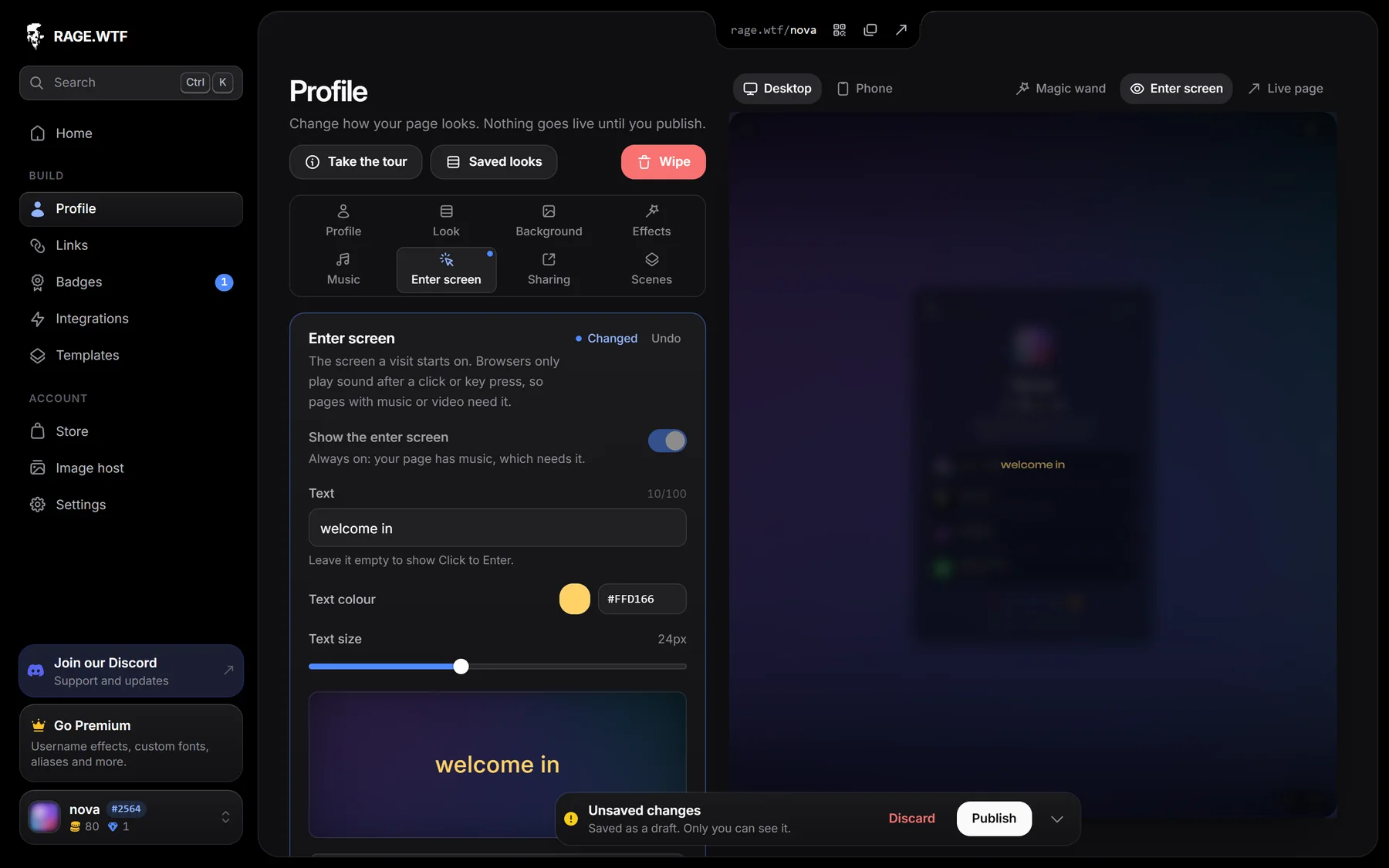
- In the dashboard, open Profile, then Enter screen.
- Type your own Text (up to 100 characters). Leave it empty to show “Click to Enter”.
- Pick a Text colour (white by default).
- Set the Text size, from 8 px to 48 px (24 px by default).
- Press Publish.
All three settings are free, and they are the same on computers and phones. The text uses your page’s font and slowly fades in and out. Visitors who have reduced motion turned on see it without the animation.
See it full size#
The section shows a small preview under the settings. While the Enter screen section is open, the big preview on the right shows the enter screen too. In any other section, turn on Enter screen above the preview to see it. On a phone, open Preview first.
Adult content label#
If you turn on Adult content under Privacy, the enter screen shows a red 18+ ADULT CONTENT label above your text. Visitors see the label before your page opens, and the same click that enters any page takes them in. There is no separate age question.