Your profile
Saved looks
Save your whole style under a name, apply it again later, update, rename or delete it. Free accounts keep 3 looks, Premium 12.
A saved look keeps your whole style under a name, so you can switch between styles without setting everything up again.
What a look keeps#
A look saves your style for computers and your phone-only changes:
- Theme and colours
- Font, including your own font
- Card settings and shadow
- Background and background effect
- Cursor and trail
- Name effect, avatar shape and typewriter bio
- Badge and link style
- Magic wand sizes and positions
It does not save your avatar, name, bio, location, card layout, what your card shows, privacy, enter screen, music, sharing or scenes.
| Free | Premium | |
|---|---|---|
| Saved looks | 3 | 12 |
If Premium ends and you have more than 3 looks, you keep them all, but you can’t save new ones until you are under the limit.
Save your current look#
- In the profile editor, click Saved looks at the top.
- Click Save current look.
- Type a name (up to 64 characters) and click Save.
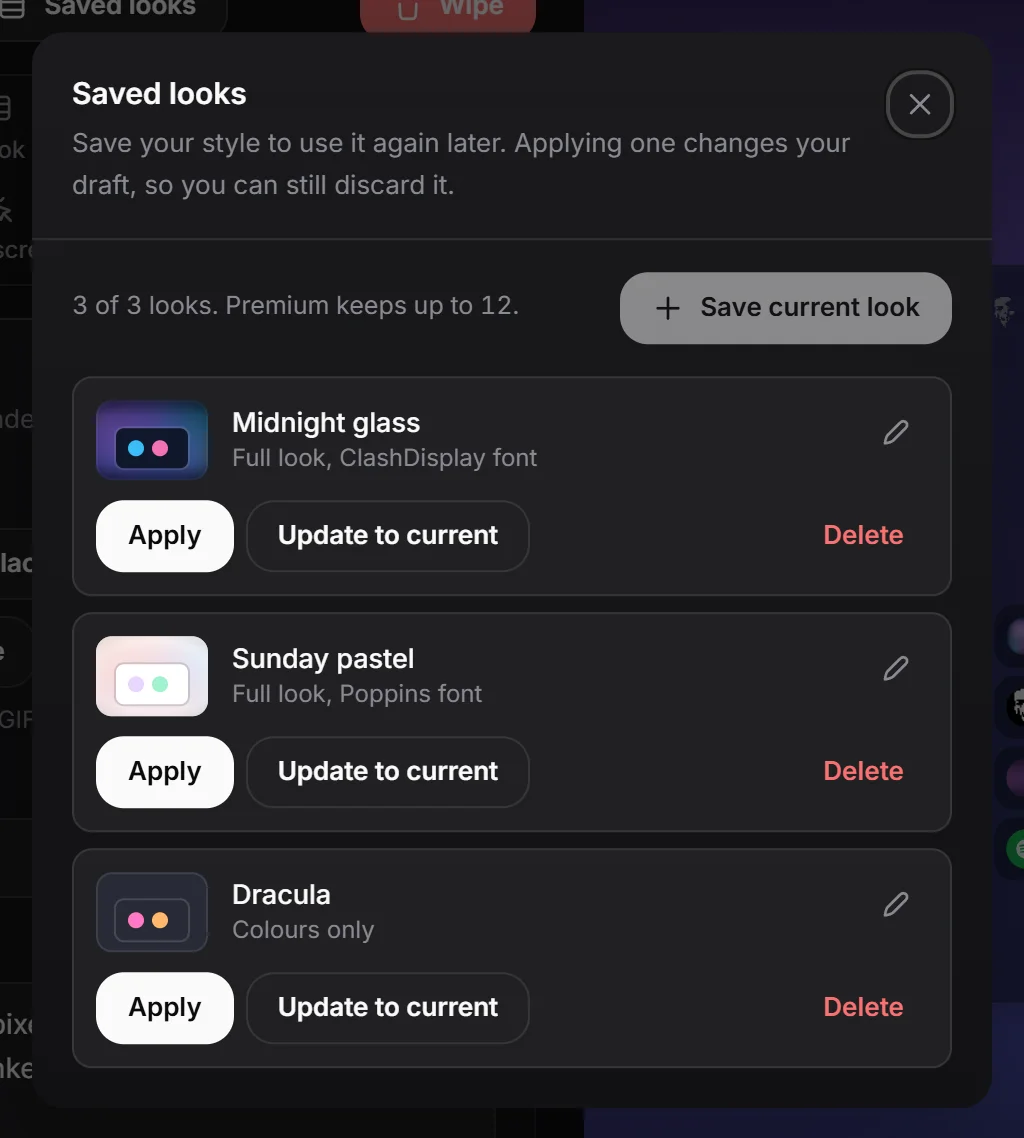
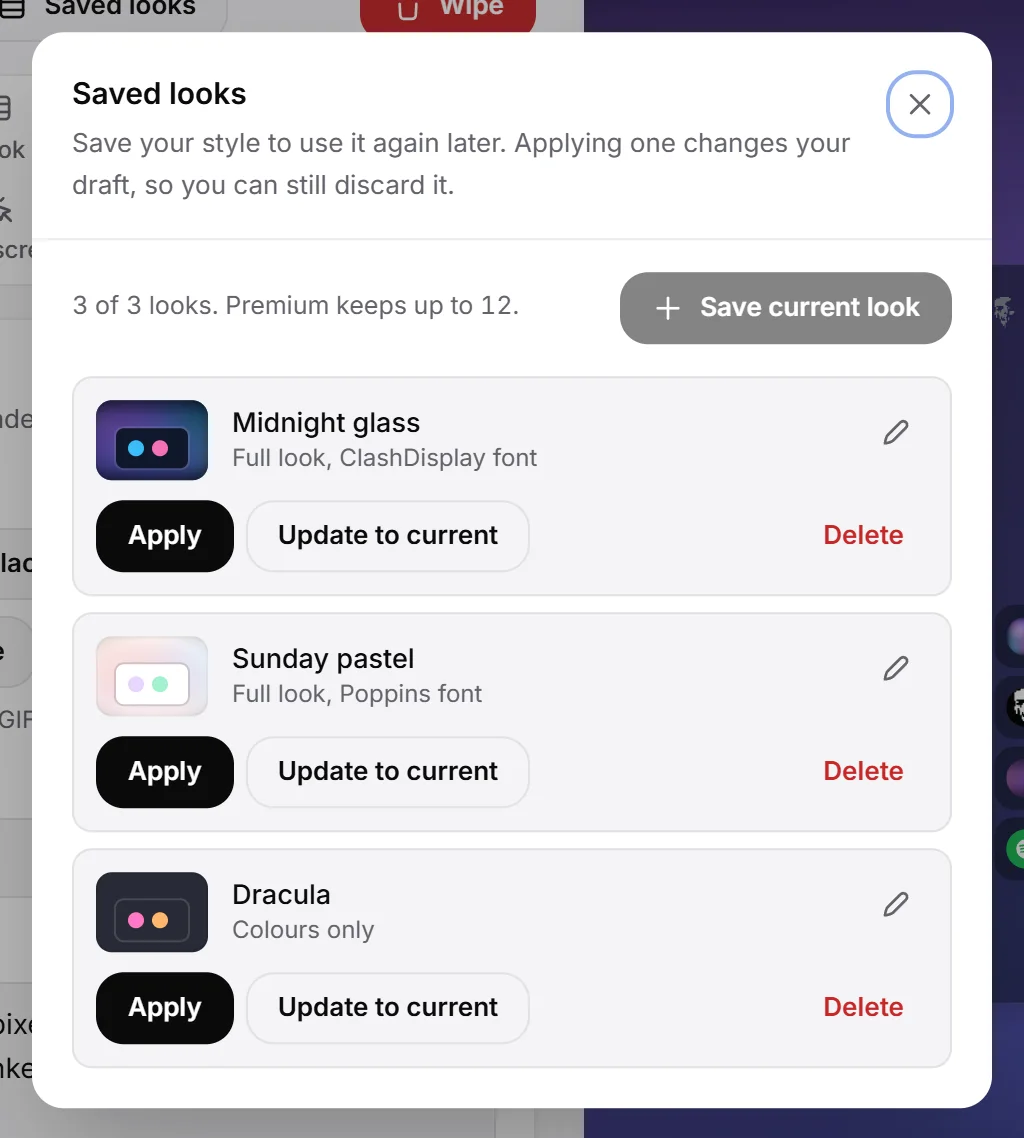
Each name can only be used once. The counter at the top shows how many looks you have, for example “2 of 3 looks.”
Apply a look#
- Open Saved looks.
- Click Apply on the look you want.
- Check the preview, then press Publish.
Applying a look only changes your draft, so you can still press Discard to go back.
A look marked Colours only changes just your colours. Looks marked Full look replace your whole style, including your phone-only settings.
Update, rename or delete a look#
- Update to current: replaces what the look holds with your style right now.
- The pen icon: rename the look.
- Delete: removes the look after you confirm. Your page keeps its current style.