Templates
Publishing templates
Turn your page's look into a template others can apply, then edit, update or delete it.
A template is a snapshot of your page’s look that other people can apply to their own page. Your name, bio, links, integrations and scenes are never part of it.
Before you start#
- A template copies your published page, not unsaved changes in the editor. Publish first if you want your latest changes in it.
- Only your first song is included.
- Take a screenshot of your page on a computer. You need it as the template’s picture. A phone screenshot is optional.
Create a template#
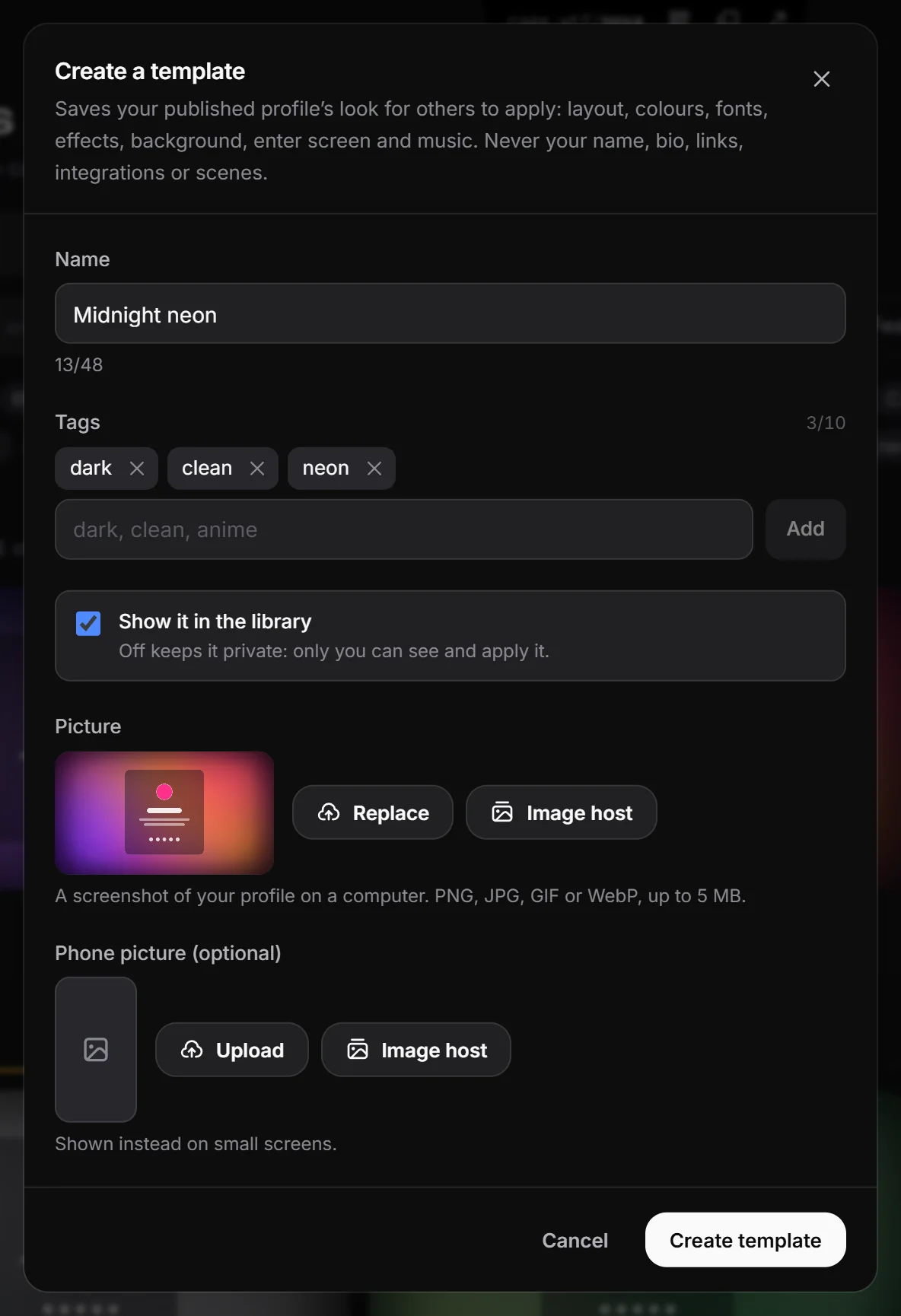
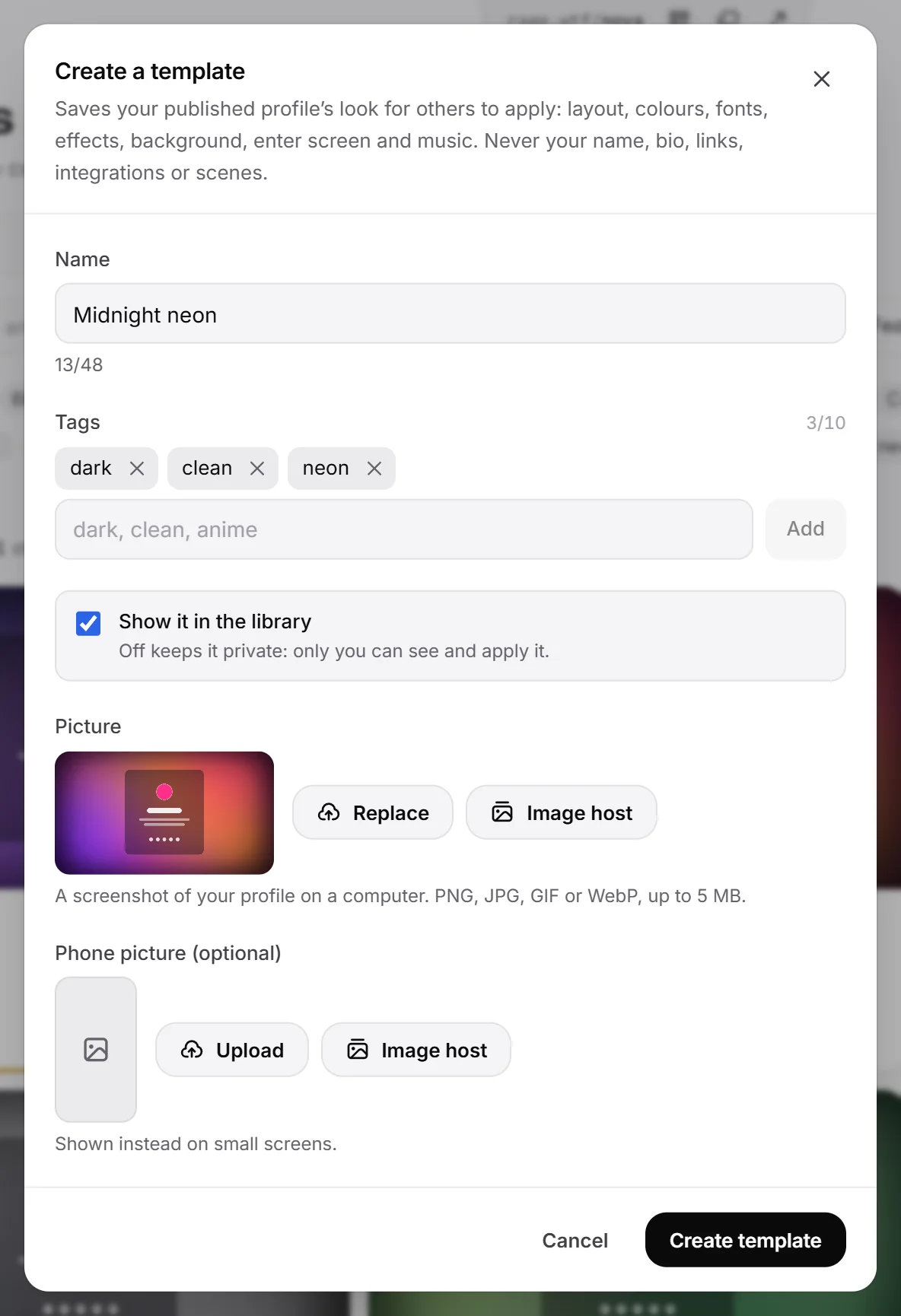
- In the dashboard, open Templates and click Create template.
- Fill in Name. Up to 48 characters, for example “Midnight neon”.
- Add Tags so people can find it, like “dark, clean, anime”. Up to 10 tags, 32 characters each. A leading
#is removed and duplicates are dropped. - Leave Show it in the library on to share it with everyone. Turn it off to keep the template private, so only you can see and apply it.
- Under Picture, click Upload and choose a screenshot of your page on a computer. PNG, JPG, GIF or WebP, up to 5 MB. This is required.
- Optionally, under Phone picture (optional), upload a phone screenshot. It is shown instead on small screens.
- Click Create template.
What goes into a template#
| Included | Never included |
|---|---|
| Layout | Display name, bio and location |
| What your card shows (username, avatar, views, join date, watermark) | Avatar picture |
| Colours, fonts (including your own font file), effects | Links and integrations |
| Background, card style, cursor, enter screen, tab title animation, modules | Scenes and comments |
| Your first song | Link preview (share title, description, image) |
| Private, under construction and adult mode settings |
People who apply your template choose for themselves whether to take the music and the private and adult mode settings.
Premium templates#
If your look uses any Premium setting, the template is marked Premium automatically. Anyone can still apply it and try it, but they need Premium to publish those settings. The mark is checked again whenever you update the template.
How many templates you can keep#
| Plan | Templates |
|---|---|
| Free | 10 |
| Premium | 30 |
Copies of other people’s templates count too. When you reach the limit, delete one to make another. If you lose Premium while holding more than 10, you keep them, but you can’t add new ones until you are under the limit.
Edit a template#
- Open Templates and go to My templates.
- Click your template, then Edit.
- Change the name, tags, Show it in the library, or the pictures.
- Click Save changes.
Editing does not change the look itself.
Update the look from your page#
When you change your page and want the template to match:
- Publish your page changes first.
- Open your template and click Update from my profile.
- Confirm with Update it.
The template takes your published page’s current look. Its name, link, votes and uses stay the same.
Delete a template#
- Open your template.
- Click Delete and confirm.
Copy someone else’s template#
Open another person’s template and click Copy to my templates. You get a private copy called “(copy)” after the original name, with the same look, tags and pictures. It counts against your template limit. You can then edit it or share it in the library.
Featured templates#
The RAGE.WTF team picks some templates to feature. Featured templates are shown first in the default Most used order and carry a Featured badge.
Limits#
| Action | Limit per 10 minutes |
|---|---|
| Create a template | 15 |
| Edit, update or delete (together) | 20 |
| Copy to my templates | 10 |
Your own opens and applies don’t add to your template’s views or uses. See Using templates for how counts work.