Image host
Gallery, folders and deleting
Find, sort and select your uploads, move them into folders, copy their links, and delete one image or all of them.
The gallery shows everything you uploaded. From there you can copy links, move images into folders and free up space.
Find an image#
In the dashboard, open Image host, then Gallery. Images are shown 24 per page.
- Search by file name: type part of a file name.
- Folder: All images, Unfiled or one of your folders.
- Sort: Newest, Oldest, Largest, Smallest, Most viewed or Name.
Your search, folder and sort are kept in the page address, so you can bookmark a view or reload without losing it. To free up space quickly, sort by Largest.
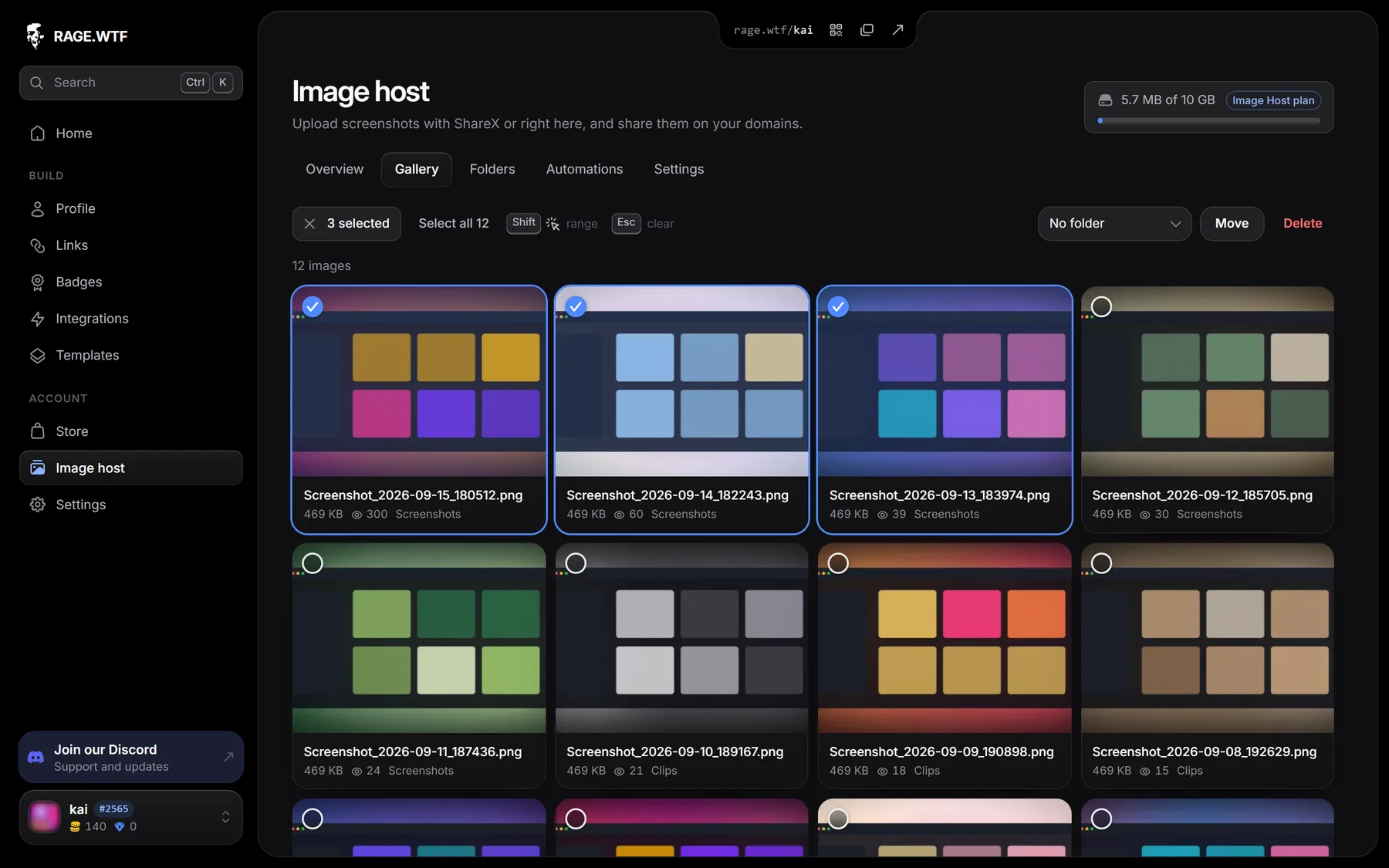
Each card shows the file name, size, number of views and its folder.
Look at an image and copy its link#
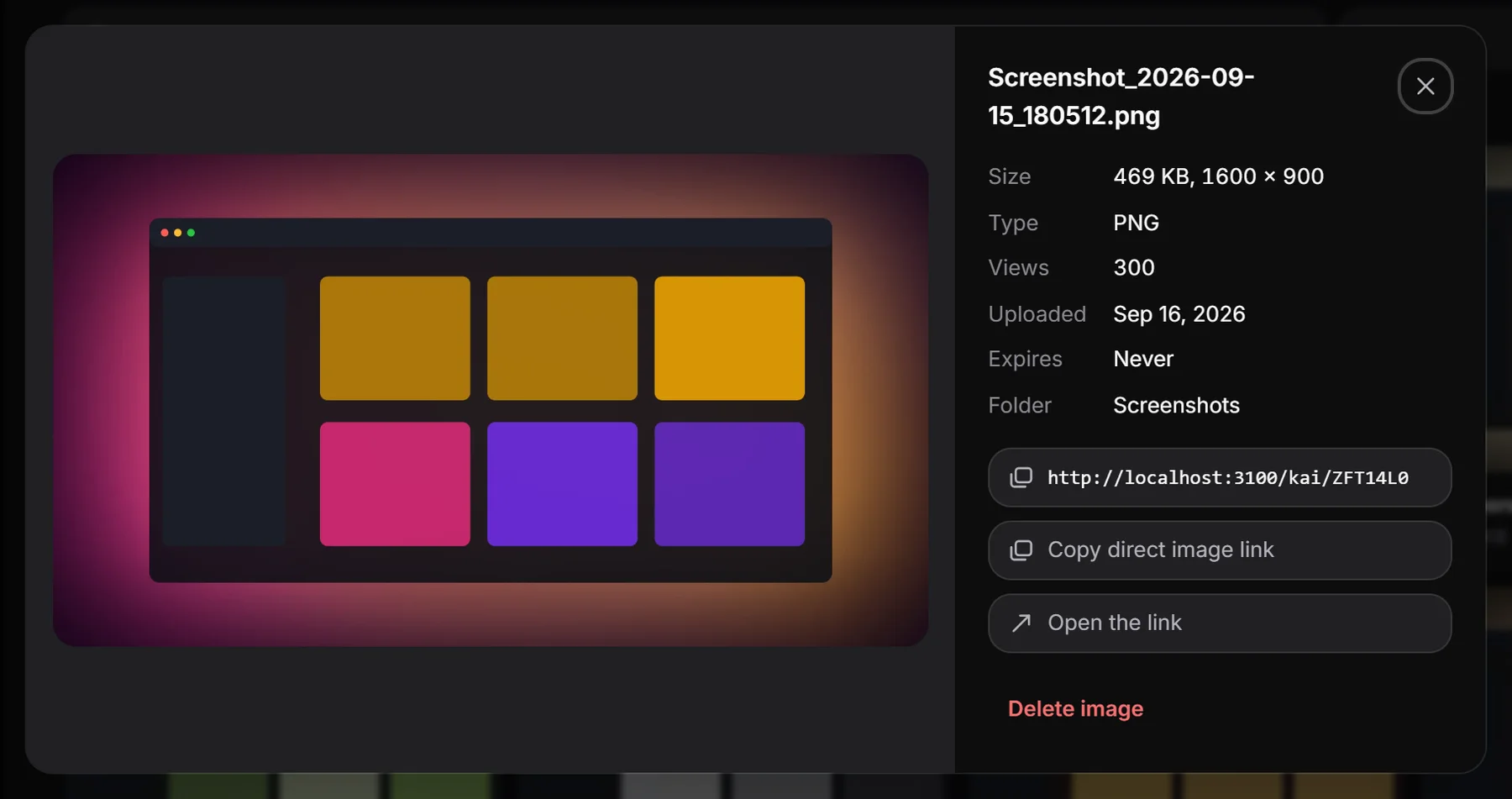
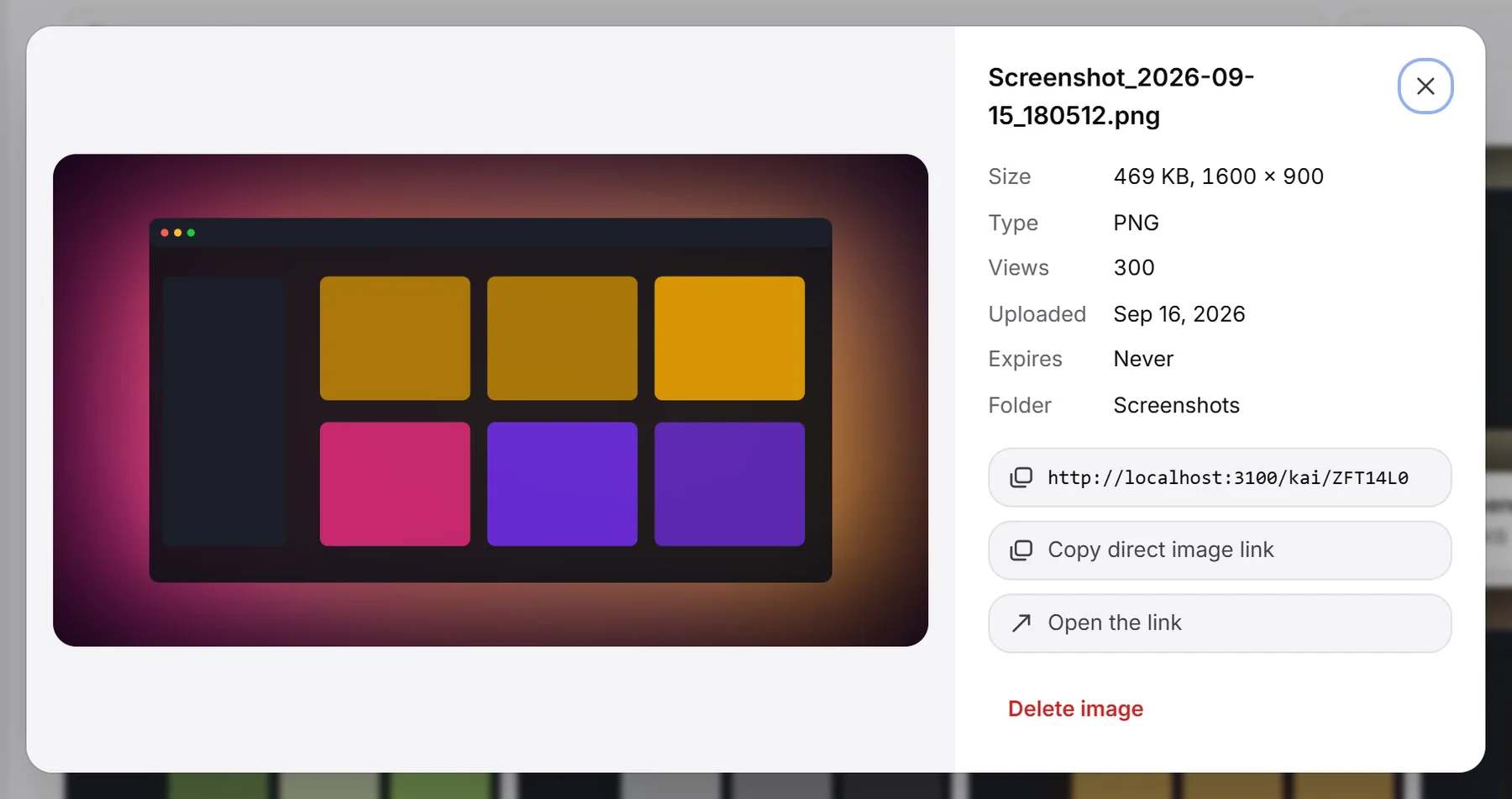
Click an image to open its details:
- Size (and pixel dimensions), Type, Views, Uploaded, Expires and Folder.
- The share link: click it to copy it.
- Copy direct image link copies the link to the image file itself, for places that need a plain image address.
- Open the link opens the share page in a new tab.
- Delete image deletes it.
Select several images#
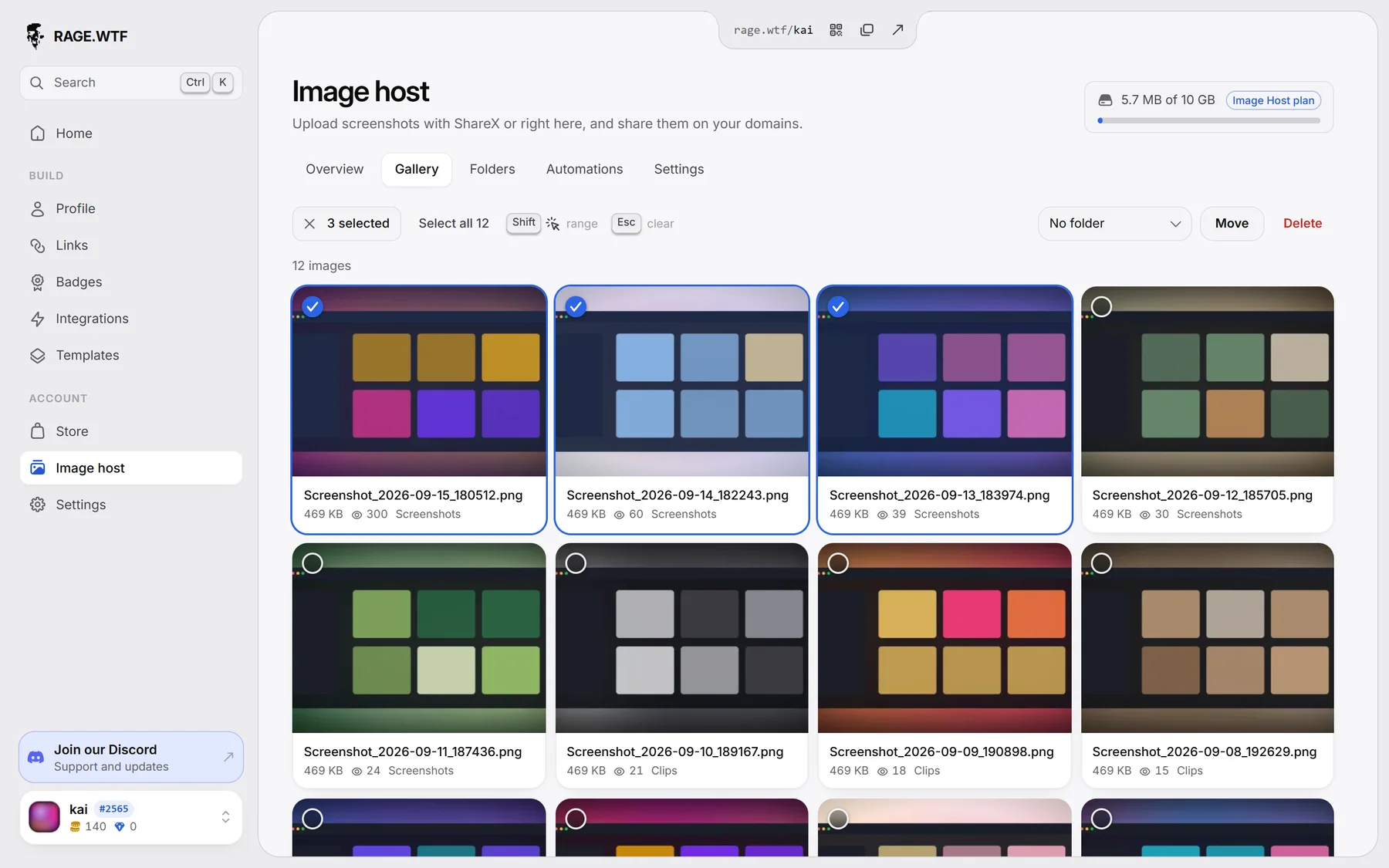
Hover an image and click the round checkbox in its corner. Once something is selected, clicking another image adds or removes it instead of opening it.
| To | Do this |
|---|---|
| Select a range | Hold Shift and click |
| Add or remove one | Hold Ctrl (or Cmd) and click |
| Select the whole page | Ctrl+A (or Cmd+A) |
| Select with the mouse | Drag a box around the images (hold Ctrl, Cmd or Shift to add to the selection) |
| Clear the selection | Esc, or the cross next to the count |
The bar at the top shows how many are selected, with Select all, Move (Image Host plan) and Delete. You can act on up to 500 images at once.
Delete images#
- Select the images, or open one image.
- Click Delete (or Delete image) and confirm.
You see how many images were deleted and how much space was freed.
Delete all your images#
- Open Image host, then Settings, and scroll to Delete everything.
- Type
delete everythingin the box. - Click Delete all images.
This removes every image you uploaded, and all their links stop working right away. You can do this up to 3 times per hour.
Folders#
Folders help you keep screenshots, memes and project files apart. Images can be in one folder or none (Unfiled).
Create a folder#
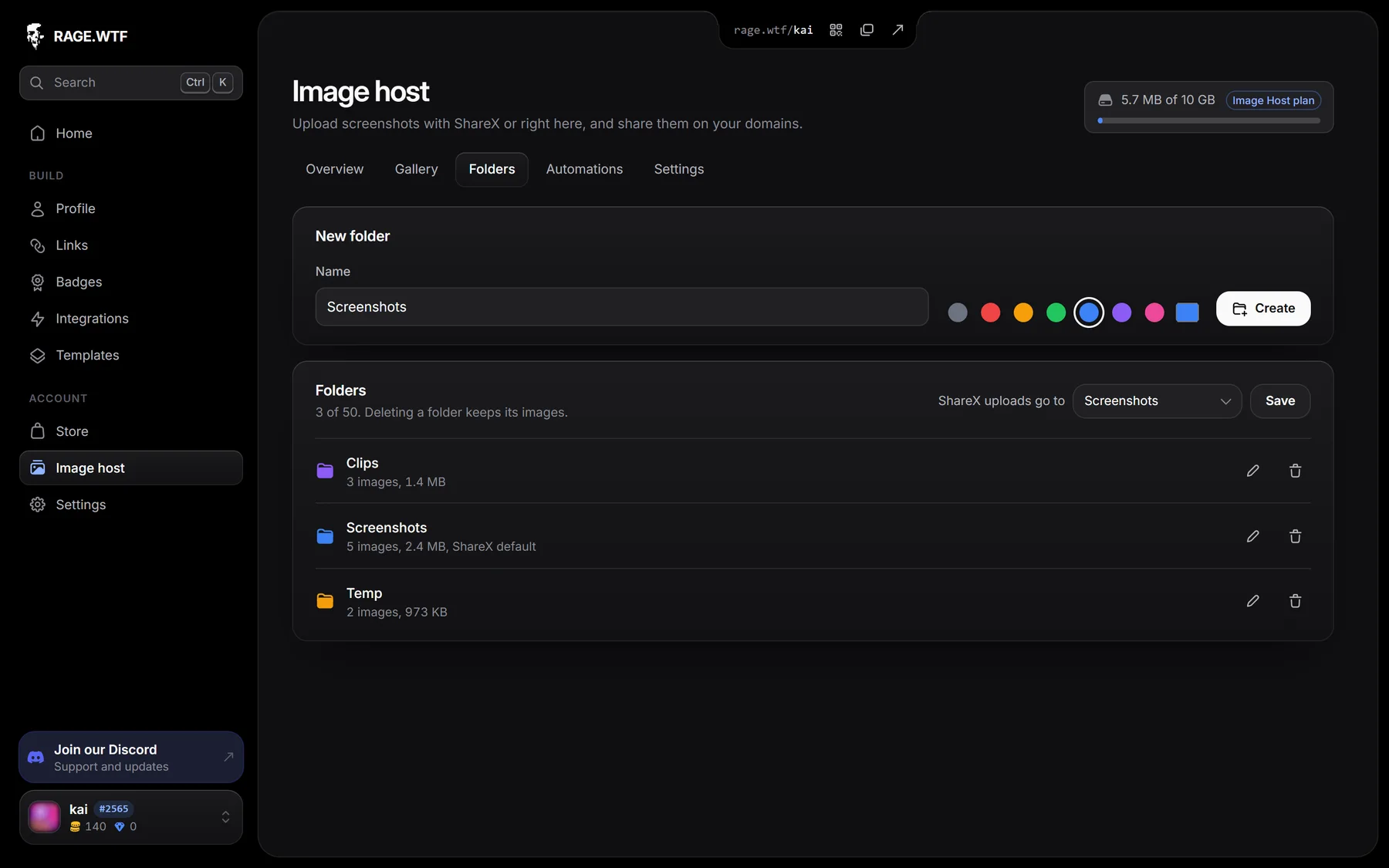
- Open Image host, then Folders.
- Under New folder, type a Name (up to 40 characters).
- Pick a colour, or click the last circle to choose any colour.
- Click Create.
You can have up to 50 folders, and each name can only be used once.
Put images in a folder#
- When uploading: pick the folder in the Into menu of the uploader.
- Later: select images in the gallery, pick a folder in Move to folder and click Move. Choose No folder to take them out of their folder.
- ShareX uploads: pick a folder under ShareX uploads go to on the Folders tab and click Save. This only affects ShareX and API uploads.
- Automatically: use an automation with Move to a folder.
If more than one of these applies, the folder you pick in the uploader wins, then an automation, then the ShareX folder.
Edit or delete a folder#
- Click the pencil next to a folder to rename it or change its colour.
- Click the bin and confirm with Delete folder. The images inside are kept and become unfiled.
- Click a folder’s name to see its images in the gallery.
If your plan ends, your folders stay and you can still delete them, but you can’t create new ones or move images.