Links, badges and integrations
Links
Add your socials, shops, wallets and websites as icons on your page, then reorder, hide or edit them.
Links show as a row of icons on your page. Visitors hover an icon to see its title and click it to open the site or copy your handle or address.
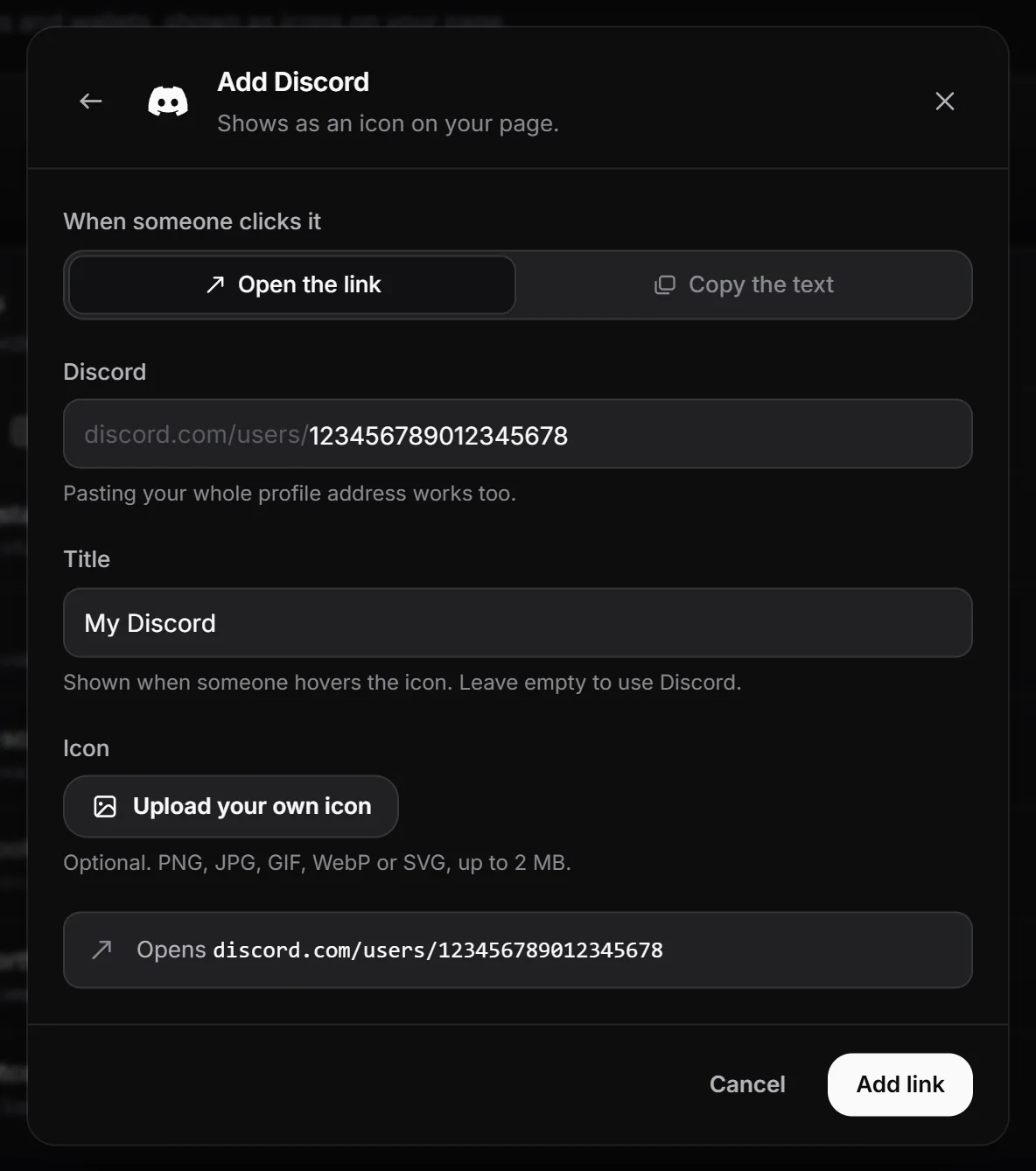
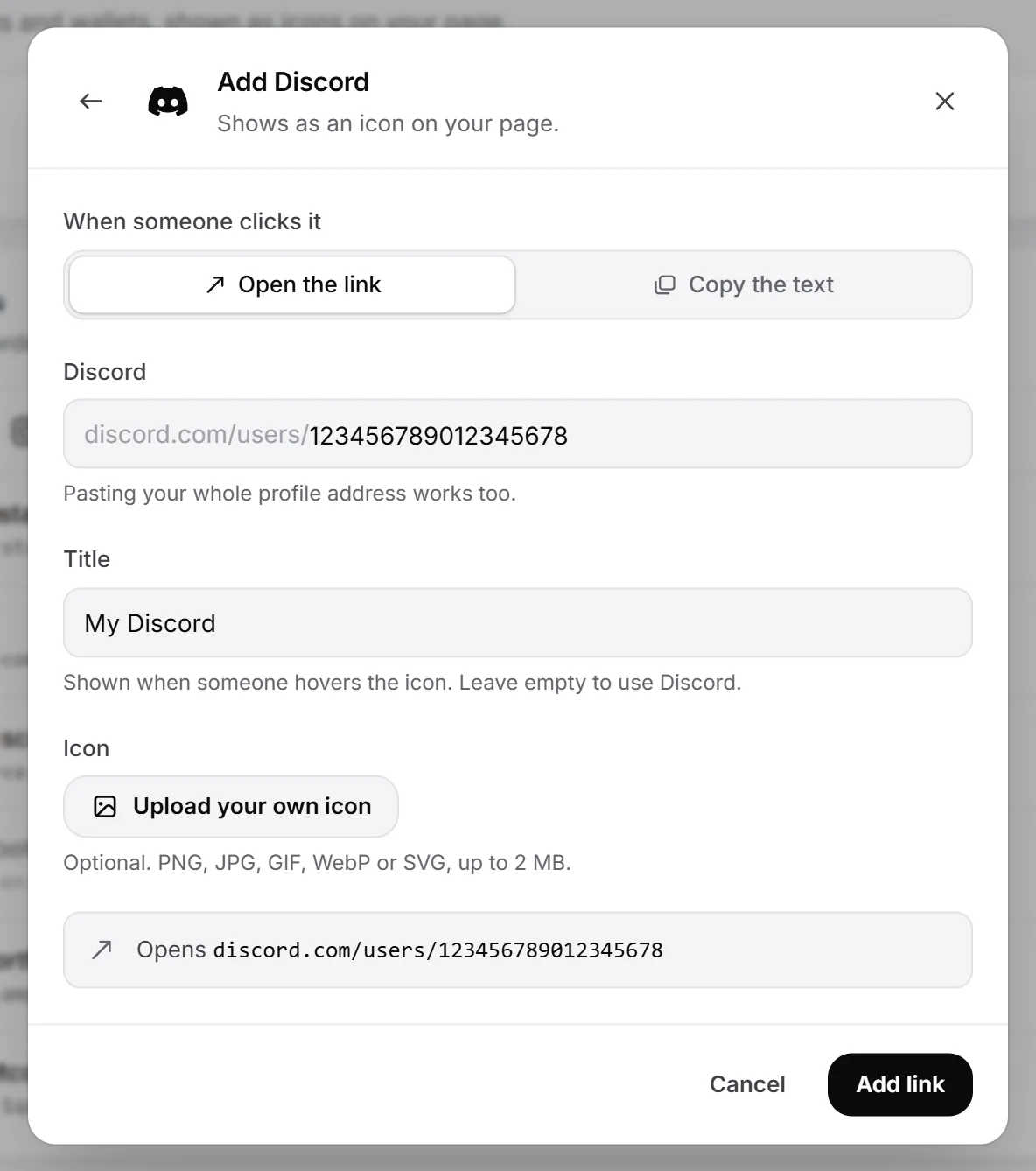
Add a link#
- In the dashboard, open Links and click Add link.
- Pick where the link goes. Search by name (for example Instagram, Spotify or Bitcoin) or scroll the groups: Social, Streaming, Music, Gaming, Art and writing, Anime, film and books, Support and shops, Crypto, Code and More. For any other site, pick Website.
- Choose what happens under When someone clicks it: Open the link or Copy the text. Wallets always copy, and Email always opens.
- Fill in the field. For most sites you only type your username. The field shows the start of the address (like
instagram.com/), and pasting your whole profile address works too: it is trimmed to just the name. - Optionally add a Title. It shows when someone hovers the icon. Leave it empty to use the site’s name.
- Optionally upload your own Icon.
- Check the line at the bottom. It shows where the link goes (“Opens instagram.com/yourname”) or what it copies.
- Click Add link.
New links go to the end of the list and show on your page straight away. See Link types for what each site asks for.
Open or copy#
- Open the link opens the site in a new tab.
- Copy the text copies exactly what you typed, and visitors see “Copied to clipboard”. Use it for handles that have no profile address, like a Discord username or a gamer tag. Some types only ever copy: wallets, and handles like a Riot ID, Xbox gamertag or Nintendo friend code.
- In your list, links that copy carry a Copies chip.
Discord starts on Copy the text. To open your Discord profile instead, you need your numeric Discord user ID.
Use your own icon#
Every link type can carry an uploaded icon instead of the built-in logo. This helps for websites whose own icon doesn’t load.
- In the link form, click Upload your own icon.
- Pick a PNG, JPG, GIF, WebP or SVG image up to 2 MB.
- Save the link.
To go back to the built-in logo, open the link and click Use the default icon, then Save changes.
Reorder your links#
Drag a link by the dotted handle on its left. The new order is saved as soon as you drop it.
With a keyboard, focus the handle and press the Up or Down arrow key.
Hide or show a link#
Click the eye button on a link’s row. A hidden link stays saved with a Hidden chip but doesn’t show on your page. Click the eye again to show it.
The On your page strip above the list shows exactly which icons visitors see, in order.
Edit or delete a link#
- Click the pen button on the link’s row.
- Change the value, the click action, the title or the icon, then click Save changes.
A link keeps its type. To switch a link to another site, delete it and add a new one.
To delete it, open the link, click Delete link, then Delete for good.
Warnings visitors see#
- OnlyFans and Fansly links ask first: “This link may contain adult content (NSFW). Do you want to open it?”
- Website and Mastodon links that lead outside rage.wtf ask first: “You will be redirected to” the site’s address, with Cancel and Open.
Clicks#
The top of the Links page shows Links, Visible and 30-day clicks. Each row shows its clicks from the last 30 days (on wider screens).
- Clicks that copy count too.
- Your own clicks on your page don’t count, and neither do bots.
Your most clicked links also show on the dashboard overview. See Views and stats.
Limits#
These limits are the same for free accounts and Premium.
| Limit | Value |
|---|---|
| Links on your page | 200 |
| Title | 48 characters |
| Username, handle or ID | 100 characters |
| Wallet address | 150 characters |
| Web address (Website and full-address types) | 300 characters |
| Icon image | 2 MB (PNG, JPG, GIF, WebP or SVG) |
If you change links very quickly (more than 10 adds, edits, deletes or reorders in a minute), you are asked to wait a moment.
To change the colour, glow, animation or size of your link icons, see Badge and link style.