Image host
ShareX and other tools
Set up ShareX to upload screenshots to RAGE.WTF automatically, or upload from any other tool with an API key.
ShareX can upload every screenshot you take to your image host and copy the link for you. It works on the free plan too. Other tools can upload the same way with an API key.
Set up ShareX#
- In the dashboard, open Settings, then API keys. Type a name like
ShareX on my PCin New key name and click Create key. - Click Copy next to the new key. It’s only shown once. See API keys.
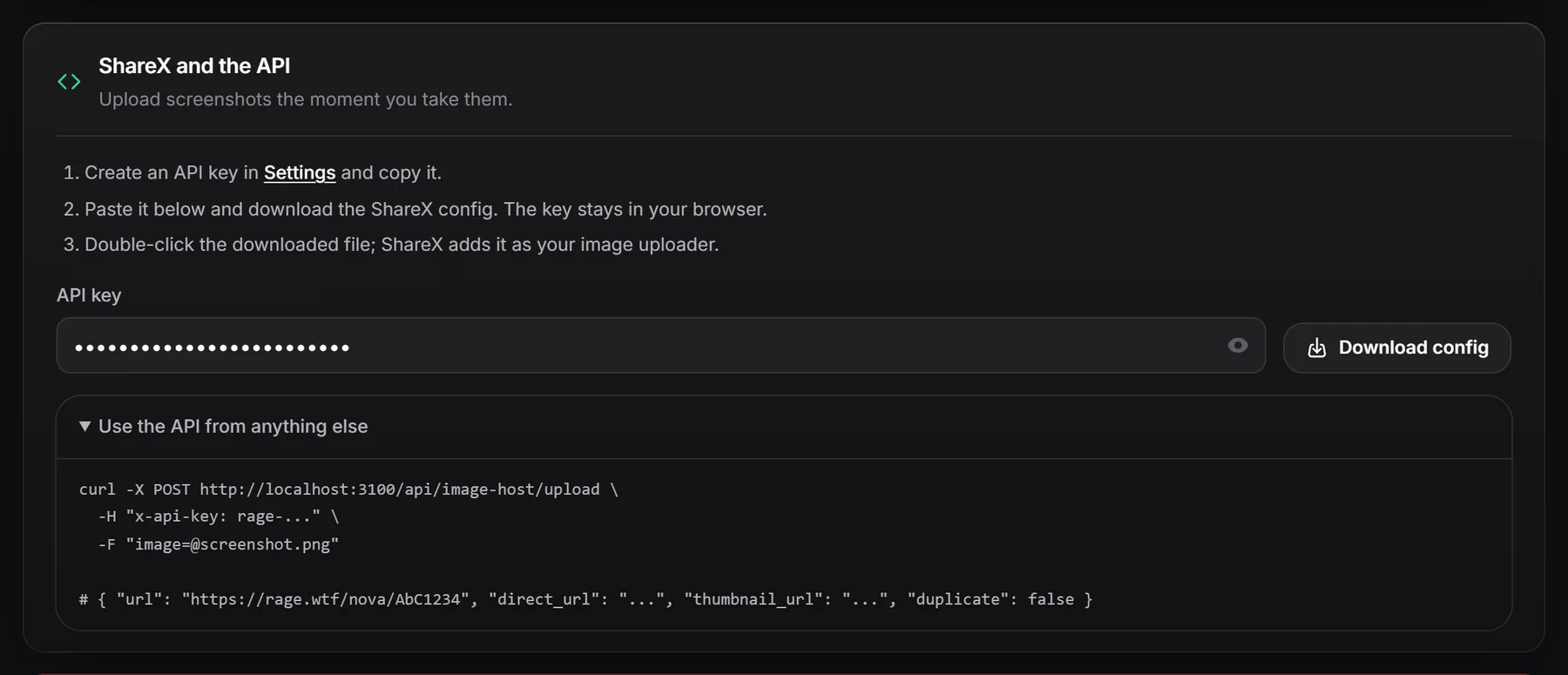
- Open Image host, then the Settings tab, and scroll to ShareX and the API.
- Paste the key into API key and click Download config. You get a file called
rage-wtf.sxcu. - Double-click the file. ShareX adds RAGE.WTF as your image uploader.
Take a screenshot to try it. ShareX uploads it and copies the share link.
What’s in the config file#
The .sxcu file is plain JSON. If you prefer to set up a custom uploader by hand, use these values:
{
  "Version": "16.0.1",
  "Name": "RAGE.WTF image host",
  "DestinationType": "ImageUploader",
  "RequestMethod": "POST",
  "RequestURL": "https://rage.wtf/api/image-host/upload",
  "Headers": { "x-api-key": "rage-your-key" },
  "Body": "MultipartFormData",
  "FileFormName": "image",
  "URL": "{json:url}",
  "ThumbnailURL": "{json:thumbnail_url}",
  "ErrorMessage": "{json:error}"
}
If ShareX shows an error after uploading, the message comes from RAGE.WTF. The upload API page lists them all.
Choose where ShareX uploads go#
On the Image Host plan, ShareX uploads can land in a folder automatically. Open Image host, then Folders, pick a folder under ShareX uploads go to and click Save. See folders.
You can also sort them with an automation, for example moving every file whose name starts with Screenshot into a folder.
Upload from other tools#
Any tool that can send a file over HTTP can upload. Open Use the API from anything else in the same settings section for this example:
curl -X POST https://rage.wtf/api/image-host/upload
  -H "x-api-key: rage-your-key"
  -F "[email protected]"
The answer is JSON with your links:
{ "url": "https://rage.wtf/yourname/AbC1234", "direct_url": "...", "thumbnail_url": "...", "id": "...", "short_id": "AbC1234", "duplicate": false }The full reference, with every field and error, is on the upload API page.
Old ShareX configs#
Configs downloaded from the old RAGE.WTF site keep working. They upload to the old address, which still answers the same way. If your old key was deleted, create a new key and download a new config.
Troubleshooting#
- Download config stays greyed out: the key must start with
rage-. Copy the whole key. - “That API key is invalid, expired or rate limited.”: the key was deleted, mistyped, or has been used more than 1000 times in the last hour. Create a new key and download a new config if it was deleted.
- “You’re doing that too often.”: you can upload up to 60 images per minute.
- Storage full or file too big: see file types and sizes.