Developers
API keys
Create, copy and delete RAGE.WTF API keys for ShareX, the image upload API and the User API, and the limits that apply to them.
An API key lets a program act for your account: ShareX and other tools use it to upload images, and your own scripts use it to call the User API.
Create a key#
- In the dashboard, open Settings, then API keys.
- Type a New key name so you recognise it later, like
ShareX on my PC(up to 48 characters). - Click Create key.
- Click Copy and save the key somewhere safe.
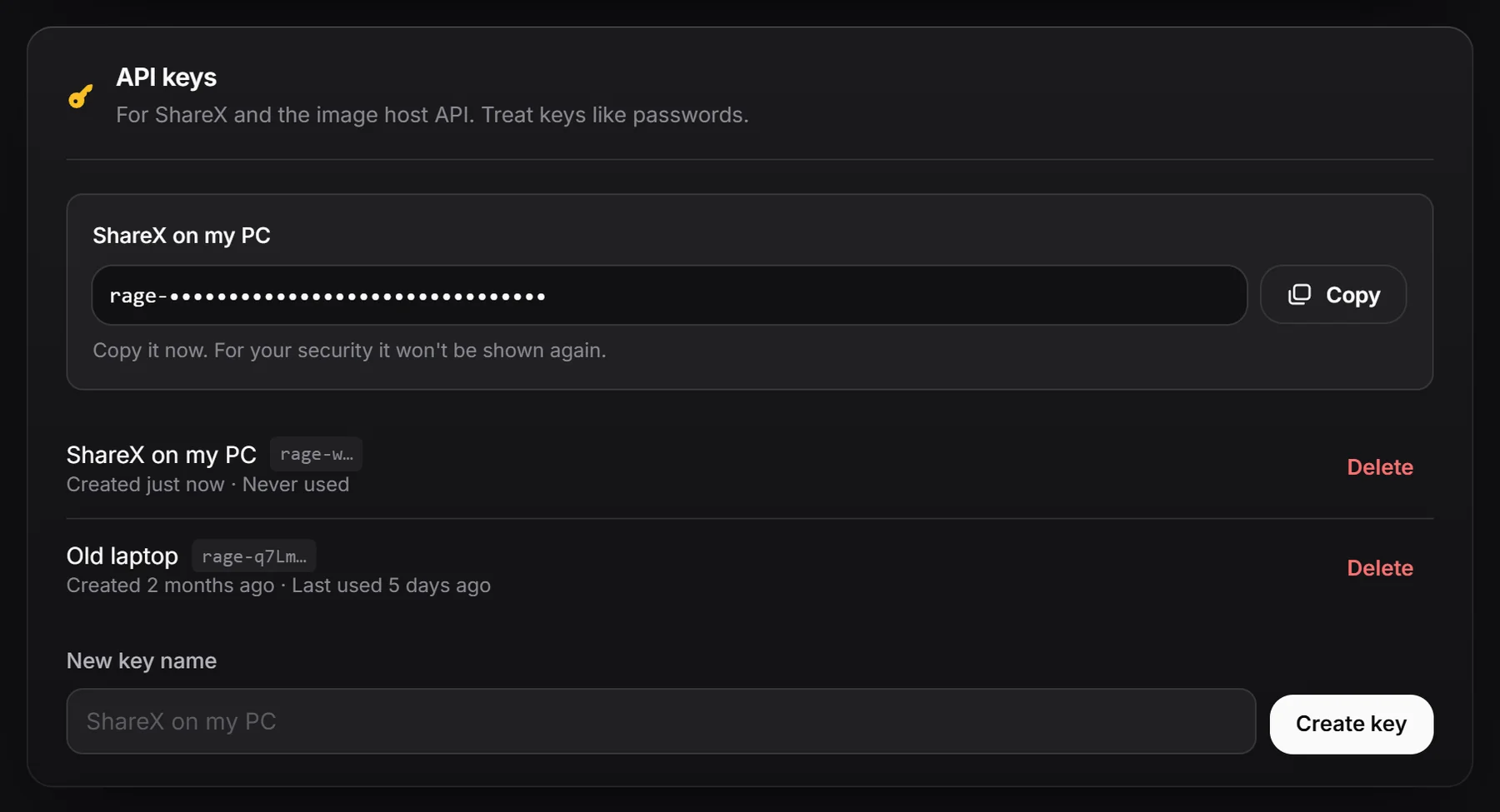
Keys start with rage-. Send them in the x-api-key header:
GET /api/public/user?name=someuser HTTP/1.1
Host: rage.wtf
x-api-key: rage-your-key
Your keys#
The list shows each key’s name, the first few characters, when it was created and when it was last used (Never used if it wasn’t).
To delete a key, click Delete and confirm with Delete key. Apps using it stop working right away. You can’t see the full key again or rename it after creating it, so to replace one, create a new key first, update your app, then delete the old key.
Keep keys safe#
- Treat a key like a password. Anyone with it can upload to your image host and use the API as you.
- Never put a key in code that runs in a visitor’s browser or in a public repository. Call the API from a server or script.
- A ShareX config file contains your key. Don’t share it.
- Use one key per app or device, so you can delete just the one you need to.
Limits#
| Limit | Value |
|---|---|
| Keys per account | 10 |
| Requests per key | 1000 per hour, across all endpoints |
| User API | 60 requests per minute per key |
| Image uploads | 60 per minute per account (browser and API together) |
| Creating or deleting keys | Counts toward the Settings limit of 10 changes per minute |
When a key goes over 1000 requests in an hour, it’s refused as invalid until the hour has passed. One key works for every endpoint; keys have no separate permissions.