Getting started
Finding your way around the dashboard
The dashboard sidebar, the phone menu, your page link at the top and what the Home page shows.
The dashboard at rage.wtf/dashboard is where you build your page and manage your account. It looks slightly different on a computer and on a phone, but everything is in the same places.
The sidebar#
On a computer, the sidebar on the left holds every page:
| Page | What you do there |
|---|---|
| Home | Stats for your page and the setup checklist. |
| Profile | Design your page in the profile editor. |
| Links | Add and order your links. |
| Badges | Claim, create and order badges. |
| Integrations | Add live cards like Discord, Spotify or games. See integrations. |
| Templates | Browse and apply templates. |
| Store | Premium, Verified, tokens and more. See the Store. |
| Image host | Upload and share images. See image host. |
| Settings | Your account settings. |
The pages are grouped under Build and Account. Small pills tell you when something is waiting:
- Badges shows a number when you have badges you can claim.
- Store shows a discount like
−20%while a sale is running.
At the top of the sidebar is Search (or press Ctrl K, ⌘ K on a Mac). See search and shortcuts. At the bottom you find Join our Discord, a Go Premium card if you don’t have Premium, and your account menu.
On a phone#
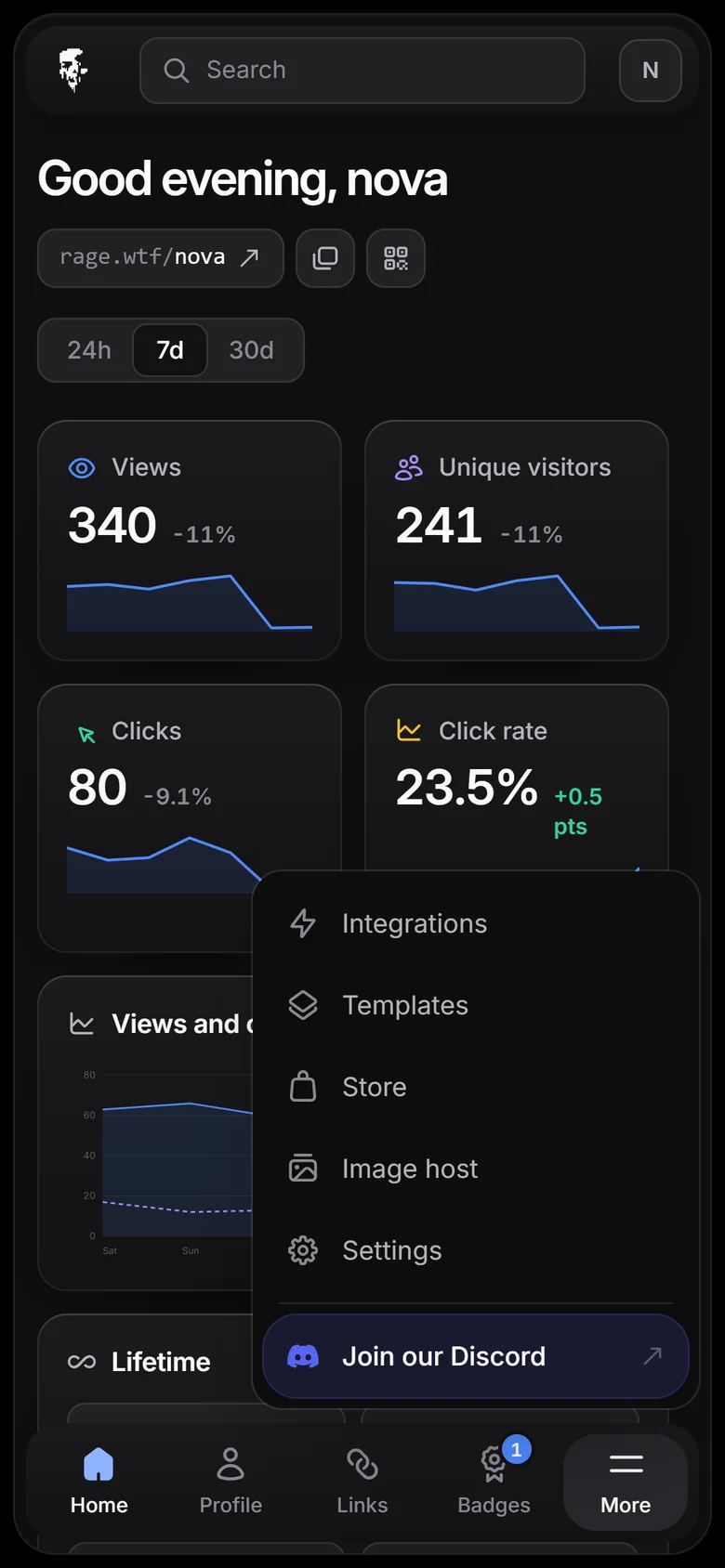
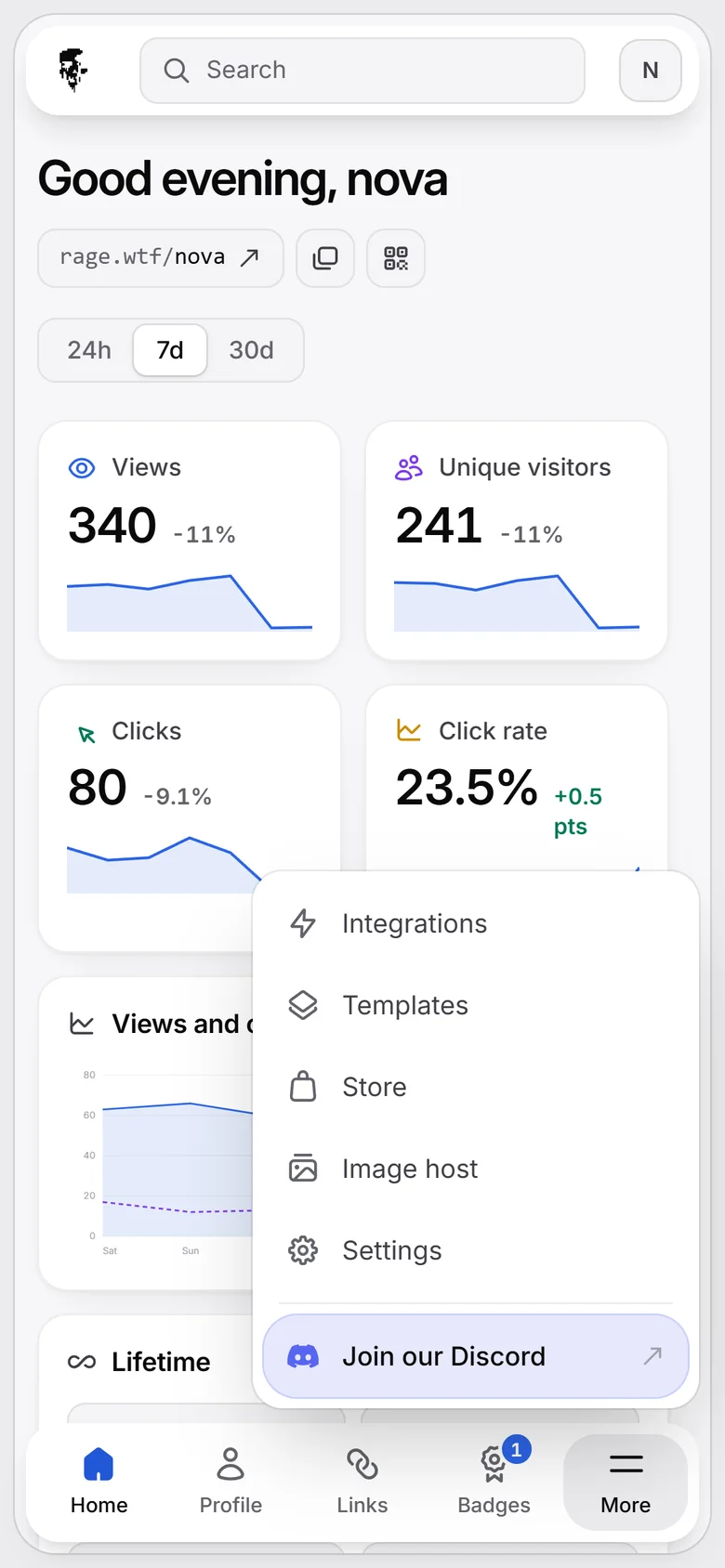
On phones and small tablets the sidebar is replaced by:
- A header at the top with the logo, a Search button and your avatar (the account menu).
- A tab bar at the bottom with Home, Profile, Links, Badges and More. More opens the rest: Integrations, Templates, Store, Image host, Settings and our Discord.
Both bars slide away while you scroll down and come back when you scroll up.
Your page link#
On a computer, a tab at the top of the dashboard shows rage.wtf/yourname with three buttons:
- Share (the QR code icon) opens the share dialog.
- Copy link copies your address.
- Open your page opens it in a new tab.
On a phone, the same link and buttons sit under the greeting on Home.
The account menu#
At the bottom of the sidebar, the account button shows your username, your user ID (like #1234) and your Rage Token and Badge Token balances. Click it (or your avatar at the top right on a phone) to open the menu. It shows your email and:
- View my page
- Settings
- Help and docs
- Switch account and Add another account (see multiple accounts)
- Theme: Dark, Light or System
- Sign out of followed by your username, and Sign out of all accounts when more than one is signed in
What Home shows#
Home greets you and shows how your page is doing. Pick a period at the top right: 24h, 7d (the default) or 30d. Percentages compare with the period just before.
- Views, Unique visitors, Clicks and Click rate (clicks divided by views).
- Views and clicks: a chart over the chosen period.
- Lifetime: all-time views, unique visitors, clicks, comments and how long you’ve been a member.
- Top sources: the address visitors used, for example
rage.wtf/yournameor an alias on another domain. - Top referrers: the sites that sent visitors, like
youtube.com. Add?utm_source=and a name to links you post (for examplerage.wtf/yourname?utm_source=tiktok) and that name shows here instead. - Top countries and Devices (desktop, mobile, tablet, other).
- Most clicked: your top links and integration cards.
- Perks and tokens: your perks (like Premium or Verified), token balances and badge count.
- Set up your page: the first-steps checklist, until it is done.
- Recent comments and Recent feedback (likes and dislikes).
Your own visits, bots and link previews are not counted. Read more in views and stats.