Image host
Automations
Create rules that sort, shrink, convert, watermark, expire or delete your uploads automatically, and send webhooks to Discord or your own server.
Automations are rules that act on your images for you. A rule can run on every new upload, or once a day on the images you already have.
Create a rule#
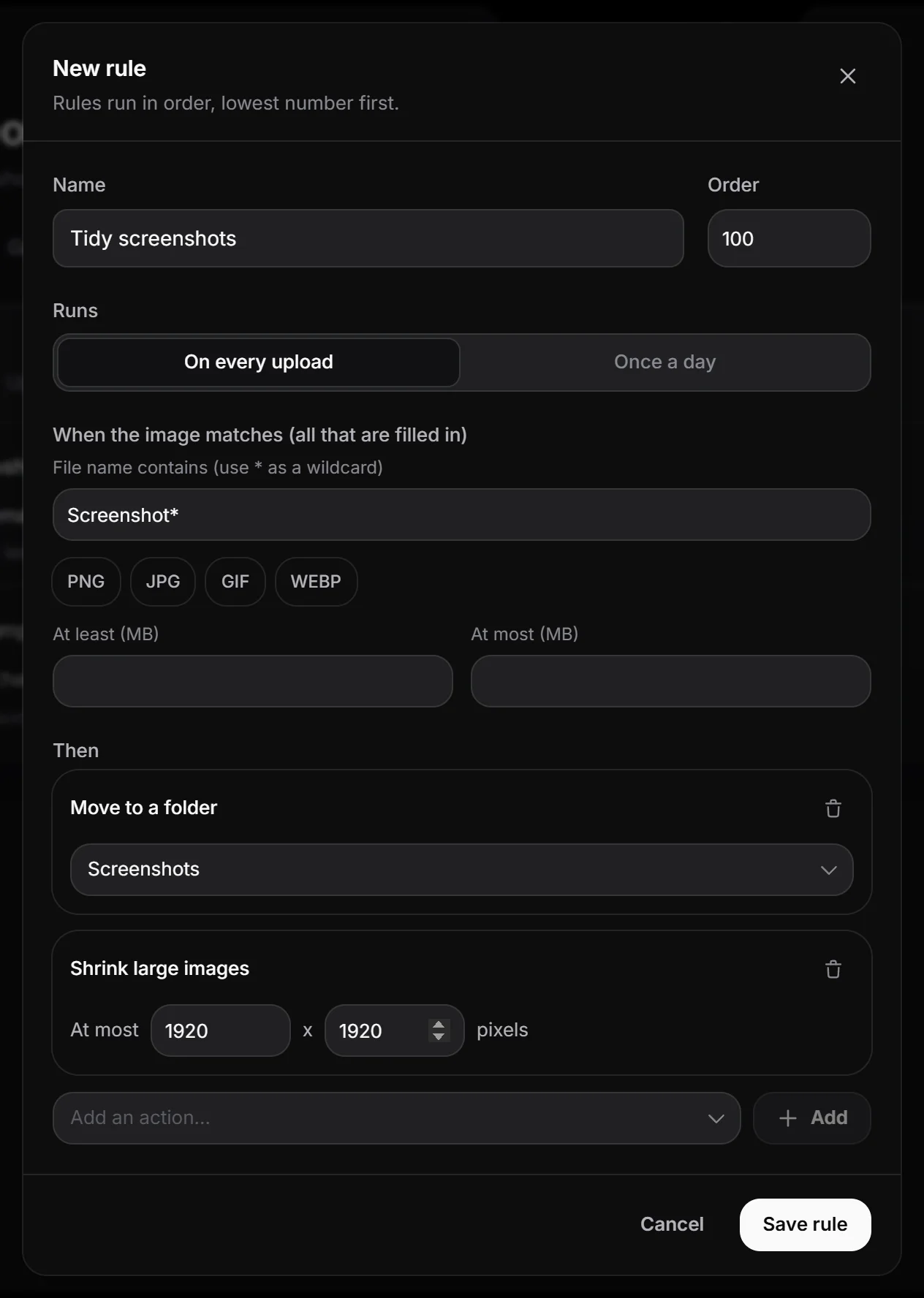
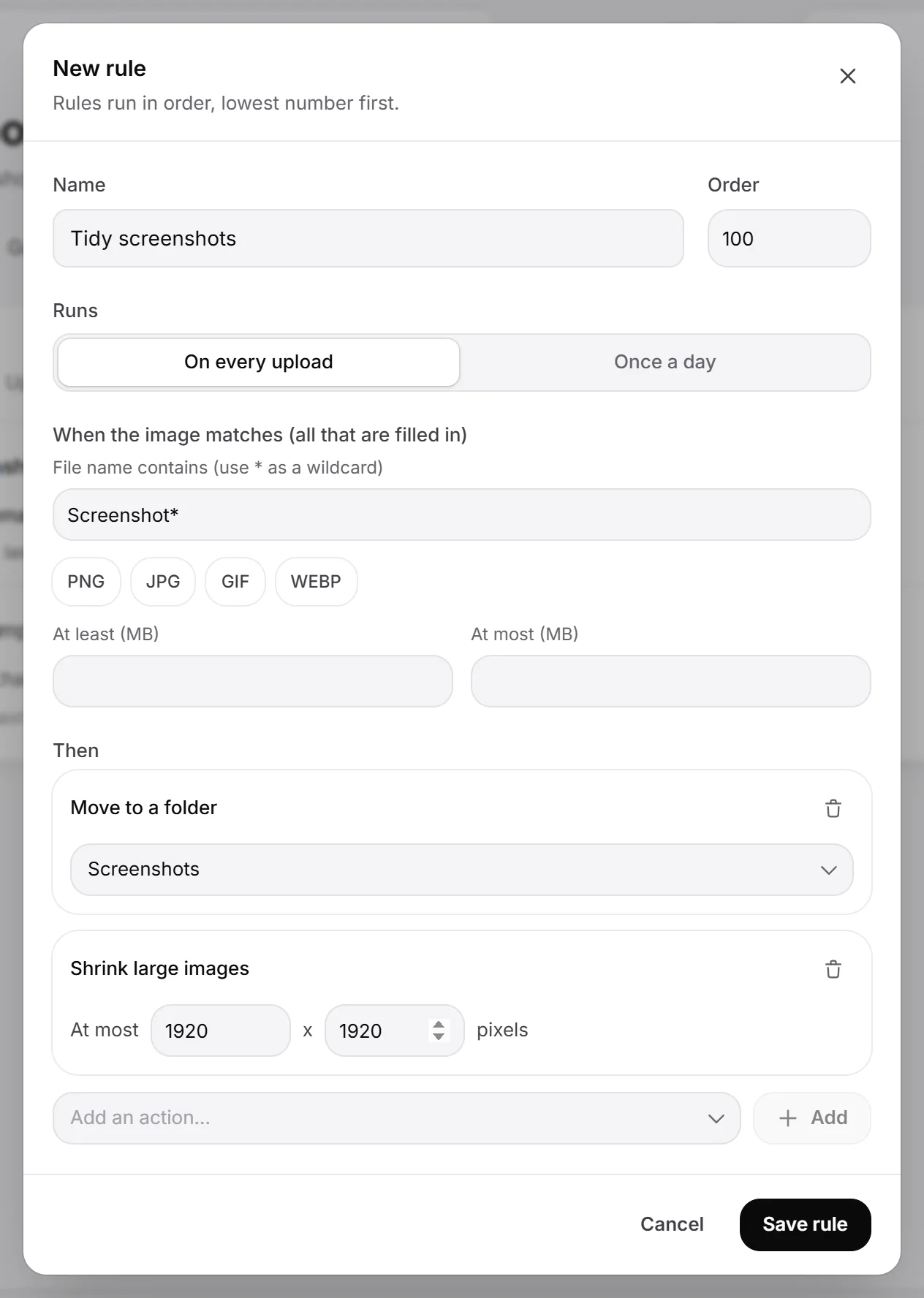
- In the dashboard, open Image host, then Automations.
- Click New rule.
- Give it a Name (up to 60 characters), for example
Tidy screenshots. - Under Runs, choose On every upload or Once a day.
- Fill in the conditions under When the image matches. Leave a condition empty to ignore it.
- Under Then, pick an action in Add an action… and click Add. Repeat for more actions.
- Click Save rule.
If something is missing or wrong, a short note under the form tells you what to fix, and Save rule stays greyed out.
Conditions#
An image must match every condition you fill in.
| Condition | Rules |
|---|---|
| File name contains | Case doesn’t matter. Use * as a wildcard: Screenshot* matches names that start with Screenshot. Without *, the text can be anywhere in the name. Up to 100 characters. |
| File type | Tick PNG, JPG, GIF and/or WEBP. |
| At least (MB) / At most (MB) | File size range. |
| Older than (days) | Daily rules only. 1 to 3650 days since upload. |
| In folder | Daily rules only. Any, Unfiled or one of your folders. |
A daily rule needs at least a name, age or folder condition, so it never touches all your images by accident. An upload rule with no conditions runs on every upload.
Actions#
| Action | On upload | Daily | Settings |
|---|---|---|---|
| Move to a folder | Yes | Yes | A folder, or No folder to take images out of folders |
| Expire | Yes | Yes | 1 to 3650 days after upload |
| Delete | No | Yes | Deletes matching images for good |
| Convert to WebP | Yes | No | Quality 30 to 100 |
| Shrink large images | Yes | No | Largest width and height, 16 to 8192 pixels. Smaller images are not enlarged. |
| Remove photo metadata | Yes | No | Removes camera, location and other hidden details |
| Add a text watermark | Yes | No | Text up to 40 characters, in a corner or the centre |
| Send a webhook | Yes | Yes | An https address |
- A rule can have up to 8 actions, and each action only once (webhooks can be added more than once).
- Picture changes (convert, shrink, metadata, watermark) only happen on upload, so images you already shared never change.
- Animated GIF and WebP images are never changed by picture actions.
- Any picture change saves the image again. The upload keeps its original file name.
Order and more than one rule#
Every rule has an Order number from 0 to 999 (100 by default). Rules run from the lowest number up.
- All matching rules run, not just the first one.
- For Move to a folder and Expire, the first rule that sets them wins.
- Picture actions are applied once each, in this order: shrink, watermark, remove metadata, convert to WebP.
- Every matching webhook is sent.
- A folder you pick in the uploader’s Into menu wins over a rule’s Move to a folder.
- An Expire action wins over your default expiring uploads setting.
When rules run#
- On upload rules run as each image arrives, from the browser or from ShareX.
- Daily rules run once a day. Each run checks your 5000 oldest images and changes up to 1000 per rule.
- A daily Expire sets the expiry to the upload date plus the number of days. If that date has already passed, the image is deleted on the next daily run. It never makes an earlier expiry later.
Manage your rules#
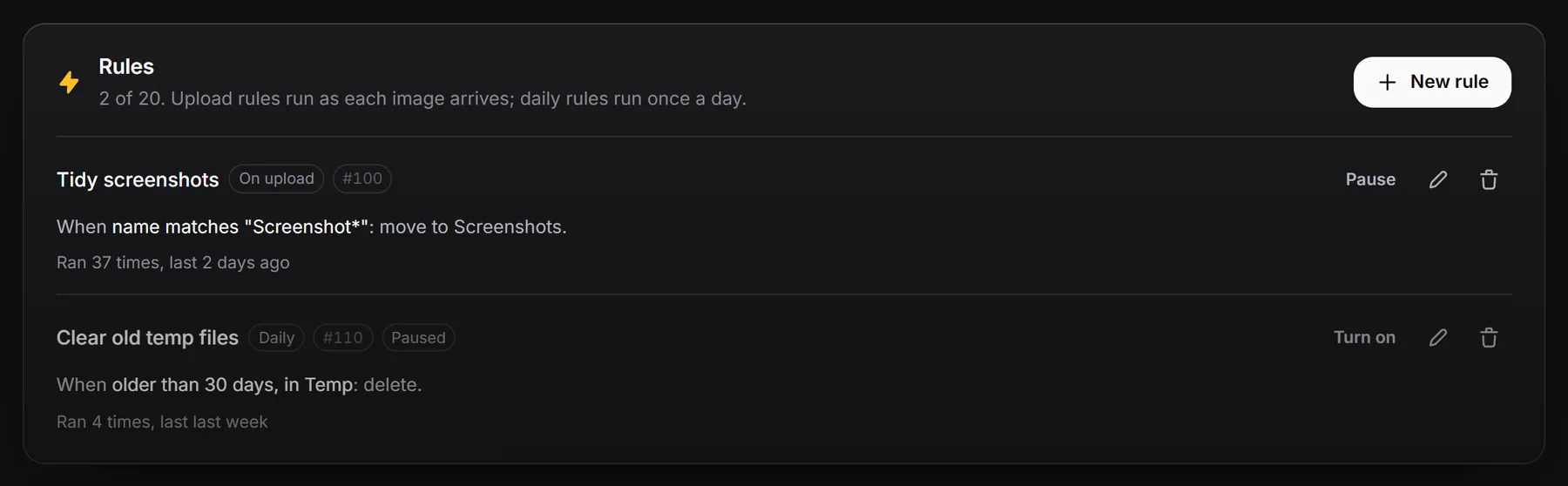
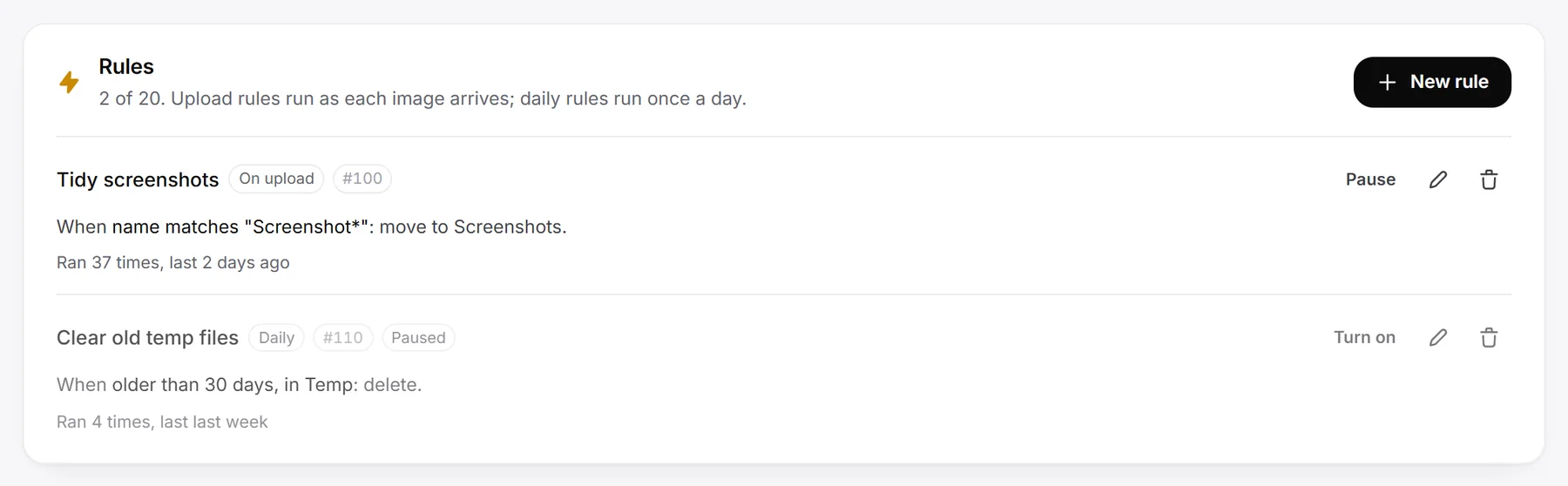
The Rules list shows how many rules you have (up to 20), and for each rule:
- On upload or Daily, its order number, and Paused if it’s off.
- A summary like “When name matches “Screenshot*”: move to Screenshots.”
- How often it ran, or Hasn’t run yet. If the last run had a problem, it shows Last run: and the error.
Use Pause or Turn on to switch a rule, the pencil to edit it, and the bin to delete it (confirm with Delete rule).
Webhooks#
A webhook sends a message to a Discord channel or your own server when a rule runs, so you can log uploads or trigger your own scripts.
- The address must start with
https://, use the normal https port and point to a public server. - The address is stored encrypted. After saving, the rule only shows the site name. To change it, click Replace address.
- Your server gets a
POSTrequest with a JSON body and the user agentRAGE.WTF image host webhook. - It must answer within 5 seconds with a 2xx status. Redirects are not followed. Any other answer shows up as the rule’s last error, like “Webhook answered 404”.
- A failing webhook never stops or slows down an upload.
Discord webhooks#
Paste a Discord webhook address (from a channel’s Integrations, Webhooks) and RAGE.WTF posts a normal Discord message instead of JSON:
- On upload: an embed with the image, its name as a link and its size in pixels.
- Daily: a list of the images the rule matched (up to 20, then “and N more”).
The JSON body#
Any other address gets these JSON bodies.
When a rule runs on upload:
{
  "event": "image.uploaded",
  "image": {
    "id": "q2V0...",
    "url": "https://rage.wtf/yourname/AbC1234",
    "direct_url": "https://...",
    "name": "Screenshot 2026-09-16.png",
    "bytes": 184233,
    "width": 1920,
    "height": 1080,
    "type": "image/png",
    "applied": ["resize", "watermark"]
  }
}
applied lists the picture actions that changed the image (resize, watermark, strip_metadata, convert_webp).
When a daily rule runs:
{
  "event": "automation.scheduled",
  "rule": "rule id",
  "images": [
    { "id": "q2V0...", "short_id": "AbC1234", "direct_url": "https://...", "name": "Screenshot 2026-09-16.png" }
  ]
}
Rule ideas#
- Sort screenshots: on upload, file name contains
Screenshot*, move to a Screenshots folder. - Save space: on upload, at least 2 MB, shrink to 1920 x 1920 and convert to WebP.
- Private photos: on upload, JPG, remove photo metadata.
- Clean up: daily, in folder Temp, older than 30 days, delete.