Links, badges and integrations
Music, video and watching integrations
Add Spotify and SoundCloud players, a YouTube video or channel, your Twitch or Kick stream, what you're listening to on Last.fm or stats.fm, or what you watch on MyAnimeList and Letterboxd.
These integrations put a player on your page, a YouTube or Kick channel card with its stats, what you’re listening to right now, or the anime and films you watch. Add them from Integrations. For limits and placing them in a Music, Streams, Anime or Movies & series scene, see Integrations.
Players on your card#
Spotify, SoundCloud, a YouTube video and Twitch show as a small row on your card: the cover or thumbnail, the title, and a line like 50 songs and who made it. Clicking the row opens the player, bigger, and it starts playing. Your page loads fast because no player loads until someone wants it.
To keep the service’s own player on your card instead, turn on Player on my card when you add or edit the integration.
Spotify#
A track, album, playlist, artist, podcast or episode, with its cover.
- In Spotify, open what you want to share, click Share and copy the link.
- On RAGE.WTF, open Integrations, click Add integration and pick Spotify.
- Paste the link into Spotify link, like
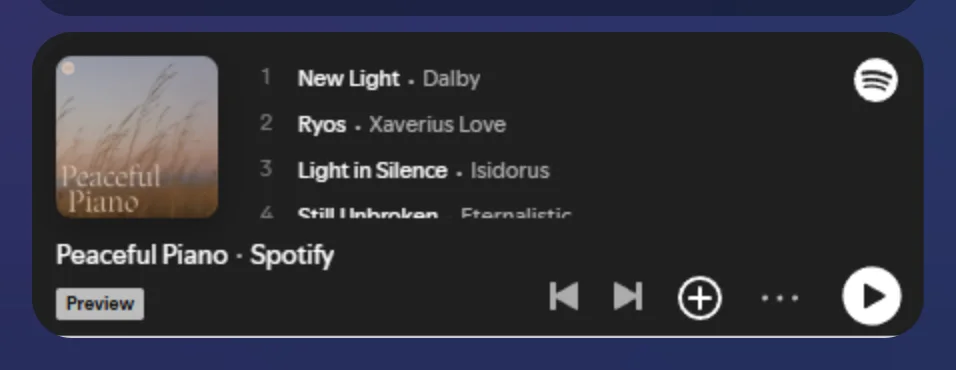
https://open.spotify.com/track/.... - Optionally turn on Player on my card, and then Big player for a taller player with the cover and track list.
- Click Add integration.
The title, cover, artist or owner and song count update about every 3 hours.
Links to a Spotify user profile can’t be used. For your profile, add a Spotify link instead.
With Player on my card on:
| Player | Height |
|---|---|
| Normal | about 152 px |
| Big player | 380 px |
SoundCloud#
A track or playlist, with its artwork.
- Copy the full address of the track or playlist, like
https://soundcloud.com/artist/track. - Add the SoundCloud integration and paste it into SoundCloud link.
- Optionally turn on Player on my card, and then Big player for a taller player with the artwork.
- Click Add integration.
Short on.soundcloud.com links don’t work. Open the short link in your browser first, then copy the full soundcloud.com address. Links to a profile (without a track or playlist) don’t work either.
With Player on my card on:
| Player | Track | Playlist |
|---|---|---|
| Normal | 166 px | 450 px |
| Big player | 300 px | 600 px |
YouTube#
A YouTube video, with its thumbnail and title, or a card for your channel with its stats.
Show a video#
- Add the YouTube integration.
- Under Show, pick A video.
- Paste the Video link or ID. Normal,
youtu.be, Shorts and live links work, or just the 11-character ID. - Optionally turn on Player on my card, and set its Player height from 200 to 600 px (315 px by default).
- Click Add integration.
Clicking the row plays the video in YouTube’s privacy-enhanced player, which stores nothing until it plays.
Show your channel#
- Add the YouTube integration.
- Under Show, pick My channel.
- Paste your Channel link or handle, like
https://youtube.com/@yournameor@yourname. - Click Add integration.
What the channel card shows: your channel picture and name, subscribers and views. Clicking it opens your channel. It updates about every 3 hours.
Playlists can’t be added.
Twitch#
Your live Twitch channel or a Twitch video.
- Add the Twitch integration.
- Under Show, pick My live channel or A video.
- For a channel, enter your Channel name or link (4 to 25 letters, numbers or
_), liketwitch.tv/ninja. For a video, paste the Video link or ID, liketwitch.tv/videos/123456789. - Optionally turn on Player on my card, and set its Player height from 200 to 600 px (300 px by default).
- Click Add integration.
On your card it’s a row with your channel picture and name. While you stream it shows LIVE, how many are watching and the game, like Kick; otherwise your followers. It updates every few minutes. Clicking it opens the stream or video. A player kept on your card doesn’t start by itself: visitors press play. To have your stream play on its own (muted) while you’re live, put the channel in a Streams scene.
Kick#
Your Kick channel, with a LIVE tag and viewers while you stream.
- Add the Kick integration.
- Enter your Kick channel name or link, like
kick.com/yourname. - Click Add integration.
What the card shows: your channel picture and name with its verified mark. While you’re live it shows LIVE, how many are watching and your category or stream title; otherwise your followers. Clicking it opens your channel. It updates about every 3 minutes.
Last.fm#
What you’re listening to right now, from your Last.fm scrobbles.
- In your Last.fm privacy settings, keep Hide recent listening information off, or the card can’t see what you play.
- Add the Last.fm integration.
- Enter your Last.fm username or profile link, like
last.fm/user/yourname. - Click Add integration.
What the card shows: your picture and name. While you play something, the second line shows the track and artist with its cover and a playing animation. Otherwise it shows your scrobbles and artists. Clicking it opens your Last.fm profile. It updates about every 3 minutes.
stats.fm#
What you’re playing now, and your all-time streams from stats.fm.
- Add the stats.fm integration.
- Enter your stats.fm username or profile link, like
stats.fm/yourname. - Click Add integration.
What the card shows: your picture and display name. While you play something, the track and artist with its cover. Otherwise your all-time streams, hours listened and artists, or the last track you played. Clicking it opens your stats.fm profile.
What you’re playing updates about every 3 minutes, your totals about every 30 minutes.
MyAnimeList#
Your anime stats from MyAnimeList.
- Make sure your anime list on MyAnimeList is public.
- Add the MyAnimeList integration.
- Enter your MyAnimeList username or profile link, like
myanimelist.net/profile/yourname. - Click Add integration.
What the card shows: your picture and name, how many anime you completed, days watched and your mean score. It updates about every 3 hours.
Put it in an Anime scene to also show your favourite anime and what you’re watching.
AniList#
Your anime from AniList: what you’re watching now, or your stats.
- Make sure your AniList profile is public.
- Add the AniList integration.
- Enter your AniList username or profile link, like
anilist.co/user/yourname. - Click Add integration.
What the card shows: your picture and name, and the anime you updated most recently with your episode count. With nothing on your Watching list, it shows how many anime you completed, days watched and your mean score out of 10. It updates about every 3 hours.
Put it in an Anime scene to also show your favourite anime and everything you’re watching. A private Watching list leaves that part out; the rest still shows.
Letterboxd#
The last film you logged on Letterboxd.
- Add the Letterboxd integration.
- Enter your Letterboxd username or profile link, like
letterboxd.com/yourname. - Click Add integration.
What the card shows: the last film you logged, with your rating. It updates about every 3 hours.
Put it in a Movies & series scene to show the films you watched recently, with your star ratings and likes.